Working with Presets
A preset is a saved camera position. It can record all controllable axes and some settings, including pan, tilt, focus, zoom, iris, white balance, etc.
This section describes how to work with presets, including creating, editing, and recalling them. It includes the following major topics:
- “About Preset Modes”
- “Working with Presets in Panel Mode”
- “Working with Presets in Shotbox Mode”
- “About Preset Options and Recall Options”
About Preset Modes
The PTZ Camera Control interface has two operation modes, also known as Preset Modes , which define the behavior of the Presets page:
- Panel mode — In this mode, you tap a preset to select it, and then tap an action button (Recall , Store , Edit Preset Options , or Delete ) at the bottom of the Presets page. When you select a preset, the border of the preset button turns purple.
- Shotbox mode — In this mode, you tap an action button at the bottom of the Presets page to enter an action mode (Recall , Store , Edit Preset Options , or Delete ), and then tap the preset to which you want to apply the action.
If one of the action buttons is colored (purple, yellow, green, or red), the interface is in Shotbox mode.
For information about switching between operation modes, see “Preset Mode”.
Working with Presets in Panel Mode
This section describes how to work with presets in Panel mode. Information presented here applies only when the PTZ Camera Control interface is in Panel mode (as opposed to Shotbox mode). For information about using the Presets page in Shotbox mode, refer to “Working with Presets in Shotbox Mode”.
Unless stated otherwise, tasks described in this section are performed from the Presets page.
To access the Presets page, tap the Presets button.
Before you attempt these procedures, we suggest you review the various controls available on the Presets page. For a description of these controls, see “Presets Page (in Panel Mode)”.
This section includes information about performing the following tasks in panel mode:
- “Switch Between Banks of Presets”
- “Store a Preset”
- “Recall a Preset from Camera”
- “Edit a Preset to Change Camera Position”
- “Edit Preset Options”
- “Delete a Preset”
- “Edit Default Preset Options”
- “Manage Deleted Presets (Restore or Discard)”
Switch Between Banks of Presets
The PTZ Camera Control plugin can store multiple banks of preset buttons.
Banks are represented by bank tabs above the preset buttons. The current bank tab is always purple.
To switch to a different bank:
-
Tap the bank tab representing the desired bank.
The bank tab turns purple, and the presets in that bank are accessible.
Store a Preset
A preset is a record of all controllable axis positions and selected settings for a camera, including pan, tilt, focus, zoom, iris, exposure, white balance, etc.
When a preset is stored, it includes a set of Preset Options . In addition to the name of the preset, these options define whether the Focus , Exposure , and White Balance settings that are saved with the preset can be applied when the preset is later recalled. The final decision to Allow or Ignore these defaults is made when the preset is recalled. For more information about Preset Options , see “About Preset Options and Recall Options”.
Depending on the current Store Mode , you may be required to review the Preset Options . For more information, see “Store Mode”.
Important : Recall options are only applicable when recalling a preset from local storage. For Canon PTZ cameras, which do not support local storage, these options are not relevant.
For all supported VISCA cameras (PTZ-12G+, PTZ-12G, and PTZ-NDI, PIVOTCam-SE, Sony BRC, and Lumens PTZ cameras), a preset does not store the on/off status of automatic camera modes, such as Auto Focus , Exposure (Full Auto ), and White Balance . It stores the actual values for these settings, but not the fact that the camera is in an automatic mode only when recalling from local . For example, if you save a preset while Auto Focus is ON , the focus value is stored but the fact that Auto Focus was ON is not stored. When the preset is recalled, the focus value is applied, unless the camera is in Auto Focus mode. Recalling a preset does not override automatic mode settings. For Panasonic cameras, Auto Focus mode is not stored, but exposure and white balance modes are stored and recalled with presets.
With the Sony ILME-FR7 camera, a preset does not store any information about Exposure or White Balance settings. Only Pan , Tilt , Zoom , and Focus are stored.
Before you store presets, specify where they are stored and from where they are recalled. For more information, see “Specify Where Presets are Stored, and from Where they are Recalled”.
To store a preset:
-
Adjust the camera position and settings to prepare the shot.
-
Tap the preset button that you want to use to store the shot.
-
Tap the Store button.
noteIn some modes, this may show Store on Camera to indicate that storing will store both locally and in mapped slot in camera storage.
-
If the Store Preset dialog box appears, review and/or modify the Preset Options as follows:
-
In the Preset Name box, type a name for the preset. The name appears on the preset button.
-
Specify whether the Focus , Exposure , and White Balance values stored with the preset can be applied when the preset is recalled.
noteThe final decision to Allow or Ignore these defaults is made when the preset is recalled.
-
Tap Store .
-
Recall a Preset from Camera
When you recall a preset, its stored pan, tilt, and zoom settings are applied to the camera. Other stored settings may also be applied.
Important : Recall options are only applicable when recalling a preset from local storage. For Canon PTZ cameras, which do not support local storage, these options are not relevant.
To recall a preset:
-
Tap the preset button that represents the preset you want to recall.
Tip or separate section about recalling a preset from an empty slot
-
In the Recall Options area, specify whether to Allow or Ignore the Preset Options for Focus , Exposure , and White Balance .
tipIf Allow and Ignore buttons are not available for an option, it is because the mode/setting listed directly below it overrides that option. Recalling a preset does not always override automatic mode settings.
For more information about Recall Options , see “About Preset Options and Recall Options”.
-
Tap the Recall button.
noteIn Panel mode, this displays Recall From Camera when a recall is from camera storage.
Edit a Preset to Change Camera Position
To change the camera position or other settings that are recorded as part of the preset, recall the original preset, change the camera position and/or settings as required, and then Store on the same preset button.
For information about recalling a preset, see “Recall a Preset from Camera”.
For information about storing a preset, see “Store a Preset”.
Edit Preset Options
When a preset is stored, it includes a set of Preset Options . In addition to the name of the preset, these options define whether the Focus , Exposure , and White Balance settings that are saved with the preset can be applied when it is later recalled. The final decision to Allow or Ignore these recall defaults is made when the preset is recalled. For more information about how Preset Options are applied, see “About Preset Options and Recall Options”.
Important : These options are only applicable when recalling a preset from local storage. For Canon PTZ cameras, which do not support local storage, these options are not relevant.
You can edit preset options for any preset button, even if the preset on that button has been deleted, or is empty. If you edit Preset Options for a deleted or empty preset button (a gray button), those options are presented as defaults when you later store a preset on that button.
To edit the Preset Options for a preset:
-
Tap the preset button for which you want to edit Preset Options .
-
Tap the Edit Preset Options button.
The Edit Options dialog box appears.
-
In the Edit Options dialog box, review and/or modify the Preset Options as follows:
-
In the Preset Name box, type a name for the preset. The name appears on the preset button.
-
Specify whether the Focus , Exposure , and White Balance values stored with the preset can be applied when the preset is recalled.
noteThe final decision to Allow or Ignore these defaults is made when the preset is recalled.
-
Tap Update .
-
Delete a Preset
When you delete a preset, it can no longer be recalled.
Data about the preset is stored until the preset is restored or discarded. For more information, see “Manage Deleted Presets (Restore or Discard)”.
To delete a preset:
-
Tap the preset button that represents the preset you want to delete.
-
Tap the Delete button.
The preset is deleted. The preset button turns gray.
Edit Default Preset Options
When you store a preset, Preset Options are also stored. Depending on the Store Mode , you may or may not have an opportunity to review and edit the Preset Options before they are stored with the preset. For more information about Store Modes, see “Operation Settings Page”.
You can edit the default values for the Preset Options , which are the values presented for review or automatically applied each time you store a preset.
To define the default Preset Options:
-
In the Store Options area, tap the Edit Defaults button.
The Edit Default Preset Options dialog box appears (Figure ??).
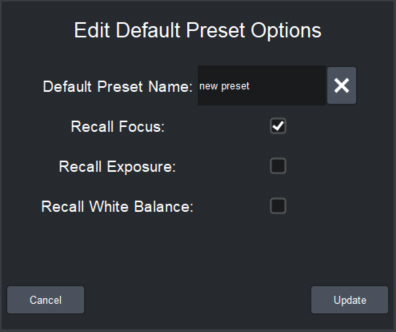
Figure 1 - E dit Default Preset Options dialog box
-
Note : Preset options, except for Default Preset Name , are not shown for the Canon PTZ cameras as recall options do not apply when presets are recalled from camera storage.
-
Review and/or modify the default Preset Options as follows:
-
In the Default Preset Name box, type a default name for presets.
-
Specify whether, by default, the Focus , Exposure , and White Balance values stored with the preset can be applied when the preset is recalled.
noteThe final decision to Allow or Ignore these defaults is made when the preset is recalled.
-
Tap Update .
-
Manage Deleted Presets (Restore or Discard)
When you delete a preset, it can no longer be recalled. Data about the preset is stored until the preset is restored or discarded.
To Manage Deleted Presets (Restore or Discard):
-
In the Delete Options area, tap the Manage Deleted Presets button.
The Manage Deleted presets page appears (Figure ??) and displays a button for each of the deleted presets on the current bank.
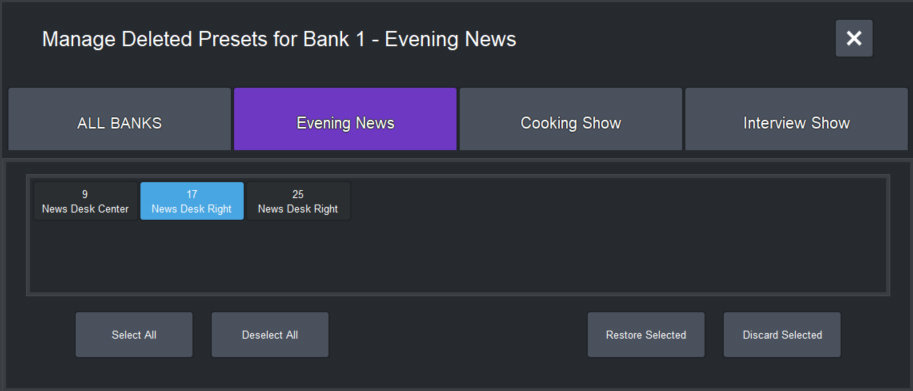
Figure 2 - Th e Manage Deleted Presets page
-
Select the deleted preset(s) you want to manage.
tipIf you want to select deleted presets from a different bank, tap that bank button to switch banks.
tipIf you want to select deleted presets from multiple banks, tap the ALL BANKS button. The Manage Deleted Presets page displays all deleted presets from all banks.
-
If you want to restore the selected presets, tap Restore Selected .
-
If you want to permanently discard the selected presets, tap Discard Selected .
-
When you are finished managing deleted presets, tap the X button to close the Manage Deleted Presets page.

Working with Presets in Shotbox Mode
This section describes how to work with presets in Shotbox mode. Information presented here applies only when the PTZ Camera Control interface is in Shotbox mode (as opposed to Panel mode). For information about using the Presets page in Panel mode, refer to “Working with Presets in Panel Mode”.
Unless stated otherwise, tasks described in this section are performed from the Presets page.
To access the Presets page, tap the Presets button.
Before you attempt these procedures, we suggest you review the various controls available on the Presets page. For a description of these controls, see “Presets Page (in Shotbox Mode)”.
This section includes information about performing the following tasks in Shotbox mode:
- “Switch Between Banks of Presets”
- “Store a Preset”
- “Recall a Preset”
- “Edit a Preset to Change Camera Position or Settings”
- “Edit Preset Options”
- “Delete a Preset”
- “Edit Default Preset Options”
- “Manage Deleted Presets (Restore or Discard)”
Switch Between Banks of Presets
The PTZ Camera Control plugin can store multiple banks of preset buttons.
Banks are represented by bank tabs above the preset buttons. The current bank tab is always purple.
To switch to a different bank:
-
Tap the bank tab representing the desired bank.
The bank tab turns purple, and the presets in that bank are accessible.
Store a Preset
A preset is a record of all controllable axis positions and selected settings for a camera, including pan, tilt, focus, zoom, iris, exposure, white balance, etc.
When a preset is stored, it includes a set of Preset Options . In addition to the name of the preset, these options define whether the Focus , Exposure , and White Balance settings that are saved with the preset can be applied when the preset is later recalled. The final decision to Allow or Ignore these defaults is made when the preset is recalled. For more information about Preset Options , see “About Preset Options and Recall Options”.
Depending on the current Store Mode , you may be required to review the Preset Options . For more information, see “Store Mode”.
For PTZ-12G+, PTZ-12G, and PTZ-NDI cameras , PIVOTCam-SE cameras, Sony BRC cameras, and Lumens PTZ cameras, a preset does not store the on/off status of automatic camera modes, such as Auto Focus , Exposure (Full Auto ), and White Balance . It stores the actual values for these settings, but not the fact that the camera is in an automatic mode. For example, if you save a preset while Auto Focus is ON , the focus value is stored but the fact that Auto Focus was ON is not stored. When the preset is recalled, the focus value is applied, unless the camera is in Auto Focus mode. Recalling a preset does not override automatic mode settings. For Panasonic cameras, Auto Focus mode is not stored, but exposure and white balance modes are stored and recalled with presets.
With the Sony ILME-FR7 camera, a preset does not store any information about Exposure or White Balance settings. Only Pan , Tilt , Zoom , and Focus are stored.
Before you store presets, specify where they are stored and from where they are recalled. For more information, see “Specify Where Presets are Stored, and from Where they are Recalled”.
To store a preset:
-
Adjust the camera position and settings to prepare the shot.
-
Tap the Store button to place the interface into Store mode.
The Store button turns yellow.
-
Tap the preset button that you want to use to store the shot.
-
If the Store Preset dialog box appears, review and/or modify the Preset Options as follows:
-
In the Preset Name box, type a name for the preset. The name appears on the preset button.
-
Specify whether the Focus , Exposure , and White Balance values stored with the preset can be applied when the preset is recalled.
noteThe final decision to Allow or Ignore these defaults is made when the preset is recalled.
-
Tap Store .
-
Recall a Preset
When you recall a preset, its stored pan, tilt, and zoom settings are applied to the camera. Other stored settings may also be applied.
To recall a preset:
-
Tap the Recall button to place the interface into Recall mode.
The Recall button turns purple.
-
In the Recall Options area, specify whether to Allow or Ignore the Preset Options for Focus , Exposure , and White Balance .
tipIf Allow and Ignore buttons are not available for an option, it is because the mode/setting listed directly below it overrides that option. Recalling a preset does not always override automatic mode settings.
For more information about Recall Options , see “About Preset Options and Recall Options”.
importantImportant : Recall options are only applicable when recalling a preset from local storage. For Canon PTZ cameras, which do not support local storage, these options are not relevant.
-
Tap the preset button that represents the preset you want to recall.
Edit a Preset to Change Camera Position or Settings
To change the camera position or other settings that are recorded as part of the preset, recall the original preset, change the camera position and/or settings as required, and then Store on the same preset button.
For information about recalling presets, see “Recall a Preset”.
For information about storing presets, see “Store a Preset”.
Edit Preset Options
When a preset is stored, it includes a set of Preset Options . In addition to the name of the preset, these options define whether the Focus , Exposure , and White Balance settings that are saved with the preset can be applied when it is later recalled. The final decision to Allow or Ignore these recall defaults is made when the preset is recalled. For more information about how Preset Options are applied, see “About Preset Options and Recall Options”.
You can edit preset options for any preset button, even if the preset on that button has been deleted, or is empty. If you edit Preset Options for a deleted or empty preset button (a gray button), those options are presented as defaults when you later store a preset on that button.
To edit the Preset Options for a preset:
-
Tap the Edit Preset Options button to place the interface into Edit Preset Options mode.
The Edit Preset Options button turns green.
-
Tap the preset button for which you want to edit Preset Options .
The Edit Options dialog box appears.
-
In the Edit Options dialog box, review and/or modify the Preset Options as follows:
-
In the Preset Name box, type a name for the preset. The name appears on the preset button.
-
Specify whether the Focus , Exposure , and White Balance values stored with the preset can be applied when the preset is recalled.
noteThe final decision to Allow or Ignore these defaults is made when the preset is recalled.
Important : Recall options are only applicable when recalling a preset from local storage. For Canon PTZ cameras, which do not support local storage, these options are not relevant. -
Tap Update .
-
Delete a Preset
When you delete a preset, it can no longer be recalled.
Data about the preset is stored until the preset is restored or discarded. For more information, see “Manage Deleted Presets (Restore or Discard)”.
To delete a preset:
-
Tap the Delete button to place the interface into Delete mode.
The Delete button turns red.
-
Tap the preset button that represents the preset you want to delete.
The preset is deleted. The preset button turns gray.
Edit Default Preset Options
When you store a preset, Preset Options are also stored. Depending on the Store Mode , you may or may not have an opportunity to review and edit the Preset Options before they are stored with the preset. For more information about Store Modes, see “Operation Settings Page”.
You can edit the default values for the Preset Options , which are the values presented for review or automatically applied each time you store a preset.
To define the default Preset Options:
-
Tap the Store button to place the interface into Store mode.
The Store button turns yellow.
-
In the Store Options area, tap the Edit Defaults button.
The Edit Default Preset Options dialog box appears (Figure ??).
Figure 3
Figure 48 - Edit Default Preset Options dialog box
-
Review and/or modify the default Preset Options as follows:
-
In the Default Preset Name box, type a default name for presets.
-
Specify whether, by default, the Focus , Exposure , and White Balance values stored with the preset can be applied when the preset is recalled.
noteThe final decision to Allow or Ignore these defaults is made when the preset is recalled.
importantImportant : Recall options are only applicable when recalling a preset from local storage. For Canon PTZ cameras, which do not support local storage, these options are not relevant.
-
Tap Update .
-
Manage Deleted Presets (Restore or Discard)
When you delete a preset, it can no longer be recalled. Data about the preset is stored until the preset is restored or discarded.
To Manage Deleted Presets (Restore or Discard):
-
Tap the Delete button to place the interface into Delete mode.
The Delete button turns red.
-
In the Delete Options area, tap the Manage Deleted Presets button.
The Manage Deleted Presets page appears (Figure ??), and displays a button for each of the deleted presets on the current bank.
Figure 4
Figure 49 - The Manage Deleted Presets page
-
Select the deleted preset(s) you want to manage.
tipIf you want to select deleted presets from a different bank, tap that bank button to switch banks,
tipIf you want to select deleted presets from multiple banks, tap the ALL BANKS button. The Manage Deleted Presets page displays all deleted presets from all banks.
-
If you want to restore the selected presets, tap Restore Selected .
-
If you want to permanently discard the selected presets, tap Discard Selected .
-
When you are finished managing deleted presets, tap the X to exit the Manage Deleted Presets page.
About Preset Options and Recall Options
The PTZ Camera Control plugin has flexible options for managing Focus , Exposure , and White Balance values that are recorded as part of a preset.
These options enable you to control how the values are applied. For example, if the lighting conditions have changed since a preset was stored, you may not want to apply the stored Exposure values when you recall the preset.
When you store a preset, values for Focus , Exposure , and White Balance settings are always recorded. For Panasonic cameras, Exposure Modes (auto iris, shutter mode, and AGC) and the White Balance Mode are also recorded.
You can specify whether each type of recorded values is a recallable part of the preset, meaning that it is made available to be applied when the preset is recalled. The options to make the values available for recall are called Preset Options .
When you recall a preset, you can specify whether the Preset Options that were stored with the preset are to be Allowed (honored) or Ignored . The options to Allow or Ignore the Preset Options are called Recall Options .
These only apply for presets recalled from local storage and not for Canon PTZ.
It is important to note that Recall Options you Allow do not always override automatic camera modes when recalling from local:
- If Auto Focus is ON when the preset is recalled, the Focus value stored in the preset is not applied. The Auto Focus mode remains active.
- For all supported VISCA cameras (PTZ-12G+, PTZ-12G, and PTZ-NDI, PIVOTCam-SE, Sony BRC, and Lumens PTZ cameras), if the Exposure Mode is set to Full Auto when the preset is recalled, the Exposure values (Iris , Shutter , Gain ) stored in the preset are not applied. The exposure mode remains set to Full Auto .
- For Panasonic cameras, the Exposure modes stored with the preset are applied. If a stored mode (Iris , Shutter , AGC ) is a manual mode, its manual values stored with the preset are applied.
- For all supported VISCA cameras (PTZ-12G+, PTZ-12G, and PTZ-NDI, PIVOTCam-SE, Sony BRC, and Lumens PTZ cameras), if White Balance is set to anything other than Manual when the preset is recalled, the Color values stored in the preset (Red Gain , Blue Gain ) are not applied. The White Balance mode remains active.
- For Panasonic cameras, the White Balance mode stored with the preset is applied. If the stored mode is a manual mode, the Color values stored in the preset (Red Gain , Blue Gain, and, for the UE160, Green Gain ) are applied.
Preset Options and Recall Options: An Example
This section presents an example of how Preset Options , Recall Options , and automatic camera modes can affect how recorded Focus , Exposure , and White Balance values are applied.
This example is based on PTZ-12G+, PTZ-12G, and PTZ-NDI cameras, and recalling from local.
Figure ?? shows a set of Preset Options , which are specified when the preset is stored. In this example, Recall Exposure and Recall White Balance are selected. Recall Focus is not. When the preset is recalled, the recorded Focus value will not be available for recall.
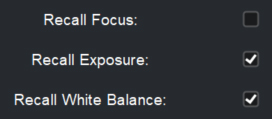
Figure 5 - Preset Options, stored as part of a preset
Figure ?? shows a set of Recall Options , which are specified immediatelybefore the preset is recalled. Focus and White Balance are set to Allow . The Exposure Recall Option is not available, because the Exposure Mode for the camera is set to Full Auto .
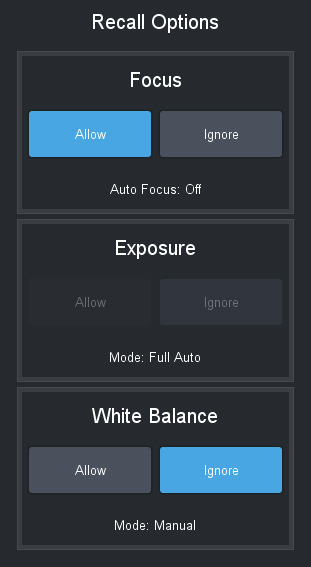
Figure 6 - Rec all Options, specified immediately before preset recall
The combination of Preset Options in Figure 5 and Recall Options in Figure 6 would result in the following:
- The Focus value is not applied because the Focus preset option was not selected when the preset was stored.
- The Exposure values (Iris , Shutter , Gain ) are not applied because the camera setting for Exposure Mode is set to Full Auto .
- The stored Color values (Red Gain , Blue Gain ) are applied because the camera’s White Balance Mode is set to Manual , and White Balance was selected as a Preset Option and Allowed as a Recall Option .