Product Introduction
This section introduces PTZ-12G+. It includes the following topics:
Package Contents
The product package includes the following items:
-01-da82a88e10f1631dc72e363b9aa8d20b.png)
Figure 1 - Packing List for PTZ-12G+
Front View
Figure ?? shows the front of the camera.
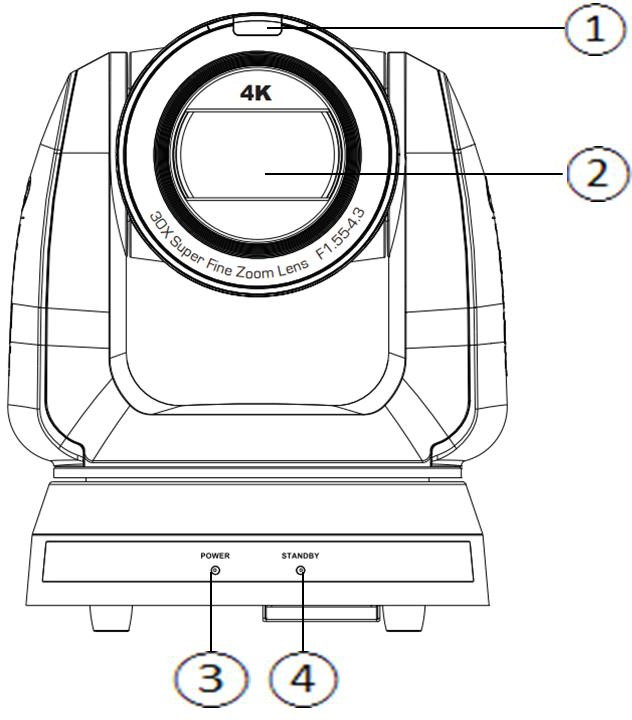
Figure 2 - Front View
Table 1
| NO. | Item | Description |
|---|---|---|
| 1 | Tally indicator light | Tally light is controlled through VISCA commands: Tally Mode: 8x 01 7E 01 0A 01 0p FF
|
| 2 | Camera Lens | 30x HD camera lens |
| 3 | Power LED indicator | Displays the Power status of the camera:
|
| 4 | Standby LED indicator | Displays the Standby status of the camera:
|
Rear View
Figure ?? shows the rear of the camera, including the connection panel.
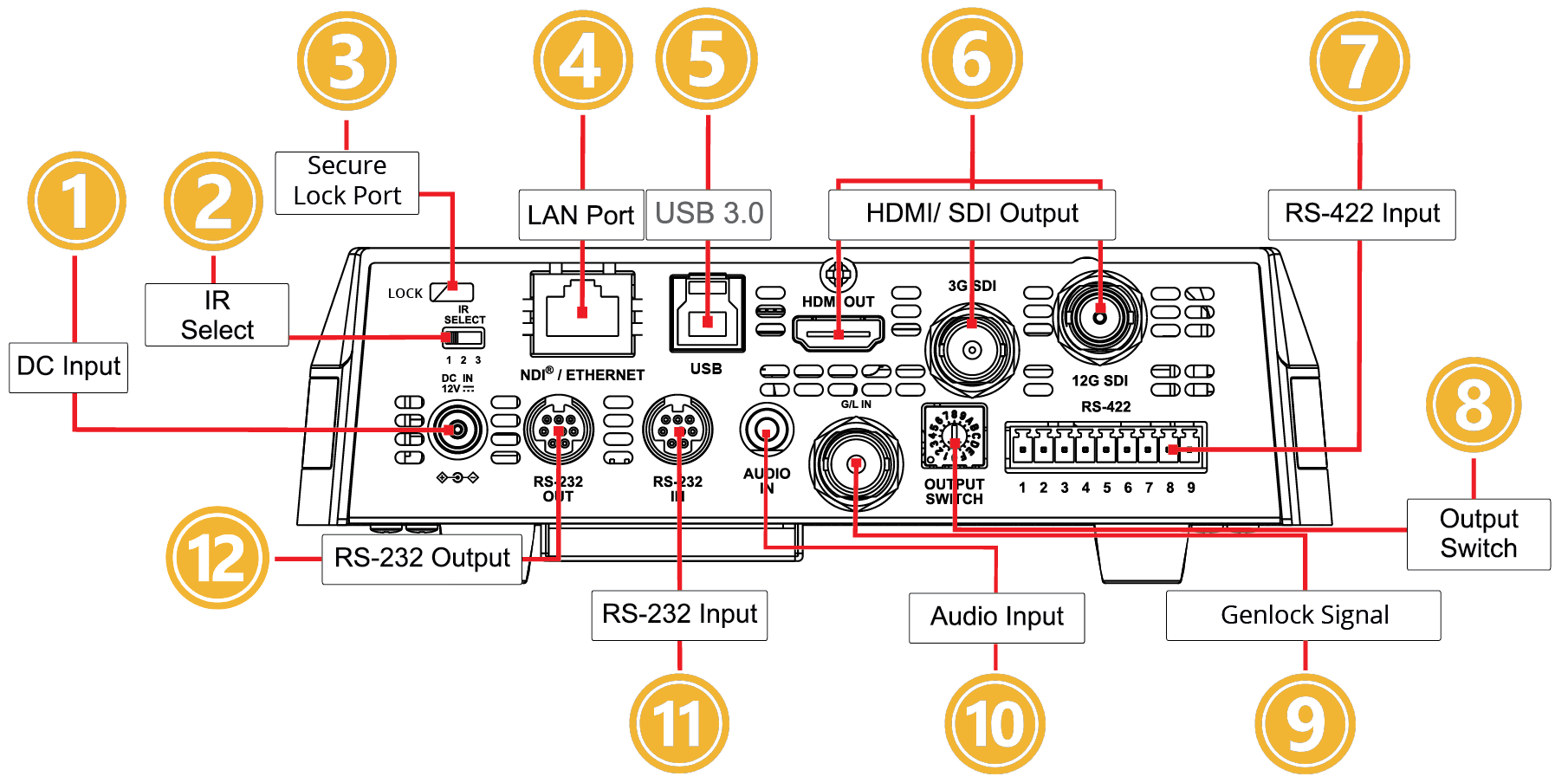
Figure 3 - Rear View
Table 2
| NO. | Item | Description |
|---|---|---|
| 1 | DC Input | 12V DC power input from AC Power Adapter (included). Alternatively, the camera can be powered through the network port if the network is capable of PoE++ (IEEE802.3bt). |
| 2 | IR SELECT | Assigns a number (1, 2, or 3) to the camera for IR (infra-red) remote control. This enables you to use a single remote control unit to control up to three cameras in an area. When using the remote control unit, you press a Camera select button (1, 2, or 3) to specify which camera you want to control. Tip: Using the DashBoard PTZ Camera Control plugin, you can disable remote control IR reception to prevent accidental changes being made by remote control. IR is automatically re- enabled when the camera is powered off/on. For more information, see “DashBoard Control”1, and the User Manual for PTZ Camera Control Plugin (8351DR-015). |
| 3 | Secure Lock port | Safety Kensington lock slot. |
| 4 | LAN port | Network port, supporting routers or hubs with power supply: PoE++ (IEEE802.3bt) |
| 5 | USB 3.0 port | USB port for UVC (USB Video Class) video output. PTZ-12G+ support MPEG and H.264 streaming formats. |
| 6 | HDMI/SDI output | HDMI 2.0 Output HDMI 2.0 output (Audio output supported). 3G-SDI output 3G-SDI output (Audio output supported). 12G-SDI output Standard BNC connector for 12G-SDI video output, including audio. Note: For 4K video, you must use 12G-capable, 4K UHD Video Cable. Lower-standard cables are not capable of transmitting a 4K video signal reliably. |
| 7 | RS-422 port | RS-422 connecting port. You can cascade (daisy-chain) up to seven cameras. |
| 8 | Output switch | Adjusts video output format. The default format is 2160p/59.94 Note: The switch position may not reflect the current output format. Resolution settings in the On-Screen Display menu, the web interface, and DashBoard PTZ Camera Control override the Output Switch. |
| 9 | Genlock Signal | Standard BNC connector for Genlock Sync input. |
| 10 | Audio input | Support Line In/Mic In. |
| 11 | RS-232 input | RS-232 serial input port. You can cascade (daisy-chain) up to seven cameras. |
| 12 | RS-232 output | RS-232 serial output port. You can cascade (daisy-chain) up to seven cameras. |
Bottom View
Figure ?? shows the bottom of the camera.
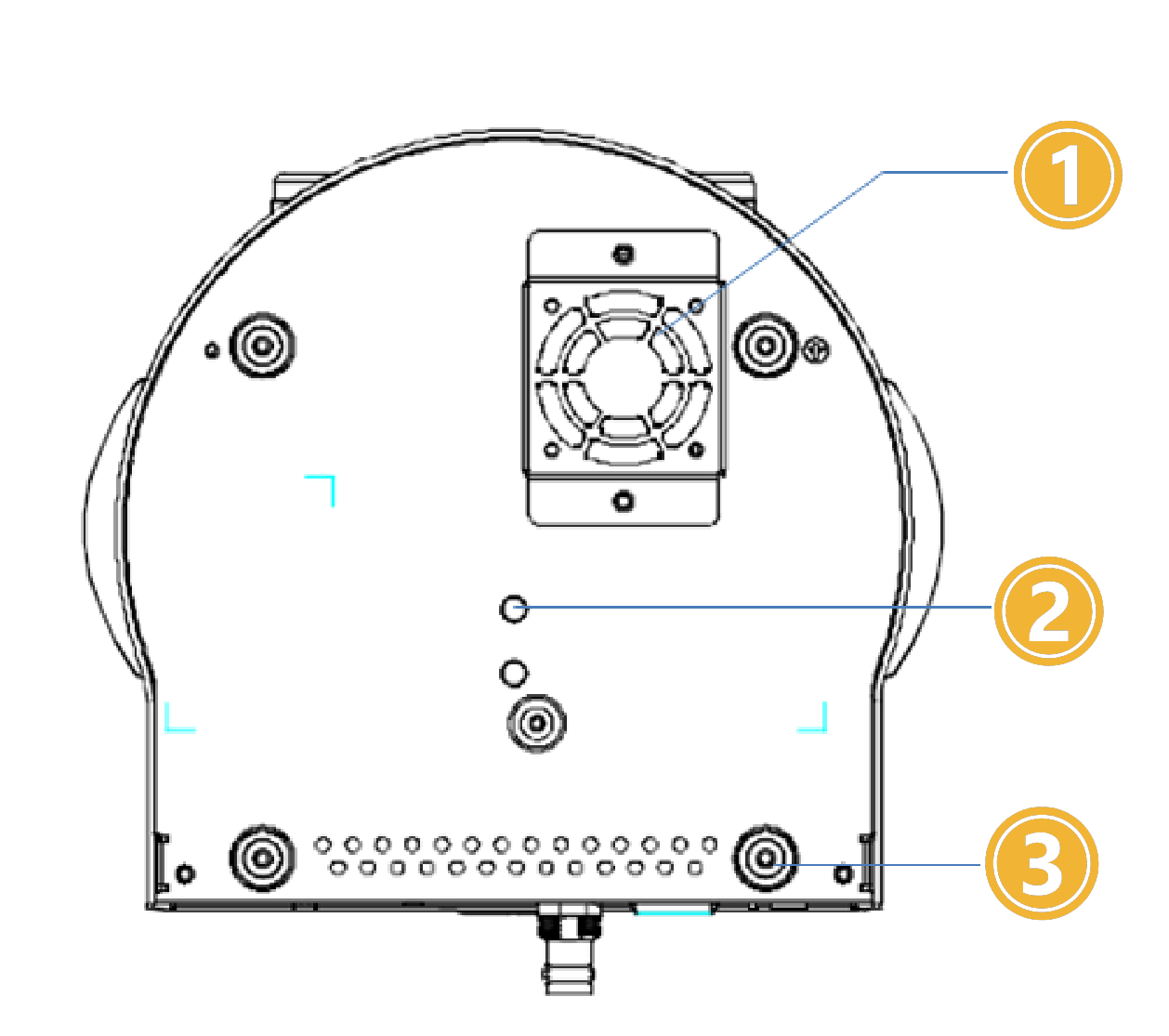
Figure 4 - Bottom View
Table 3
| NO. | Item | Description |
|---|---|---|
| 1 | Quiet cooling fan | Fan speed adjusts automatically for optimal cooling. |
| 2 | Tripod mounting hole (threaded) | Standard 1/4 - 20 UNC hole for mounting to tripod. |
| 3 | Removable feet | Removable feet are suitable for table-top use. If the camera is to be attached to a mounting plate or mounting bracket, removal of the feet may be necessary. Rotate feet counter-clockwise to remove. |
Camera Weight and Dimensions
The camera weighs approximately 3kg (6.1 lbs), excluding ceiling mounting plates.
Approximate dimensions of the camera are as follows:
-
Total height, including removable feet — 232mm (9.1”)
-
Total width — 188mm (7.4”)
-
Width of base — 174mm (6.9”)
-
Total depth — 189mm (7.4”)
Figure ?? shows the front of the camera, with dimensions (in millimeters).
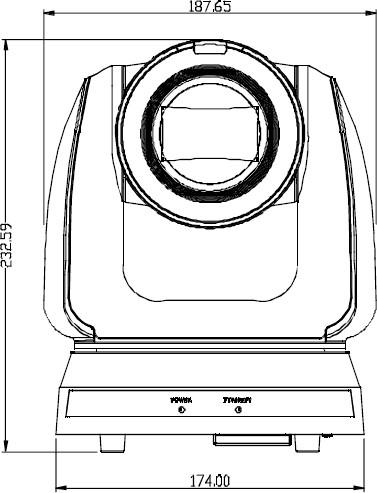
Figure 5 - Front View of Camera, with Dimensions (in millimeters)
Figure ?? shows the side of the camera, with dimensions (in millimeters).
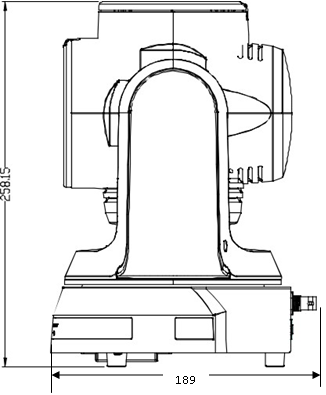
Figure 6 - Side View of Camera, with Dimensions (in millimeters)