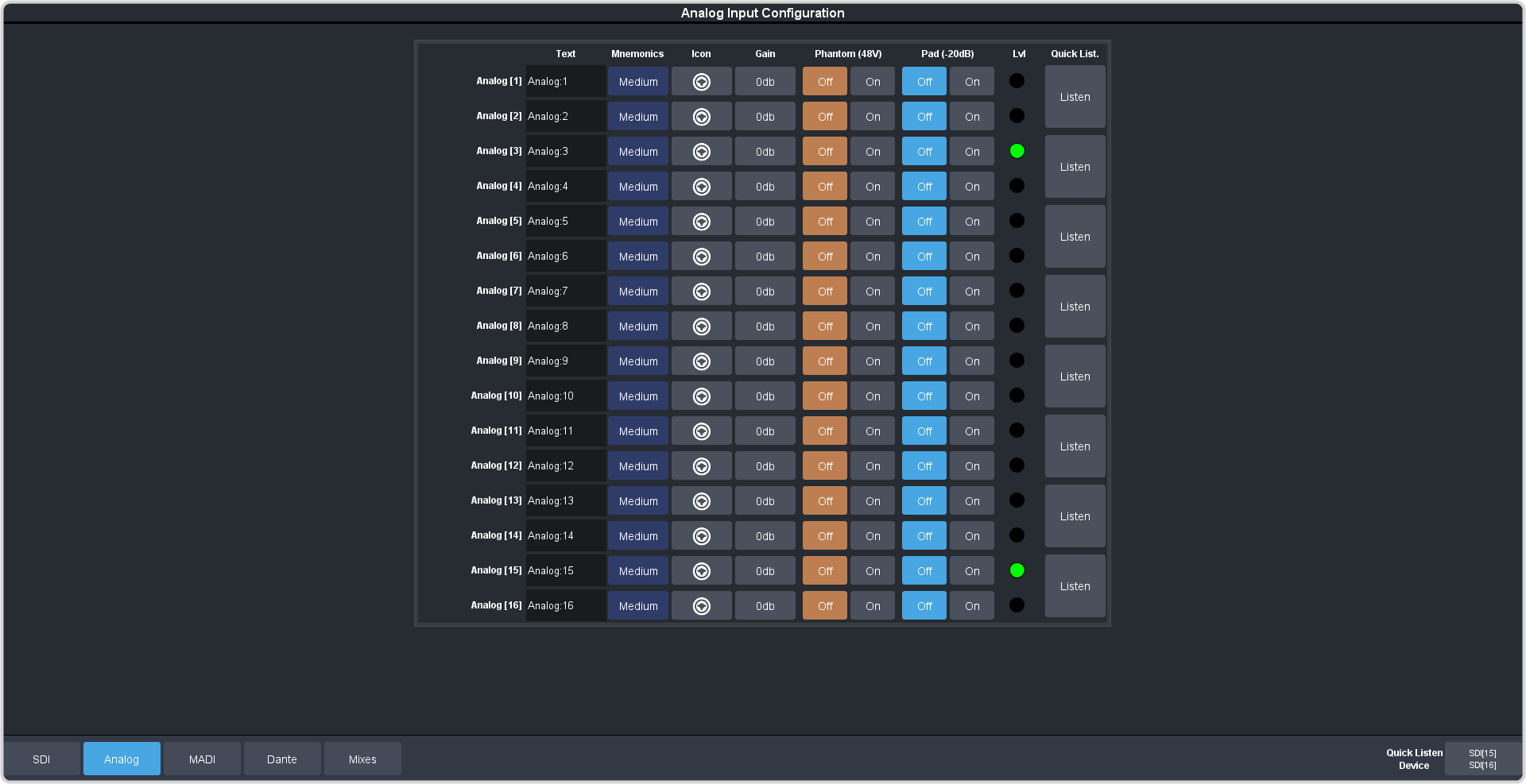
Analog audio inputs come into the system through the XLR ports on the front of the frame.
Note:
Analog inputs are only available on the XLR-Analog-Input system.
Click Navigation Menu > Configuration > Audio Inputs > Analog
The inputs are listed along the side and the various settings are listed across the top. Click the setting button for the source you want to set up to view the available
settings.
Setting
Description
Text
Apply a custom name to the source. Enter a new name for each input you want to identify differently. The name is used to identify the input on the mixer mnemonics as
well as on menus.
Mnemonic
Select a custom text size and color, and background color for the source mnemonic.
Icon
Select a custom icon for the source mnemonic.
Gain
Adjust the amount of gain (loudness) that is applied to the input audio channel before the mixer.
Phantom (48V)
Apply 48V to the analog input XLR jack (On) to power a microphone (condenser microphone). Click
Off to not have phantom power applied to the analog input.
Important:
Ensure Phantom Power is off when using line in from an audio device over XLR. Use phantom power for mic only.
Pad (-20dB)
Apply -20dB of attenuation to the input signal (On) to prevent clipping of very loud signals.
Lvl
Indicates an audio signal has been detected on the channel.
Listen
Press and hold the Listen button to have the channel pair sent to selected Quick Listen Device.