
To Connect TouchDrive to Multiple Frames

Note:
Switcher 1 is the primary frame connection that must always be present.
  1. From the tree view for the control panel, double-click Configuration > Network > Switcher 2.
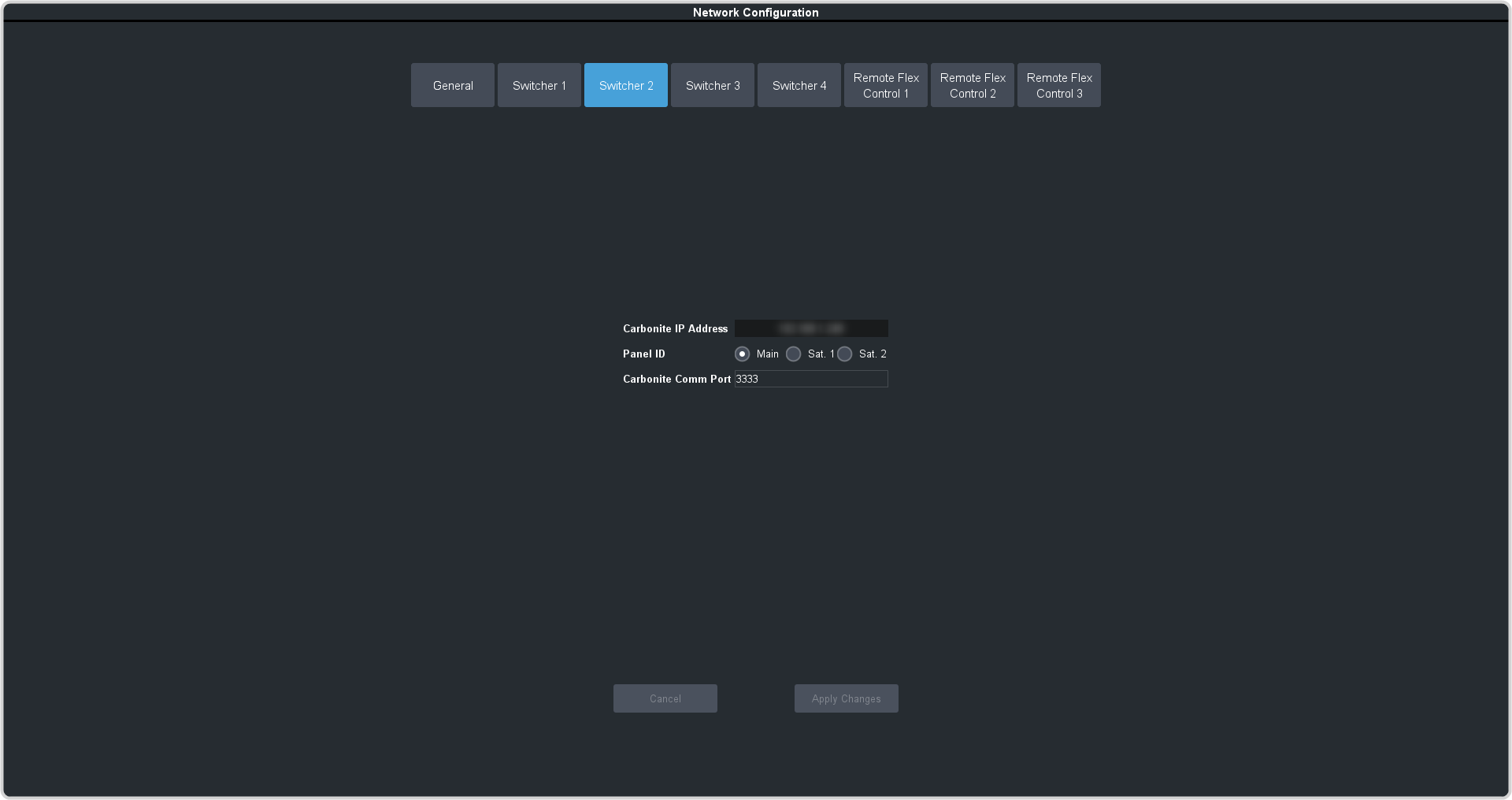

  2. Enter the network settings for the frame you want to connect to.
    Item Description
    Carbonite IP Address Enter the IP address of the frame you are connecting to.
    Panel ID Select whether you want to assign the panel as the main panel (Main), or one of the satellite panels (Sat. 1 or Sat. 2). The panel id sets what permissions the control panel has to the resources on the frame.
    Carbonite Comm Port This feature is not used at this time.
  3. Click Apply Changes.
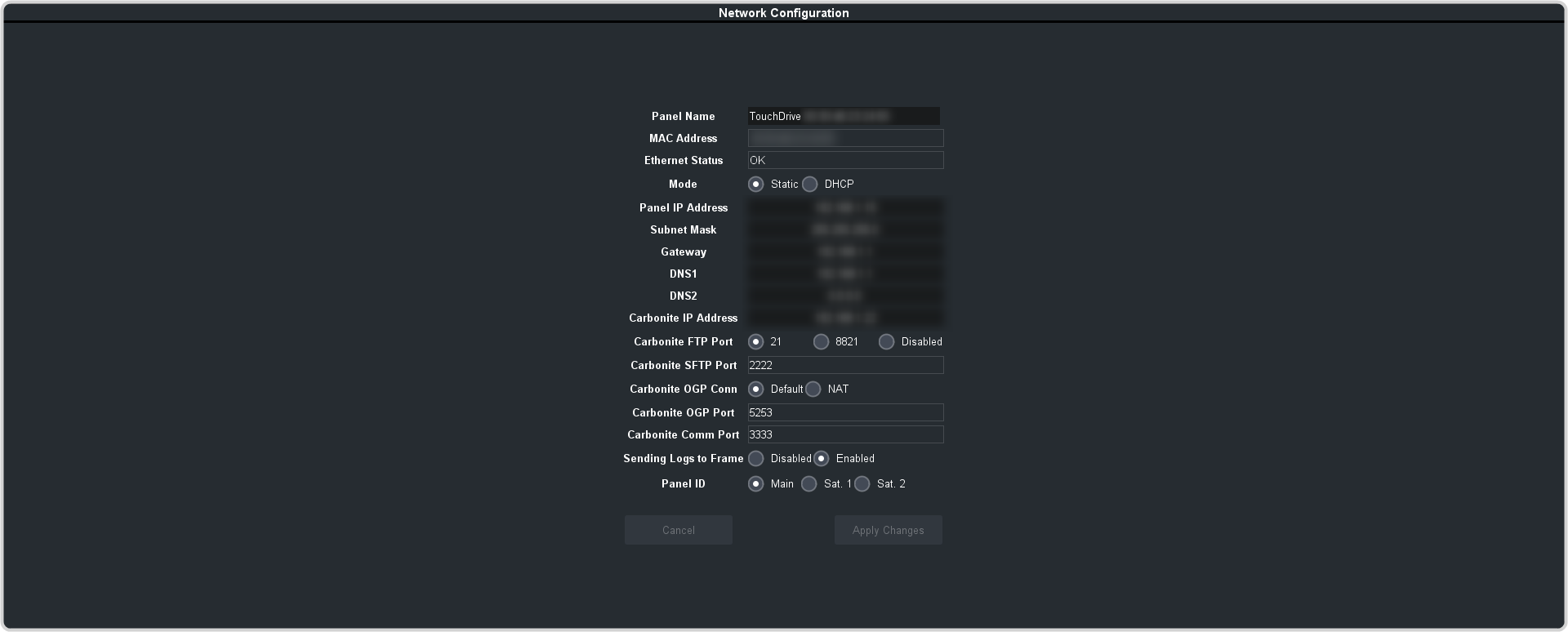
  4. Click General and click Enable for Switcher 2.

  5. Click Apply Changes.
Repeat these steps to add a third and fourth frame to the panel.