Installing the System
This section describes how to install and configure a standalone Panasonic Camera Control System.
Before you install the system, you need to plan the installation. For more information, see “System Overview and Planning”.
Perform the installation procedures in the following order:
- “Establish a Network”
- “Install Camera Control Computers”
- “Install Camera Paint Boxes”
- “Install the Proxy Server”
- “Install and Configure Panasonic Cameras”
- “Install Serial to Ethernet Converters (Comtrol Units)”
- “Configure Serial to Ethernet Converters (Comtrol Units)”
- “Install DashBoard Software on All Computers”
- “Configure the First Computer”
- “Configure Additional Computers”
- “Configure the Camera Paint Box Connection”
- “Install the Camera Video Monitor(s) and Routing/Switching Equipment”
Establish a Network
The Panasonic Camera Control System can use a dedicated network switch, or use an existing LAN.
To set up a dedicated network switch:
- Install the network switch in an appropriate location.
- Connect the power supply for the switch.
- Turn on the switch.
Install Camera Control Computers
Each workstation includes one camera control computer. This section describes how to install a camera control computer provided by Ross Video. If your computer is not provided by Ross Video, the steps may vary somewhat.
To install a Camera Control Computer and Peripherals:
-
Position the camera control computer in the camera control workstation location.
Ensure that the touch-screen monitor is within easy reach of the operator. Ensure that the optical drive, accessory ports, and buttons on the right and left edges of the computer are accessible.
-
Position the keyboard and mouse within easy reach of the operator, and then plug them into the connection panel on the back of the computer.
-
Plug one end of an Ethernet cable into the connection panel on the back of the computer. Connect the other end to the network.
-
Connect the power cable to the computer, and to a suitable power outlet.
-
Configure the networking parameters (IP address, subnet mask, and gateway).
Install Camera Paint Box es
The Camera Paint Box is an optional accessory. Each work station may or may not include a Camera Paint Box.
To install a Camera Paint Box :
-
Position the Camera Paint Box in the camera control workstation location.
Ensure that the Camera Paint Box is within easy reach of the operator.
The Camera Paint Box can sit on a flat surface, or occupy 1RU in a standard 19” component rack.
-
Plug one end of the provided USB cable into the Camera Paint Box. Plug the other end into a USB connector on the back of the camera control computer.
-
Plug the power cable into the Camera Paint Box, and into a suitable power outlet.
On the front of the Camera Paint Box, a green LED indicates that the unit is powered.
Install the Proxy Server
This section applies only if your system has multiple camera control workstations.
The proxy server communicates with the cameras on behalf of the camera control computers. It must always be running, and must be on the same network as the other components of the system.
This section describe how to set up a proxy server computer provided by Ross Video. If your computer is not provided by Ross Video, the steps may vary somewhat.
The operator does not need access to the proxy server. The server can be installed in a rack room. It does not need a dedicated keyboard and mouse. You can use a KVM, or use Windows Remote Desktop to interact with the server.
To install the Proxy Server:
- Position and install the server in a standard 19” component rack.
- Connect the power cable to the computer, and to a suitable power outlet.
- Plug one end of an Ethernet cable into the server. Connect the other end to the network.
- Turn on the server.
- Configure the networking parameters (IP address, subnet mask, and gateway).
Install and Configure Panasonic Cameras
This section describes how to install Panasonic cameras, and how to set their communication protocol to RS-422.
To install and configure a camera:
-
Position and mount the camera.
-
On the camera, find the IRIS switch and set it to the automatic (A) position.
-
Plug the camera power supply unit into the camera and to a suitable power outlet.
-
Plug the video output from the camera into a video monitor. Turn on the video monitor so you see the camera output.
-
On the back of the camera, press and hold the MENU button until the USER MENU appears on the monitor.
-
Using the DOWN and UP buttons, navigate to the SETTING option, and then press the ENTER button.
The SETTING menu appears.
-
On the SETTING menu, navigate to the PROTOCOL option and then press the ENTER button.
The PROTOCOL menu appears.
-
On the PROTOCOL menu, navigate to the PROTOCOL option and then press the ENTER button.
The PROTOCOL value flashes.
-
Using the DOWN and UP buttons, set the PROTOCOL value to 3 , and then press the ENTER button.
The PROTOCOL value stops flashing.
-
Disconnect camera power to turn off the camera.
The communication protocol is set and will be applied when the camera is turned on again.
-
Disconnect the video output cable from the camera.
Install Serial to Ethernet Converters (Comtrol Units)
Supported Panasonic cameras communicate over RS-422 protocol. Serial to Ethernet converters enable the camera to communicate with other components of the Camera Control System.
The Camera Control System uses the Comtrol DeviceMaster RTS 4-Port DB9 four-port device server as a serial to Ethernet converter. The Comtrol unit is available from Ross Video.
Each Comtrol unit can host up to four cameras.
To install a Comtrol unit:
-
Position and mount each Comtrol unit such that:
- Serial control cables can be run between the Comtrol unit and the cameras it hosts.
- An Ethernet cable can be run from the Comtrol unit to the network.
- A suitable power outlet is available for the Comtrol unit.
- The Comtrol unit is close to the cameras it hosts, to reduce cable runs.
-
Connect a serial cable assembly from each camera to a Comtrol unit.
For more information about making custom serial cable assemblies, see “Serial Cables Between Cameras and Comtrol Units”.
Note which camera is plugged into which Comtrol port.
tipPorts are labeled RX1/TX1 through RX4/TX4 .
-
Connect an Ethernet cable between the network and the left Ethernet connector (labeled UP ) on the Comtrol unit.
-
Plug the power supply cable into the Comtrol unit, and into a suitable power outlet.
Configure Serial to Ethernet Converters (Comtrol Units)
This section describes how to configure the serial-to-Ethernet converter (Comtrol unit) to communicate with cameras and other devices in the system.
To perform the steps in this section, you need to have good working knowledge of basic computer networking procedures.
The steps in this section require a Windows laptop computer and a short Ethernet cable.
To configure a Comtrol unit:
-
On the Comtrol unit, disconnect the network Ethernet cable from the left Ethernet connector (labeled UP ).
-
Connect the short Ethernet cable between the laptop computer and the left Ethernet connector (labeled UP ) on the Comtrol unit.
-
Configure the IP address of the Windows laptop computer so it can communicate with the Comtrol unit.
The default Comtrol network settings are as follows:
- IP Address: 192.168.250.250
- Subnet mask: 255.255.0.0
- Gateway address: 192.168.250.1
-
Connect power to the Comtrol unit.
The unit initializes.
-
On the Windows laptop computer, in a Web browser, navigate to the IP address of the Comtrol unit (http://192.168.250.250).
The Comtrol configuration page appears, showing four columns of configuration settings; one for each port.
-
For each port to which a camera is connected, do the following
-
Click the numbered Port link at the top of the column.
The Edit Port Configuration page appears.
-
In the Serial Configuration area, set Mode to RS-422 .
-
Set the Baud rate to 9600 .
-
Set Parity to None , set Data Bits to 8 , and set Stop Bits to 1 .
-
Set Flow to None .
-
Set DTR and RTS both to OFF .
-
In the TCP Connection Configuration area, select Enable and Listen .
-
Set the Listen Port to a unique port number.
This value is arbitrary. Note which port number you assign to which camera.
-
Set the Connect To IP address to 0.0.0.0 .
-
Set the To Port value to 0 .
-
Set the From Port value to 0 .
-
For Connect On settings, select Always only.
-
For Disconnect On settings, ensure no options are selected.
-
Tap Save .
The Configuration Updated message appears.
-
Tap OK .
-
-
In the Server Configuration area, tap Configure Network .
-
Set IP Configuration to Use static configuration below:
-
Set the IP Address , Netmas k, and Gateway for the Comtrol unit.
The IP address will be used to connect to cameras from DashBoard.
-
Tap Save .
The Configuration Updated message appears, along with notification that changes to the IP address will not take effect until the DeviceMaster unit is rebooted.
-
Tap OK .
-
Tap Reboot .
A confirmation message asks whether you want to reboot.
-
Tap Yes: Reboot .
The Comtrol unit reboots.
-
For each camera connected to the Comtrol unit, make a note of its IP address and port. The IP address is the IP address of the Comtrol unit. The port is the port you assigned for the camera. This information is required to add the cameras to DashBoard later.
-
Disconnect the laptop from the Comtrol unit, and reconnect the network Ethernet cable to the left Ethernet connector (labeled UP ) on the Comtrol unit.
Install DashBoard Software on All Computers
Install the latest version of DashBoard (v8.1.1 or higher) on each Camera Control Computer and on the proxy server (if present).
DashBoard and the DashBoard User Guide are available as free downloads from Ross Video. The DashBoard User Guide contains instructions for installing DashBoard. Both are available at the following location:
http://www.rossvideo.com/control-systems/dashboard/index.html.
Configure the First Computer
Supported Panasonic cameras communicate over RS-422 protocol. Serial to Ethernet converters enable the camera to communicate with other components of the in the Camera Control System are different than the steps for subsequent computers:
-
If your system includes only one camera control workstation, the camera control computer is the first (and only) computer.
-
If your system includes multiple camera control workstations, the proxy server is the first computer.
DashBoard is free, but use of the Camera Control System requires one license per computer.
Dashboard supports two licensing options: Software-Based Licensing and Ross Key Based Licensing .
Software-Based Licensing involves connection of DashBoard to the Ross activation server either directly or via a Ross Product Manager licensing server on prem. To use software-based licensing, you will need a product key provided by Ross.
Ross Key Based Licensing is a fixed license tied to your hardware. During the licensing process you will need to send a key code to Ross technical support who will return a license key for you to enter into DashBoard.
For more information, refer to the DashBoard User Guide 8351DR-004-XX .
To configure the computer, you configure network settings, then add all cameras in the system, one at a time. If the computer is a proxy server, you also share the cameras so that camera control computers can access them.
To perform the steps in this section, you need to have good working knowledge of basic computer networking procedures.
To configure network settings:
-
Configure the network settings on the computer so it can communicate with the Comtrol unit(s).
If this computer is the proxy server, note its IP address.
To add a camera:
-
On the first computer, open DashBoard.
-
From the File menu, tap New , and then tap Other .
The New dialog box appears.
-
Expand the Camera Control node, tap Panasonic Camera , and then tap Next .
The New Ross Video Panasonic Camera Connection dialog appears.
-
In the IP Address box, type the IP address of the Comtrol unit that hosts the camera you want to add.
-
In the Slot box, specify a slot number for the camera. Valid slot numbers start at 1 .
tipIn the Camera Control panel, the order of camera selection buttons is determined by slot number, starting with the lowest number at the top.
-
In the Port box, type the port number for the camera you want to add.
-
Tap the Finish button.
-
In the DashBoard Component Tree, expand the Panasonic Cameras node.
-
Expand the Slot node for the camera you just added.
-
Double-tap Remote Control .
-
If the Camera Control Panel appears , go to Step 9 .
-
When you add the first camera to DashBoard, you will need to apply a license.
The remote control page will show a warning message:

Figure 1
To apply a software-based license
-
From the main toolbar, select Window > Preferences .
Refer to Figure ?? for adding a Panasonic Box camera.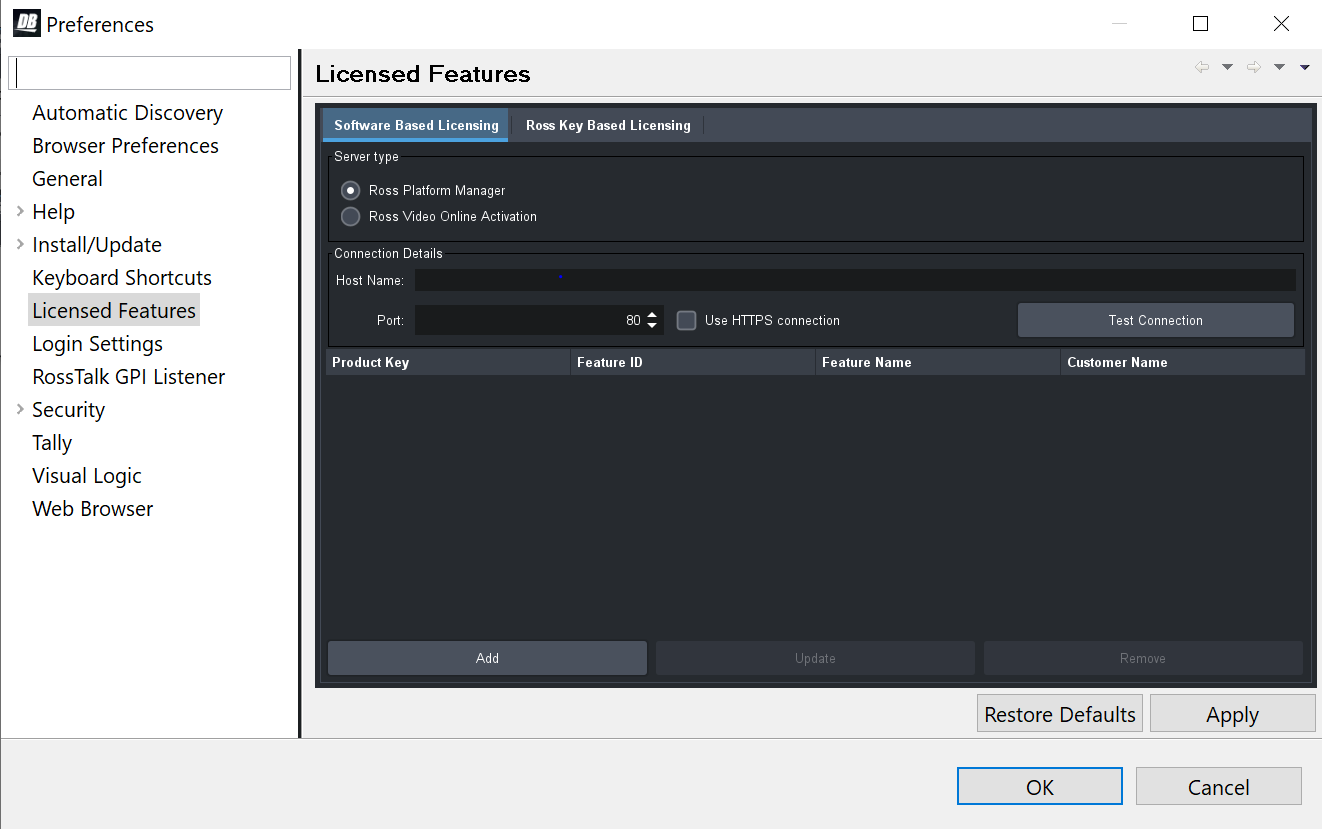
Figure 2 - Connecting a Panasonic Box camera in DashBoard
-
The Preferences dialog box opens.
-
From the Preferences dialog box, select Licensed Features .
-
In the Licensed Features dialog box, ensure the Software Based License tab is selected.
-
Select the Server type that you are using to provide licensing.
-
If you are using the Ross Platform Manager server type, enter the Host Name and Port of the server and whether to Use HTTPS connection .
Note: Select Apply to save your server settings.
Note: Use the Test Connection button to confirm a successful connection if necessary. -
Once connection to the server is established, select Add and enter the product key provided to you.
If successful, the feature you added will appear in the Licensed Features table.
Note: Select Apply to confirm your changes.To update DashBoard licensed features (Ross Keys Based Licensing method)
For obtaining and entering a Ross licensing key code, complete the following: -
From the main toolbar, select Window > Preferences . Refer to Figure ??.
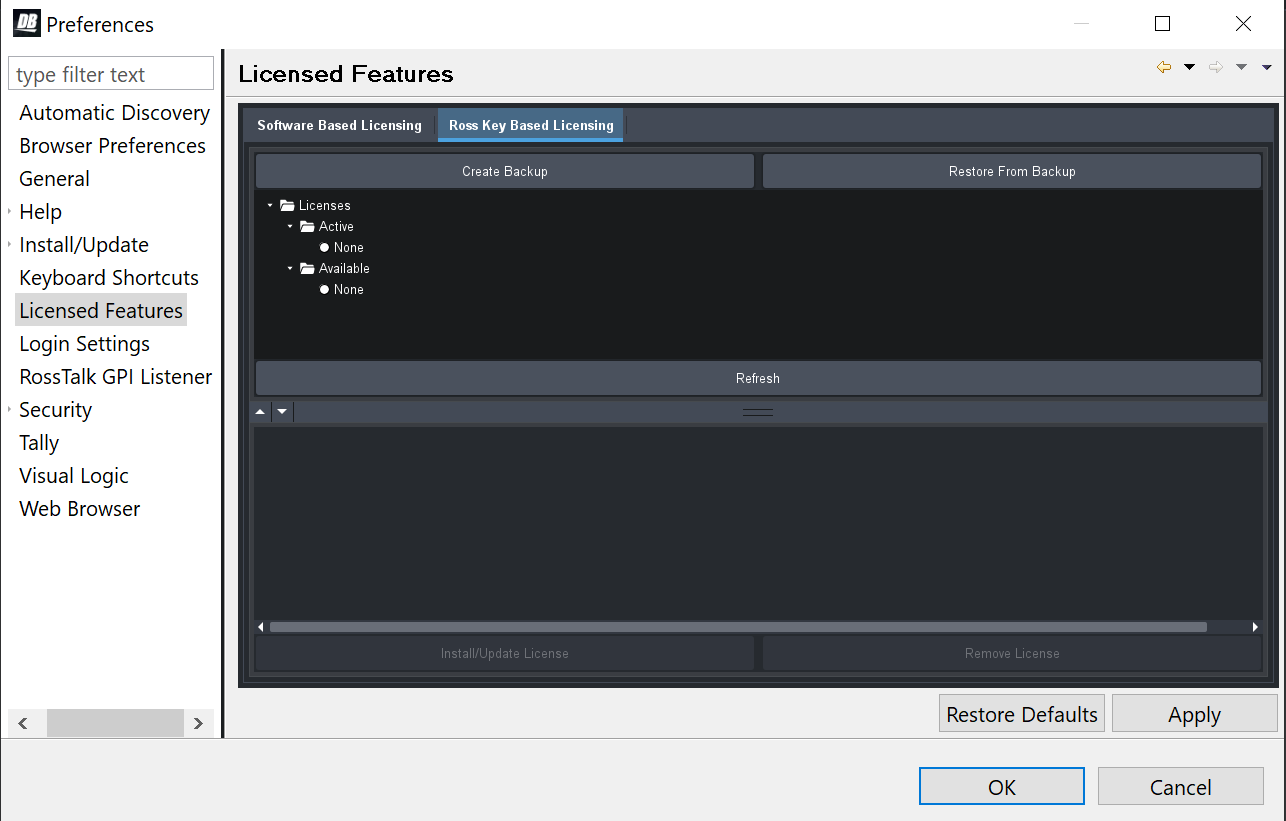
Figure 3 - DashBoard Licensed Features - Ross Key Based Licensing tab
-
The Preferences dialog box opens.
-
From the Preferences dialog box, select Licensed Features .
-
In the Licensed Features dialog box, ensure the Ross Key Based License tab is selected.
-
From either the Active or Available subfolder, select the Panasonic Camera Control feature.
-
To obtain a Ross License Key by completing the following:
Click Install/Update License .
ii. The Enter License Key dialog box opens. Refer to Figure ??.
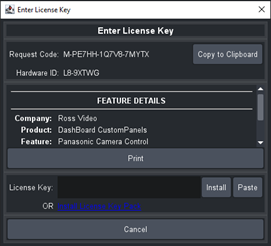
Figure 4 - DashBoard Licensed Features - Enter License Key
-
iii. Select Copy to Clipboard to copy your request code.
iv. Paste the request code into an e-mail to Ross Video (techsupport@rossvideo.com), requesting a corresponding license key. Be sure to include the original Ross Video sales order number.
cautionDo not close the Enter License Key dialog box until you receive and apply an activation code from Ross Video. If you leave the Enter License Key dialog box, the activation code you receive will not work. It is valid only for the session during which it was generated.
When you receive the license key via email, copy and paste it into the License Key box, and then tap Install.
vi. The selected feature updates and the most current data is displayed in the License Details .
- In Dashboard, close the Panasonic Cameras - Slot x tab .
- In the Component Tree , double-tap Remote Control .
The Camera Control Panel appears. - In the camera selection area at the top of the panel, tap the camera name.
If the camera initializes and connects, it has been successfully added and can be controlled.
To share cameras (applies to proxy server only):
In the DashBoard component tree, right-click a camera Slot node, and click Share Device .
Repeat this step for each camera Slot node.
Configure Additional Computers
This section applies only if your system has multiple camera control workstations.
To perform the steps in this section, you need to have good working knowledge of basic computer networking procedures.
To configure additional computers:
-
Configure the network settings on the computer so it can communicate with the Comtrol unit(s).
-
Open DashBoard.
-
From the File menu, tap New , and then tap New TCP/IP DashBoard Connect or openGear Device .
The TCP/IP DashBoard Connect/openGear Device dialog box appears.
-
In the IP Address box, type the IP address of the proxy server.
-
In the Display Name box, type a name for the camera node, as you want it to appear in the DashBoard component tree.
-
Select the JSON protocol.
-
In the Port box, type 5254 .
-
Tap Finish .
-
In the DashBoard Component Tree , expand the Panasonic Cameras node.
-
Expand the Slot node for the camera you just added.
-
Double-tap Remote Control .
-
If the Camera Control panel appears, go to step 16.
-
When you add the first camera to DashBoard, you will need to apply a license.
The remote control page will show a warning message:Figure 5
-
In DashBoard, close the Panasonic Cameras - Slot x tab .
-
In the Component Tree , double-tap Remote Control .
The Camera Control Panel appears.
-
In the camera selection area at the top of the panel, tap the camera name.
If the camera initializes and connects, it has been successfully added and can be controlled.
Configure the Camera Paint Box Connection
Each camera paint box is connected to a camera control computer via a USB cable. You must configure the computer to interact with the Camera Paint Box.
DashBoard communicates with the Camera Paint Box through a service called the bridge server. To establish communication with the Camera Paint Box, you must:
- Install the bridge server software
- Add and configure a DashBoard gateway for the Camera Paint Box.
To install the bridge server software:
-
Obtain the Bridge Server software zip file from Ross Video, and save it on the camera control computer.
-
Unzip the file to C:\Ross.
-
Open a command prompt window as Administrator , and change directory to the location where you unzipped the file, for example:
cd "C:\Ross\Bridge Server 4.5.0.4093"
-
Type the command to install the ManagedServicesHost.exe file and then press Enter . An example of the command is as follows:
C:> "Ross\Bridge Server 4.5.0.4093\ManagedServicesHost.exe" -install
-
Press Enter .
The Bridge Server software is installed. A message in the command prompt window appears when the installation is complete.
-
Close the command prompt window.
-
In a web browser, navigate to the Bridge Server configuration page at localhost:3000 .
-
If the PaintBox Bridge service is not running, tap Start .
tipFrom the configuration page, you can start or stop the server. Alternatively, you can start or stop the Bridge Service Host from the Services tab in Windows Task Manager .
To add and configure a DashBoard gateway for the Camera Paint Box
-
In DashBoard, from the File menu, tap New , and then tap TCP/IP DashBoard Connect or openGear Device .
The New TCP openGear Frame Connection dialog box appears.
-
In the IP Address box, type the IP address of the computer, or type localhost.
-
In the Display Name box, type a name for the node as you want it to appear in the DashBoard component tree, for example, Robotics DashBoard Gateway .
-
Select the JSON protocol.
-
In the Port box, type 5257 .
-
Select the Remember connection settings for this frame check box.
-
Tap Finish .
A new gateway node with the name you specified appears in the DashBoard component tree.
tipAfter you complete this procedure, you can expand the gateway node and double-tap Station 1 to open an interface that displays real-time data received from the Camera Paint Box .
-
In the DashBoard component tree, expand the DashBoard Services node.
-
Tap Device Class Mappings .
-
For each Class , in the Selected Device list, select the only available option in the list.
-
In the DashBoard component tree, tap Selector UI Mappings .
-
Set the Autowire Follows UI setting to ON .
Install the Camera Video Monitor(s) and Routing/Switching Equipment
Each workstation requires at least one video monitor to view camera output. The monitor enables you to see on-screen camera configuration menus and monitor the effect of iris and paint adjustments as you make them. Sometimes two monitors are used, to compare video output of two cameras side-by-side.
Video routing/switching equipment is required to select the video. Ideally, the camera control operator should be able to switch the video from the camera control workstation.
The camera video monitor and routing equipment operate independent of the Camera Control System. The Camera Control panel and Camera Paint Box do not select video to be displayed on the camera video monitor.
When adjusting paint controls, technicians often use a waveform/vectorscope to fine-tune the properties of the camera output. The Camera Control Panel enables you to access the camera’s color bars output for calibration purposes.
The camera video monitor, video routing equipment, and waveform/vectorscope are not included as part of the Panasonic Camera Control System.
To install the Camera Video Monitor(s) and Video Routing/Switching Equipment
- Install the Video Routing / Switching Equipment.
- Install the video monitor(s) in the camera control workstation(s).
- Connect video cables between the camera video monitors and outputs on the routing/switching equipment.
- Connect video cables from each camera to an input on the routing/switching equipment.
- Configure the video routing/switching equipment so it is possible to route video from each camera to each camera video monitor.