From the DashBoard tree view for the router, expand the Ultrix > Database >
Configuration node.
Double-click Sources.
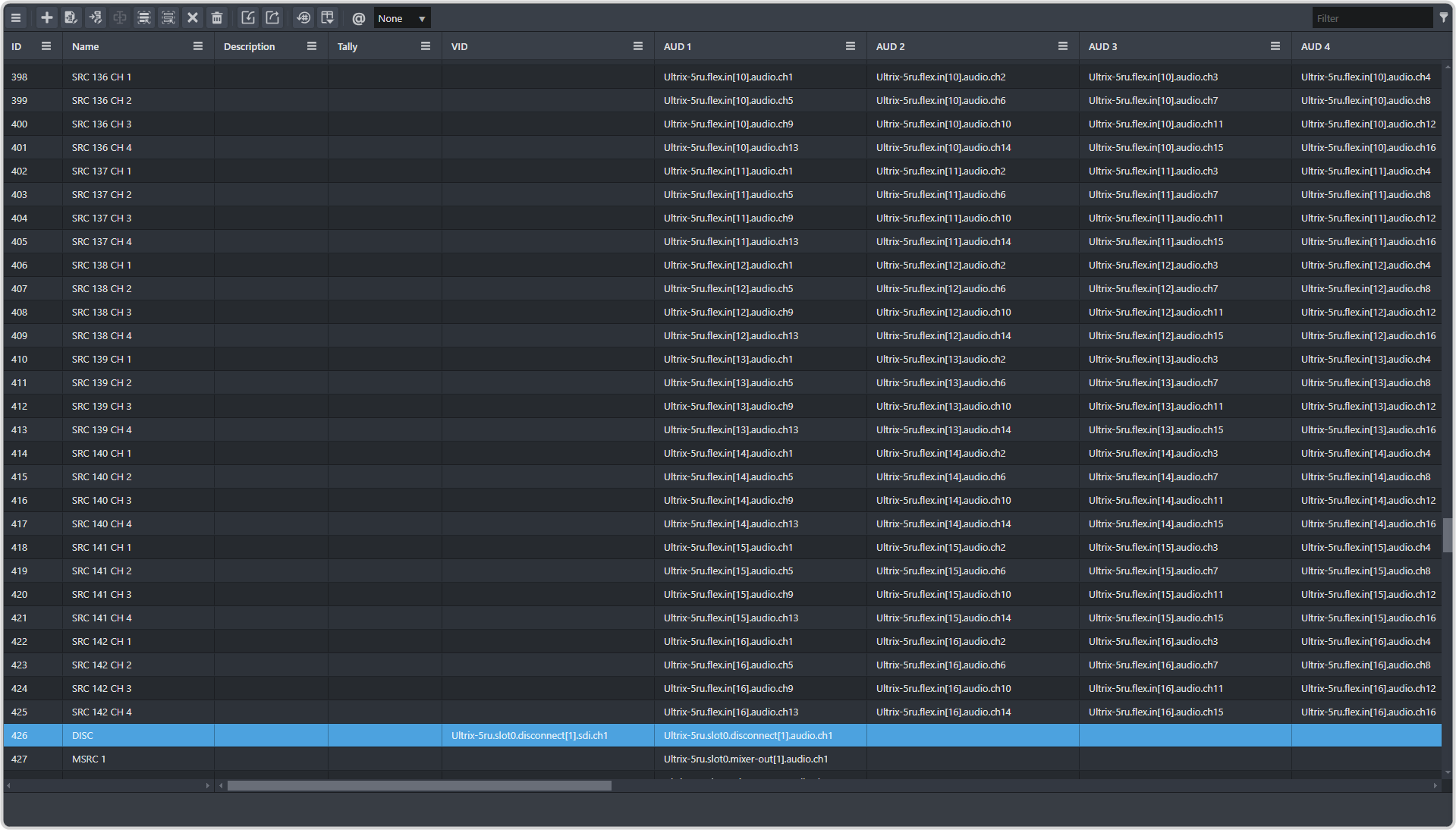
Go to the end of the table and select the last item in the list.
Click + (Add).
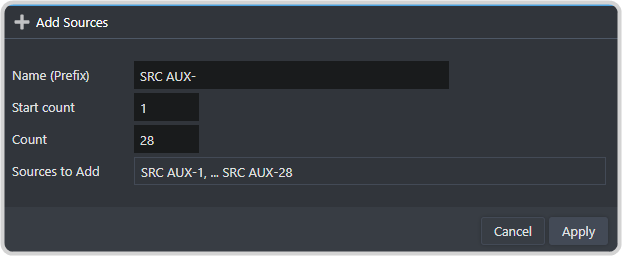
Enter the following information in the dialog box.
Name (Prefix) — enter SRC AUX- or how you want the name for the aux bus to appear. You can change the name later.
Start Count — select 1.
Count — select the number of virtual aux buses you have assigned to the switcher in MaxConfig, up to 64. This creates the series of 1-XX aux buses.
Click Apply.
For each of the new sources you need to add a custom VID. The VIDs must follow the format
<router-name>.slot0.virt-in[aux].sdi.ch1. For example, aux 3 on bank 2 for the router being used for this
example would be Ultrix-5ru.slot0.virt-in[11].sdi.ch1.
Insert a single row to the list. This is for the disconnect source on the aux bus which is used to select black on an aux bus from the switcher.
Set the name to Disconnect and the VID to <router-name>.slot0.disconnect[1].sdi.ch1.