
RAVE AutoMix Interface
The RAVE AutoMix interface allows you to control the weight or priority given to each input, as well as set how the RAVE AutoMix is applied to an input.
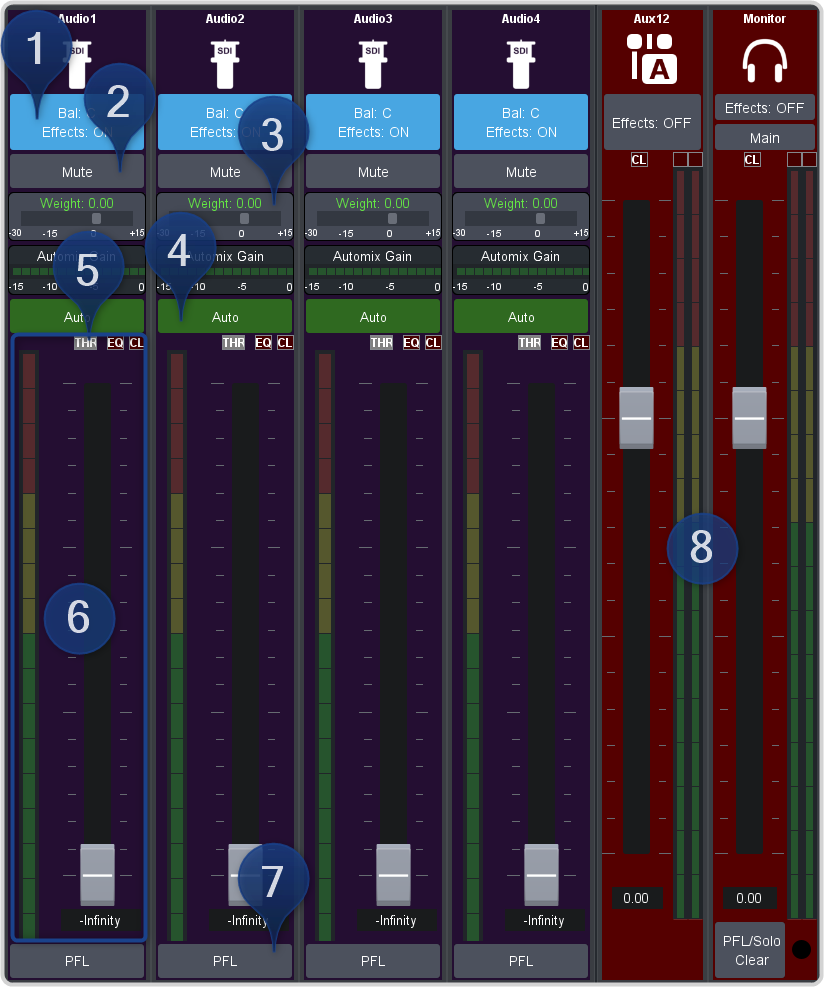
- Effects Control — the same effects controls that are found on the standard audio mixer.Note:Effects are applied before the RAVE AutoMix and should only be applied in a very limited manner. The Compressor Limiter should not be applied here.
- Mute — must the audio before it goes into the RAVE AutoMix.
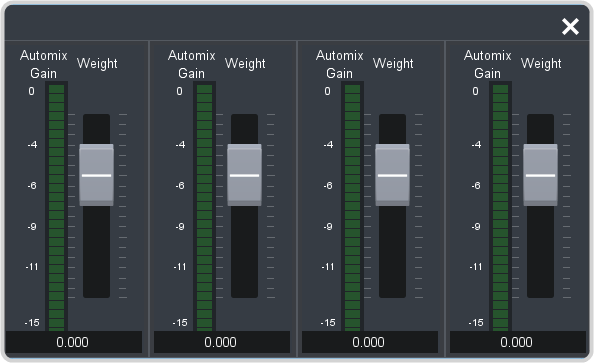
- Weight Control — shows the weight that is applied to the audio source in the RAVE AutoMix. The Automix Gain shows the
amount of gain that is being applied by the RAVE AutoMix with the current weight settings. Click on the Weight setting to display the weight
sliders and select the amount of weight you want to apply to each
- Auto — turn Auto on to have the audio source added to the RAVE AutoMix. The RAVE AutoMix is controlling the Auto Mix Gain when active.
- Safety Threshold (THR) — the minimum level for an audio source in the RAVE AutoMix. A noise gate is used to attenuate audio levels that are
below the safety threshold. The color of the THR indicator shows what it is doing.
- Green — level is above the safety threshold.
- Red — level is below the safety threshold and is being attenuated.
- Gain Slider — change the level of the audio source going into the RAVE AutoMix.
- PFL — standard Pre-Fader Listen that allows you to listen to the selected input on the Monitor out before the input fader and RAVE AutoMix are applied.
- Mix Outputs — control the output gain of the RAVE AutoMix or Monitor output.