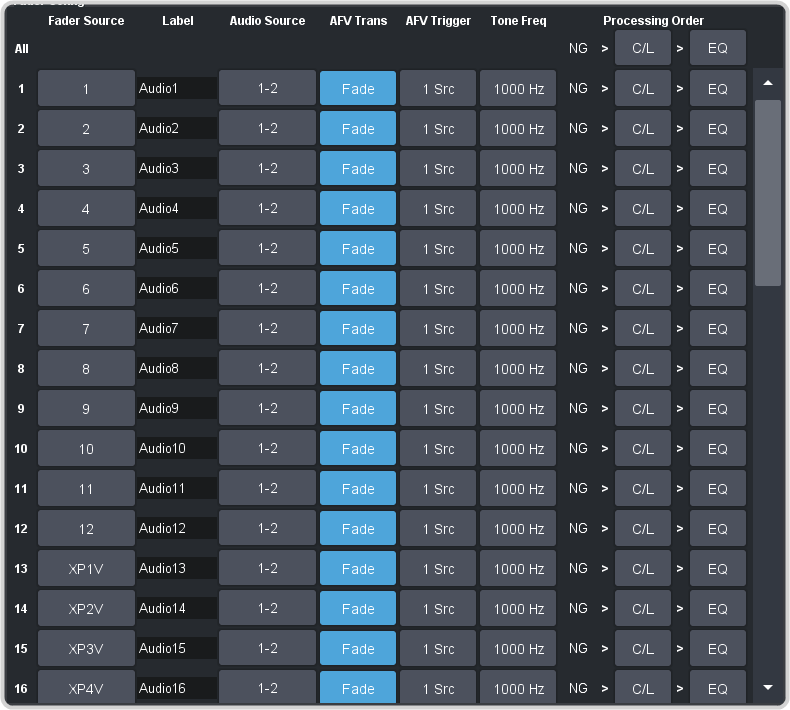
In the Fader Config area, locate the audio sources for the mics you want to feed into the RAVE AutoMix. These must be configured as mono.
This can be done either by selecting only the mono channel from the mic, or forcing a the source to mono.
Audio Source — click the Audio Source button and select the Mono Left or Mono Right
channel for the source of the mic.
Mono — toggle Mono to On to force the stereo source from the mic to a left-right summed mono signal.
In the Mixer Config area, click Settings .
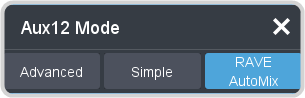
Click the Mode button for the mix layer you want to configure as an RAVE AutoMix and click RAVE AutoMix.
Tip:
To change the name of a mixer layer, enter a new name in the field for the mixer layer you want to change the name for. If you click Settings
again you will see the new name applied to the mixer layer selection button.
Click the mixer layer tab for the layer you just set as an RAVE AutoMix.
Uncheck the Visible boxes to hide the source not being used for the RAVE AutoMix.
Uncheck the Disable boxes for source being used for the RAVE AutoMix.
Note:
A source must be set to Mono for it to be enabled for the RAVE AutoMix.