
To Set up an SDI Audio Output

Embedded audio outputs exit the system through the To Frame HD BNCs.

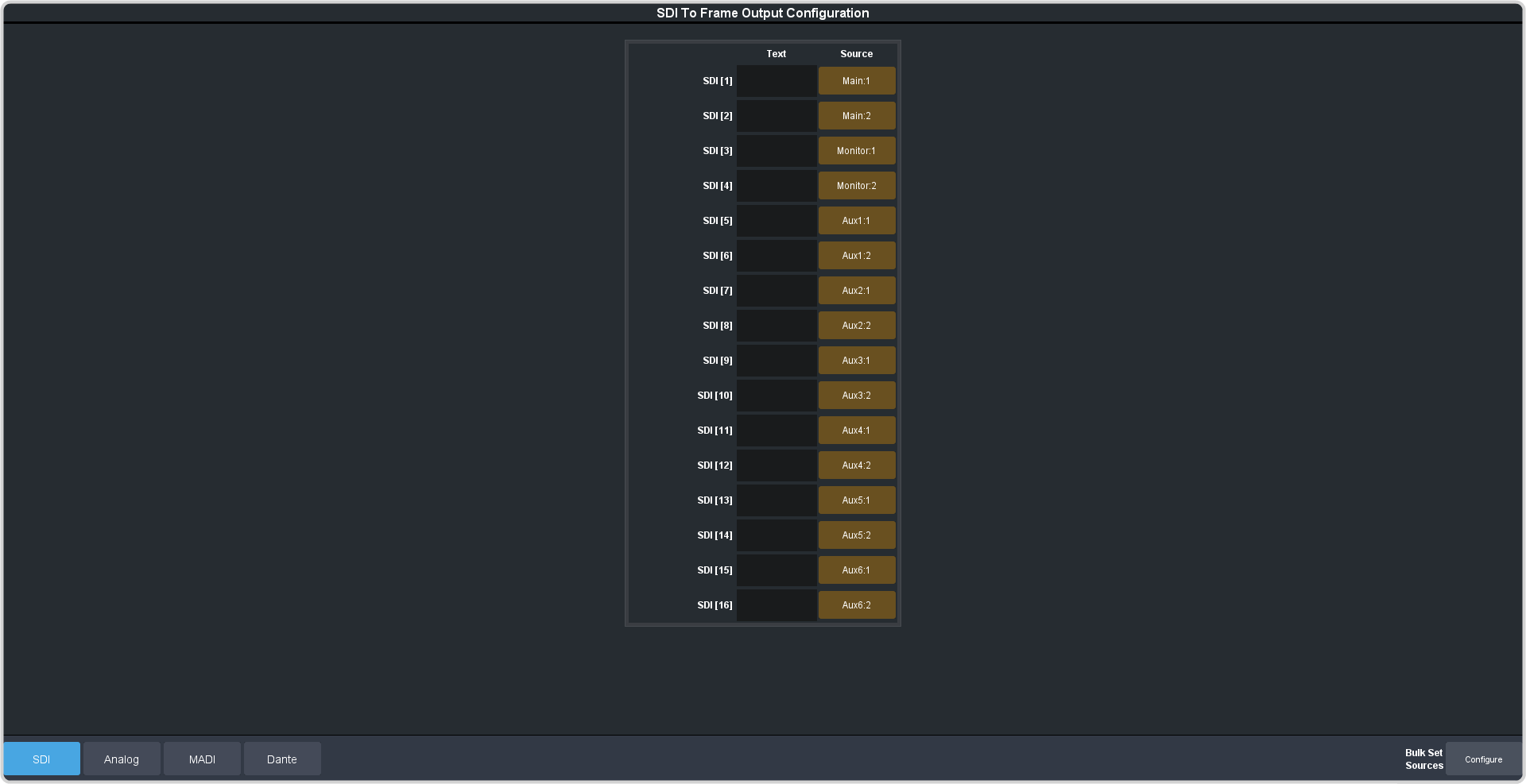
  1. Click Navigation Menu > Configuration > Audio Inputs > SDI

    Tip:
    Click the Bulk Set Sources button to assign multiple sources to outputs at once.
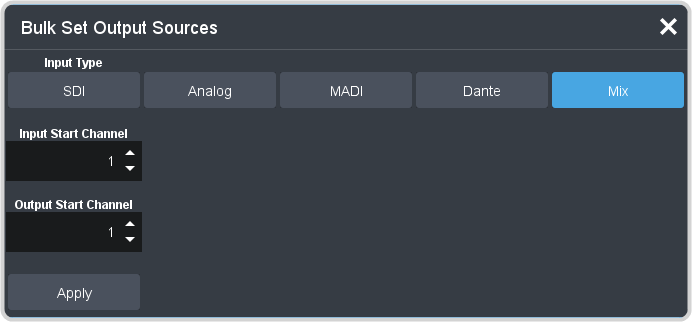

    1. Click the Input Type button for the type of source you want to assign to the outputs.
    2. In the Input Start Channel field enter the source number that you want to start assigning to the range of outputs.
    3. In the Output Start Channel field enter the output number that you want to start assigning the sources to.
    4. Click Apply.
    For example, with SDI outputs, to assign Analog sources 5-8 to outputs 13-16, Input Type = Analog, Input Start Channel = 4, and Output Start Channel = 13.
  2. Click on the Source button for the output that you want to assign a source to.
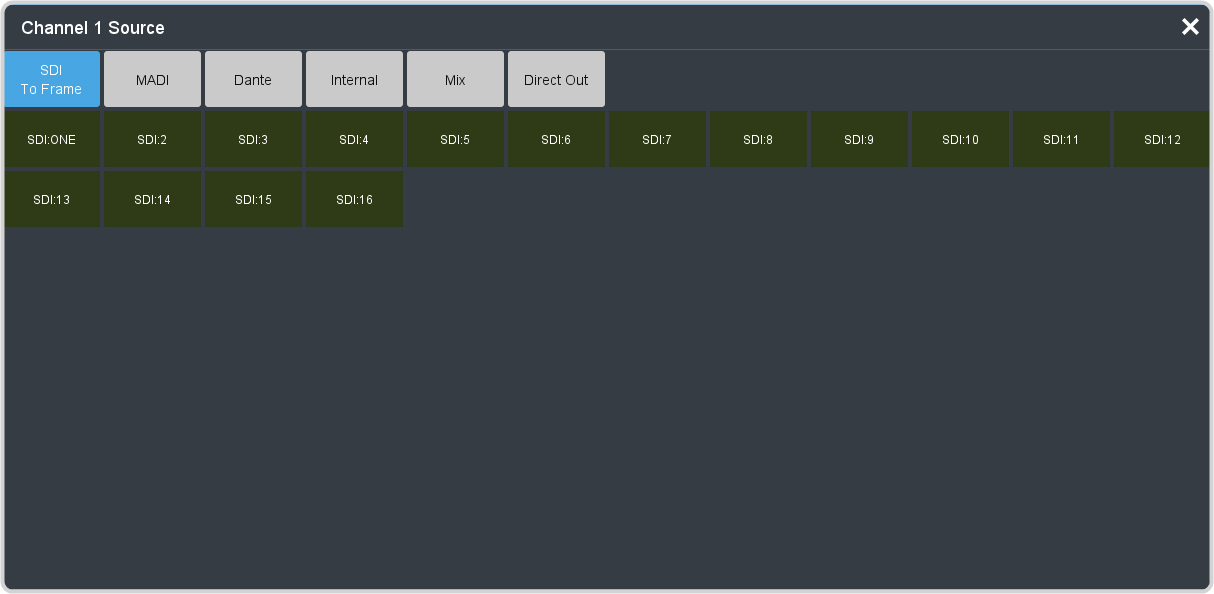

  3. Click the audio source that you want to assign to the output.
    • SDI To Frame — embedded SDI input audio.
    • Analog (XLR-Analog-Input only) — analog input from the XLRs on the front of the frame.
    • MADI — MADI signals from the SFP on the back of the frame.
    • Dante — AoIP (Dante®) from the AoIP Primary or Secondary ports on the back of the frame
    • Internal — internally generated Silence.
    • Mix — outputs from the audio mixer.
    • Direct Out — stereo outputs of each fader.
  4. In the Text column, enter a new name for each output you want to identify differently. The name is used to identify the output on the mnemonics as well as on menus.