DashBoard connects to the system as the main controller. All DashBoard connections mirror each other.
Note: The system supports a maximum of 20
DashBoard connections at any one time. If there are already the maximum number of connections to a frame you will not be able to connect to it.
Tip: You can confirm or change the IP address of the system from the front panel menu. Refer to
Front Panel Menu for more information.
-
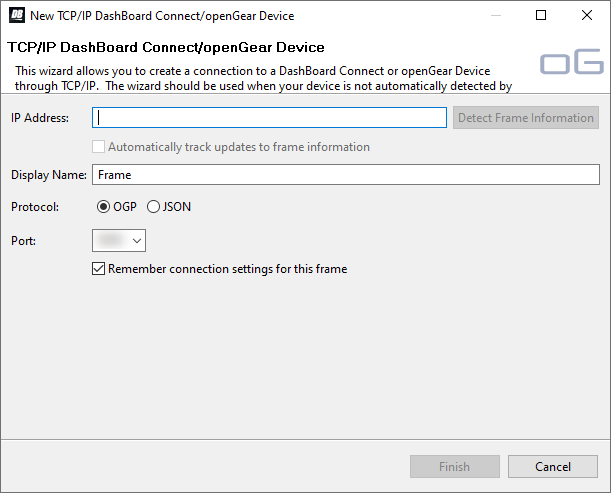
Click File > New > TCP/IP DashBoard Connect or openGear Device.
-
In the IP Address field, enter the IP address of the AudioEdge™
XLR-Analog-Input/Output.
Note: If you are connecting through a Network Address Translator (NAT), the Detect Frame Information button may return the wrong IP address. We
recommend to not use this function.
-
In the Display Name field, enter the name you want to use to identify the frame in DashBoard. This should be a unique name for the
system you are setting up.
-
Select OGP.
-
In the Port field, enter 5253
.
Note: You can use a NAT gateway to connect to the system from a DashBoard computer on a different network. If you are connecting to the system
through a NAT gateway, you must use the NAT ports instead of the regular ports.
Tip: Multiple DashBoard connections can use the same port, but they will mirror each other.
-
Click Finish.
The system appears in the Tree View.