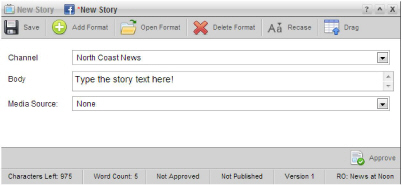
Inception enables you to create Facebook stories from the following panels:
• Running Order — while working with a running order in the Running Order panel you can add a new Facebook story directly to the open running order.
• Story Browser — when you do not want to immediately add a new Facebook story to a running order, you can create your new Facebook story from your Story Browser panel. You can add your Facebook story to a running order at any time.
• Story Editor — while editing a story in the Story Editor panel, you can use the content of the current story to create a new Facebook story. When you create a Facebook story from a story, Inception creates a story family that includes the original story and the new Facebook story. All new stories that you create from a story inherit the Slug and content of the original story.
• Assignment — while working on an assignment in the Assignment Editor panel, you can create new Facebook story for the assignment. When you create a story from an assignment, Inception automatically makes the Slug for new stories the same as the assignment Slug. Changing the Slug of a new story does not change the assignment Slug.
1. Open the Story Editor panel to create a new Facebook story. For information about opening the Story Editor from a specific panel to create a new story, refer to the following procedures:
• Running Order — To create a story from the Running Order Panel.
• Story Browser — To create a story from the Story Browser panel.
• Story Editor — To create a story from the Story Editor Panel.
• Assignment — To create a story from the Assignment Editor Panel.
The Story Editor panel opens for you to create a Facebook story.
2. In the Channel list, click or tap the Facebook account to which you want to publish the story.
3. In Body box, type the story.
Facebook stories can contain up to 1000 characters. The Characters Left field at the bottom of the Story Editor indicates how many characters remain. After Inception publishes a Facebook story, Facebook automatically adds a thumbnail image and a short description for all URLs in the story.
Stories imported from an NCS rundown, it
may contain text in ALL UPPER CASE letters. To change the text to mixed
case, click or tap the  Recase icon.
Review the resulting text carefully, because the case adjustment tool
cannot account for all situations.
Recase icon.
Review the resulting text carefully, because the case adjustment tool
cannot account for all situations.
4. If you do not want to include a picture or video with the story, go to step 11.
5. In the Media Source list, click or tap the media source that contains the picture or video for the story.
The Story Editor options change depending on the type of media source that you selected.
6. If you selected a QuickTurn media source, in the Segment list, click or tap the name of the video segment you want to include with the story.
The QuickTurn column in the running order displays the name of the QuickTurn segment associated with a broadcast story.
7. If you selected a Directory media source, in the File list, click or tap the media file you want to include with the story.
8. If you selected an Upload media source and you want to include a previously-uploaded media file, do the following:
a. When
the Choose File button is visible,
click or tap the  View Uploaded Files icon.
b. In the file list, click or tap the file name.
c. Go to step 10.
9. If you selected an Upload media source and you want to upload a media file, do the following:
a. Click or tap the Choose File button.
When the Choose
File button is not visible, click the  Upload a File icon to show the button.
b. If you are on a desktop computer, browse to select the media file, and then click Open.
c. If you are on a mobile device and you want to upload an existing photo or video, do the following:
• Tap Choose Existing.
• Browse to the photo or video, select it, and then tap Use.
The selected photo or video uploads to the Inception Server.
d. If you are on a mobile device and you want to take a new photo or to record a new video and then upload the new photo or the new video, do the following:
• Tap Take Photo or Video.
• Take the photo or record the video, and then tap Use.
The taken photo or recorded video uploads to the Inception Server.
10. If you are on a desktop computer
and you want to preview the image or video, click the  Preview icon. Video previews are not
available on mobile devices.
Preview icon. Video previews are not
available on mobile devices.
The video opens in the Video Player panel. The Video Player panel cannot play some video file formats that Inception supports.
Given that QuickTurn media sources list planned but not yet created video segments, the Video Player panel may not be able to preview video from a QuickTurn media source.
11. Click or tap the  Save
icon.
Save
icon.
Inception saves the story. Drag the new Facebook story into a running order to publish the story when you playout the running order. Publishing a Facebook story uploads the story content to your Facebook site.
For More Information on...
• blacklisted content, refer to the section Find Blacklisted Content in Your Stories.
• editing Facebook stories, refer to the section Edit a Facebook Story.
• adding stories to a running order, refer to the chapter Editing the Running Order.

