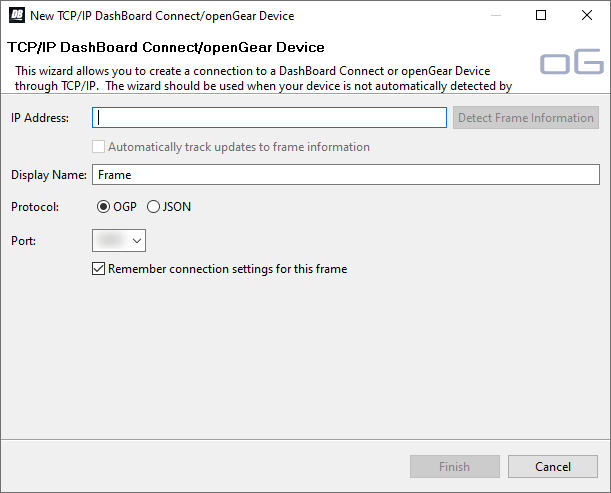
DashBoard connects to each device separately. You must create a new connection for Ultrix™, the Ultripower
units, and Ultricool.
Note: DashBoard must be running on a computer on the same subnet as the frame to connect.
You need the IP address of each device to connect to it from DashBoard.
-
Click File > New > TCP/IP DashBoard Connect or openGear Device.
-
In the IP Address field, enter the IP address of the device you are connecting to. The default IP addresses are listed below:
- Ultrix™ — 192.168.20.140
- Ultricore BCS — 192.168.20.160
- Ultripower — 192.168.20.123
- Ultricool — 192.168.20.125
-
In the Display Name field, enter the name you want to use to identify the device in DashBoard. This should be a unique name for the
device you are setting up.
-
Select the protocol for the device you are connecting to.
- Ultrix™ — JSON
- Ultricore BCS — JSON
- Ultripower — OGP
- Ultricool — OGP
-
In the Port field, select the protocol for your device.
- Ultrix™ — 5254
- Ultricore BCS — 5254
- Ultripower — 5253
- Ultricool — 5253
-
Click Finish.
The device appears in the Tree View.