
To Load a Media Item
Media items are loaded into a Media-Store channel from MediaManager
Note:
Media items must be created in the same color gamut and dynamic range that they are intended to be used in on the switcher. If a media item is created in one color space and
the switcher is operating in another, the media item may not appear correctly.
-
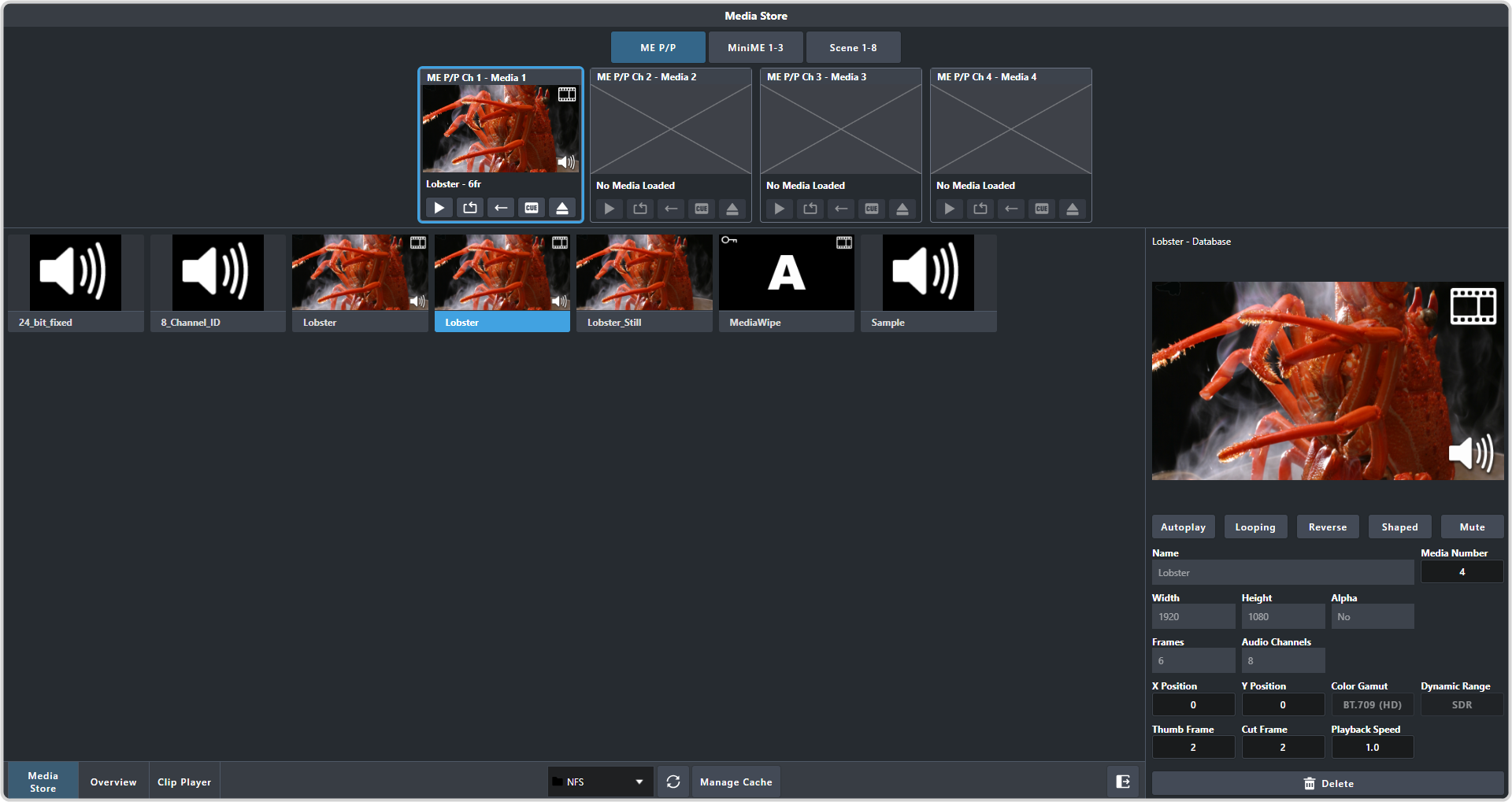
Click Navigation Menu > Live Assist > Media > Media-Store
-
Drag the media item onto the Media-Store channel you want to load it in.
Note:You cannot load a media item larger than 3840×2160 into a Media-Store channel.Tip:The film-strip symbol (
 ) indicates that the media item is an animation, the key symbol (
 ) indicates that the media item has an alpha, and the speaker symbol (
 ) indicates that the
media item has audio associated with it, or is audio only.
) indicates that the
media item has audio associated with it, or is audio only.