
To Capture a Still
Capture a still of the video on a bus on the blade.
-
Click Navigation Menu > Live Assist > Media > Capture.
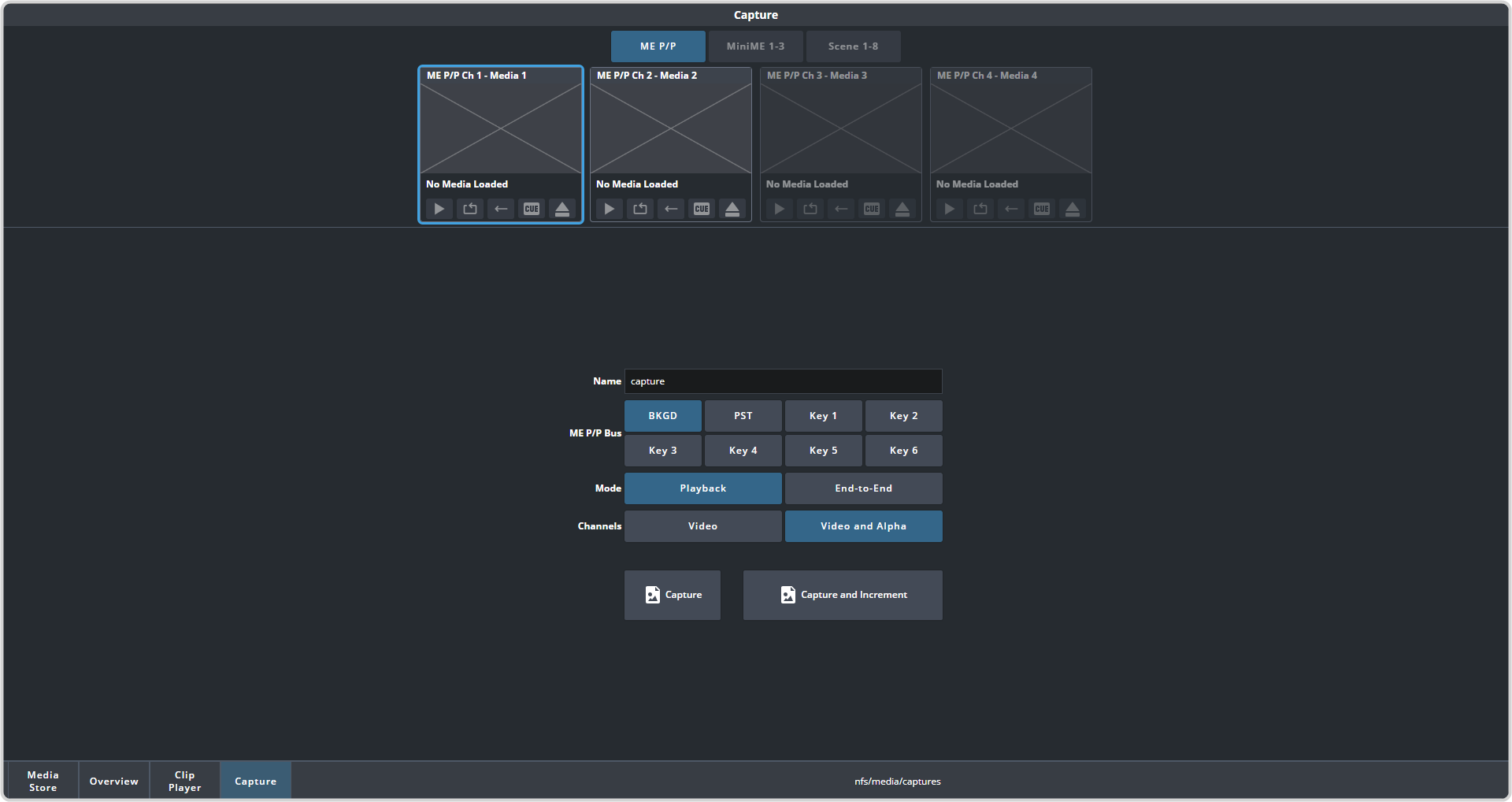
- Click Media Store 1 or Media Store 2 to select which Media-Store you want to use for the capture.
-
Click the Mode button to select the mode you want the selected Media-Store channel in.
- End-to-End — shows you the live video that is on the source. This allows you to see the source video on the Media-Store channel you are capturing on.
- Playback — shows you the captured frame of video in the Media-Store channel.
Note:The End-to-End mode video is only available on the MultiViewer for the selected blade and is not available to Ultriscape.Tip:Use End-to-End to watch the live feed to pick the frame you want to capture and switch to Playback to confirm what was captured. - Click a Bus button to select the bus on the selected blade that you want to capture.
- Click a Channels button to select whether you want to capture only the video (Video) or the video and alpha (Video and Alpha).
-
In the Name field, enter the name you want to give to the file. This will be the file name that the still is stored to.
Note:File or folder names cannot contain symbols such as ! @ # & * ( ) / , ? \' " and cannot start with an underscore (_). Files or folders that start with a period (.) are hidden.
-
Click a Capture button to capture the still.
- Capture — capture the still to the selected file name (Name).
- Capture and Increment — capture a still to the selected file name (Name) and increment the file name by one for the next capture. The switcher will prepend 0001_ to the beginning of the name. If the name already has a number, it will overwrite that file and increment the name for the next capture.
Note:Capture will overwrite any existing still with the same name.