Upgrading PTZ-12G and PTZ-NDI Camera Firmware
A PDF download is available for this document: Furio_Safety_Guide_5100DR-304-02.pdf
This document describes how to upgrade the firmware for Ross PTZ-12G and PTZ-NDI cameras.
Before you begin:
-
Ensure you have physical access to the camera. While performing the procedures in this document, you may be required to connect and disconnect cables.
-
Download the latest firmware upgrade package from:
https://www.rossvideo.com/products-services/acquisition-production/cameras/ptz/#downloads
-
Refer to the Release Notes for information about firmware upgrades. The Release Notes are included in the firmware upgrade package.
importantPerform the upgrade procedures in the order they appear in this document.
Access the Web Interface
The Web Interface includes controls for checking and upgrading firmware.
To access the Web Interface:
-
Enter the IP address of the camera into the address bar of your web browser.
tipThe factory-set default IP address is 192.168.100.100 . Each device on the network must have a unique IP address.
The login page appears.
-
Enter a valid User Name and Password .
tipThe default User Name is admin . The default Password is 9999 . If this is the first login, you are
prompted to change the password.
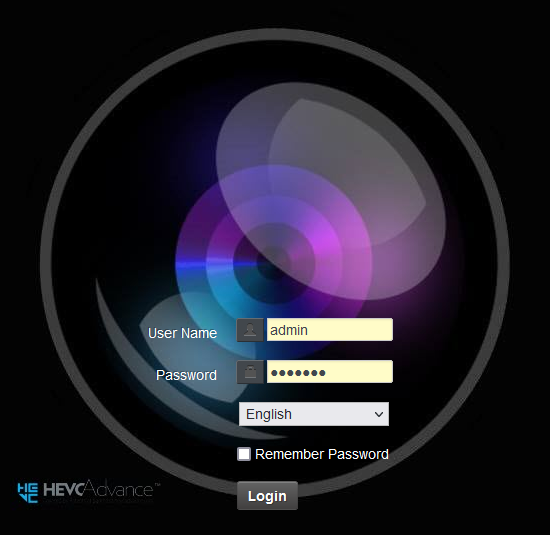
Figure 1
-
Select the Login button.
Check the Current Firmware Version
The firmware version your system is currently running can be found within the Web Interface.
Only download and install firmware upgrade files from Ross Video at https://www.rossvideo.com/products-services/acquisition-production/cameras/ptz/#downloads.
To check current firmware version:
-
Select About the menu options in the Web Interface.
-
Locate the Firmware Version field on the About page.
After you check the firmware version number on the camera, compare it to the firmware version numbers listed in the Release Notes, which are available as a PDF file in the firmware update package. The Release Notes are also available for download at https://www.rossvideo.com/support/product-documentation/ptz-documentation.
noteIf the camera already has the latest firmware version, no update is required.
Upgrade the Firmware
If your system is running a previous firmware version, this section provides the instructions to upgrade.
It takes approximately 2 minutes for the firmware upgrade to complete. Do not remove the power source while the upgrade is in progress.
To upgrade the firmware version:
-
Select Maintenance from menu options in the Web Interface.
-
Select the Choose File button in the FW Upgrade tab.
-
Upload the .bin file for your PTZ-12G or PTZ-NDI camera, respectively.
The .bin file is available in the firmware upgrade package at https://www.rossvideo.com/products-services/acquisition-production/cameras/ptz/#downloads.
noteFor PTZ-12G, upload the PTZ-12G_Version_ XXX _VCBD xxx .bin file. For PTZ-NDI, upload the PTZ-NDI_Version_ XXX _VCBE xxx .bin file.
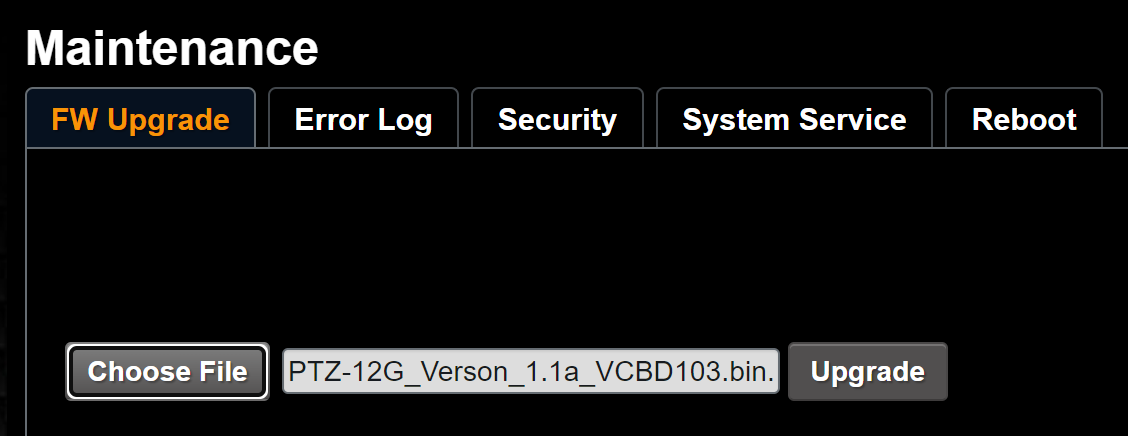
Figure 2
-
Select the Upgrade button.
noteThe firmware upgrade takes approximately two minutes to complete. Do not remove power during this time.
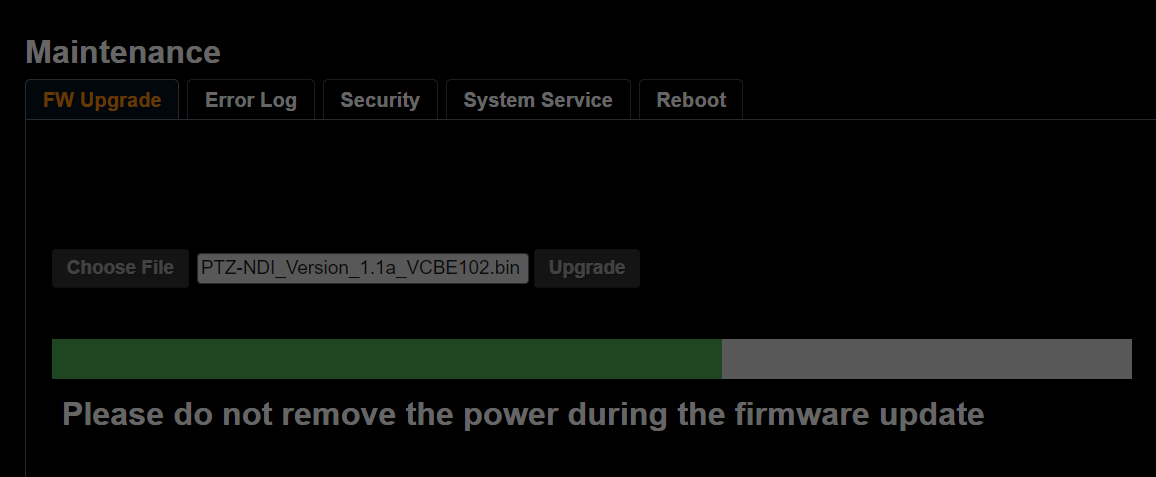
Figure 3
-
IMPORTANT : If your update is blocked, the firmware update has failed. This can happen if you upload the wrong firmware update file (i.e. using the PTZ-12G file for a PTZ-NDI camera, or vice versa).

Figure 4
-
If this error occurs, refresh the page and upload the correct file.
Perform a Power Cycle
Following the firmware upgrade, perform a power cycle on the PTZ-12G or PTZ-NDI camera.
Do not power cycle your camera until the upgrade finishes. Refer to the following image for confirmation of a successful firmware upgrade:
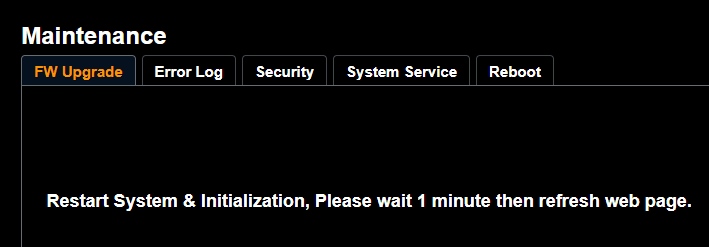
Figure 5
To perform a power cycle:
-
Disconnect the power cable from the camera.
-
Wait 60 seconds, then reconnect the camera’s power.
-
Log in to the Web Interface with your account credentials.
noteNetwork settings and user credentials are unaffected by the firmware upgrade process.
tipRefer to the About page to confirm your firmware version has upgraded.