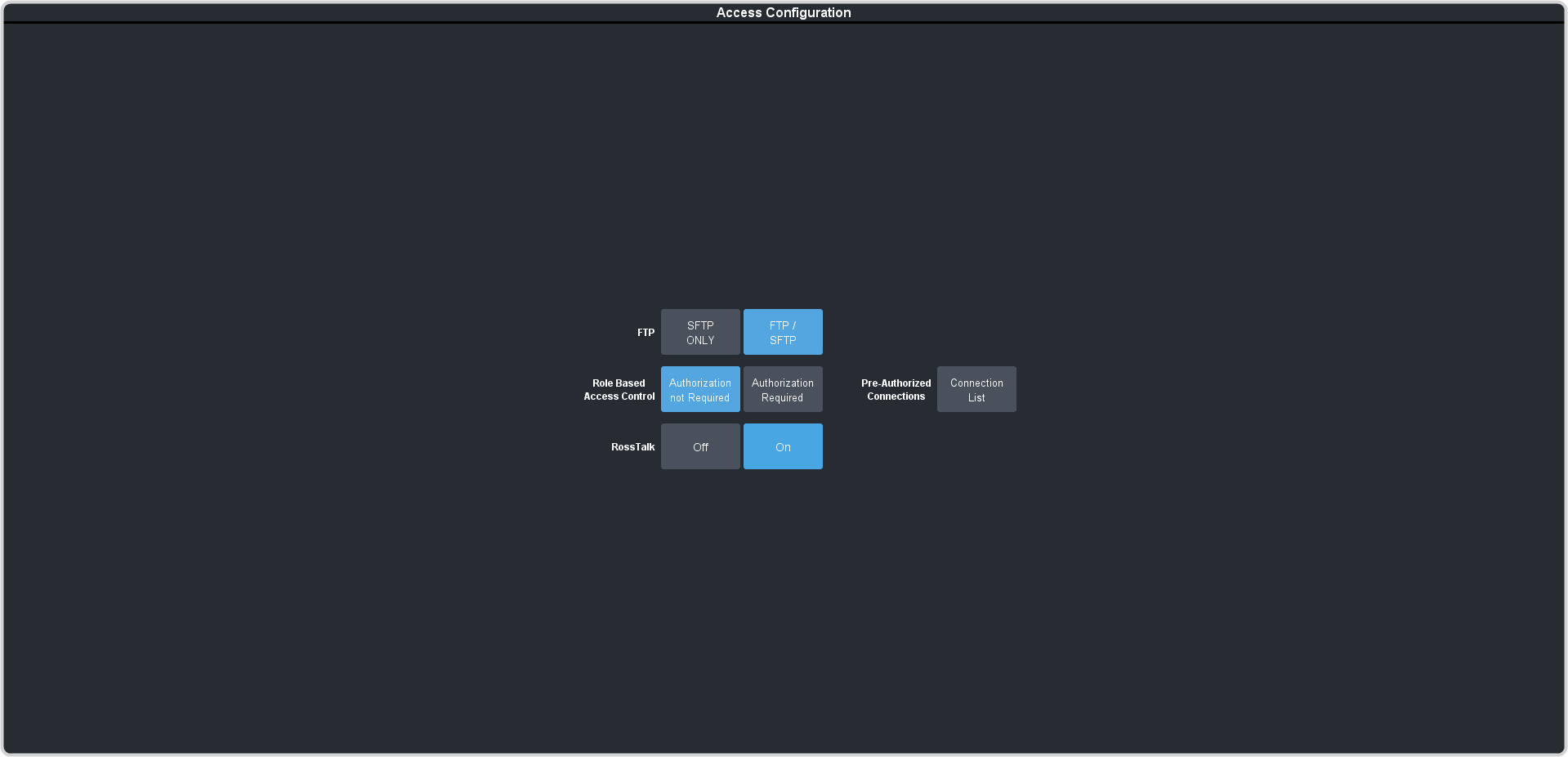
From DashBoard you can select whether the Role Based Access Control (RBAC) of Ross Platform Manager is applied to
AudioEdge™
XLR-Analog-Input/Output.
Important: Changing the RBAC mode may restrict access to the system if your account is not assigned to a role that has the required permission.
Note: RBAC settings are not stored in sets or changed with a factory default.
-
Click Navigation Menu > Configuration > System > Global
-
Click the Pre-Authorized Connections button and enter the IP address of any trusted DashBoard systems that you want to allow access to
the system without RBAC permissions.
-
Click a Role Based Access Control button to apply access control to the system.
- Authorization not Required — RBAC is applied to the system, but not enforced. Anyone can control the system through DashBoard.
- Authorization Required — RBAC is applied to the system and enforced. Only users with permission can control the system through
DashBoard.
-
Click OK to reboot the system using RBAC permissions from Ross Platform Manager.
Tip: You may have to close and re-launch DashBoard to apply the access control.