
To Create a Bus Map
The bus map assigns video sources to the buttons on the control panel.
-
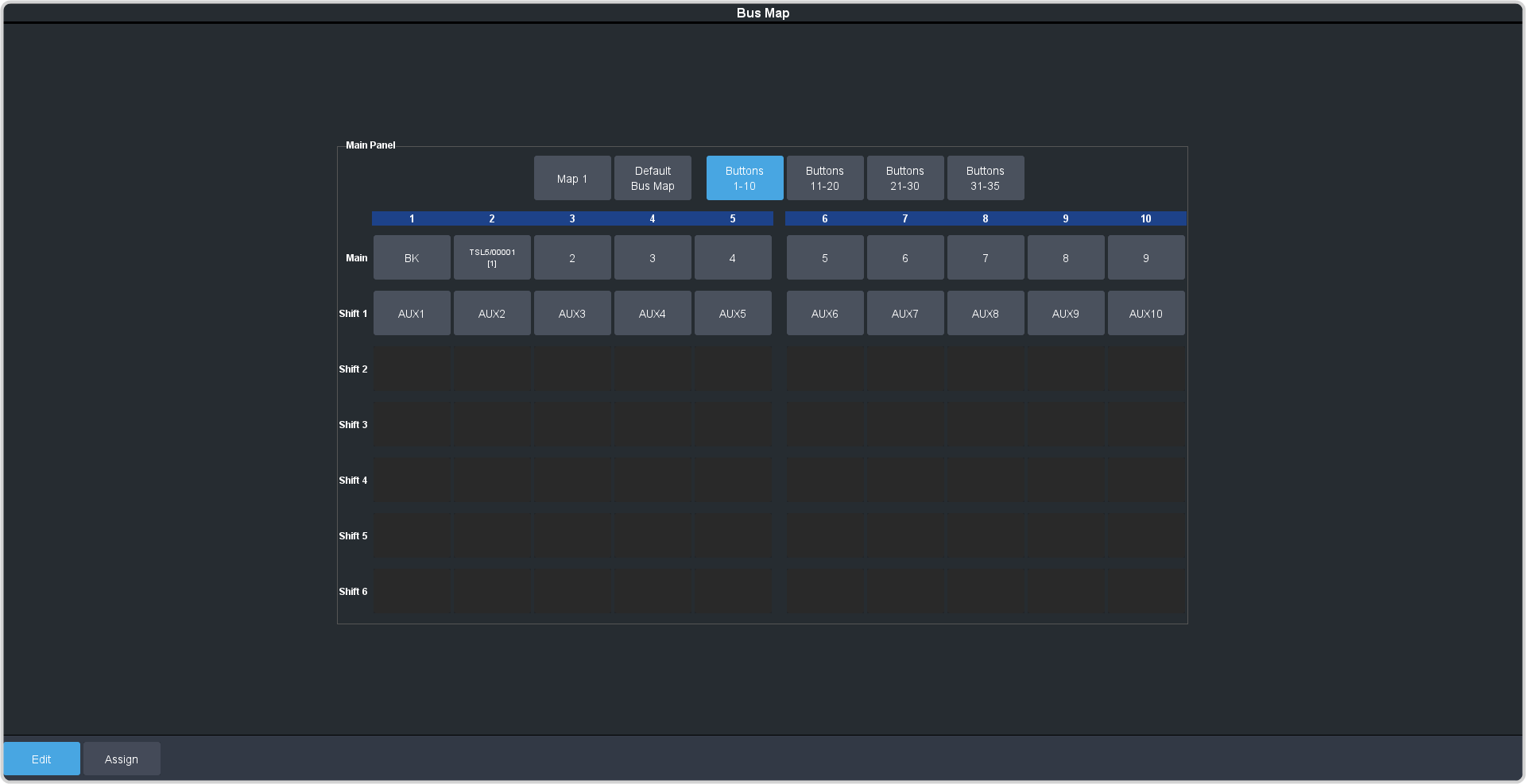
Click Navigation Menu > Personality > Bus Map > Edit.
-
Click the Map X button and select the bus map you want to edit.
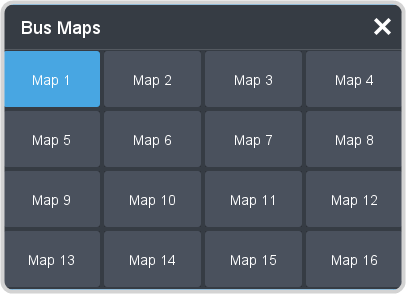
Tip:Click Default Bus Map to factory default the selected bus map.Tip:Click Copy From to copy an bus map from another panel to the currently selected map. Select the map you want to copy from, select the map, and then click Copy. -
Click the source button you want to use for a Shift function and click Other and select the shift level you want to assign to that source button.
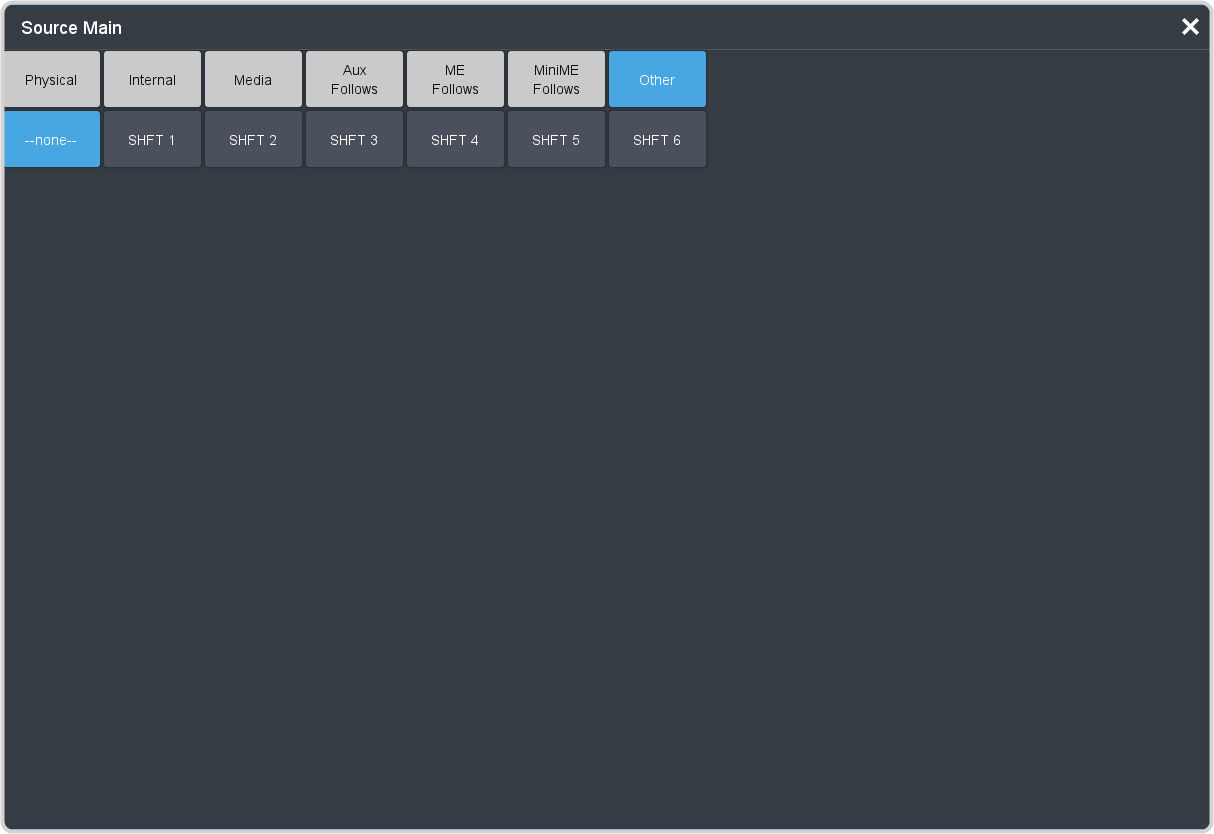
Note:You can have up to 6 shifted buses. All Shift buttons must be assigned to the Main bus.Tip:Select SHFT Loop to activate all shift layers. Tapping the SHFT X mnemonic on the TD panel will cycle through all the shift layers in sequence.Tip:You can rename the shift button, and other internal sources, from the Internal Input Configuration menu. -
Click the source button on the main or shifted bus that you want to assign a source to and select the source you want to assign to that button.
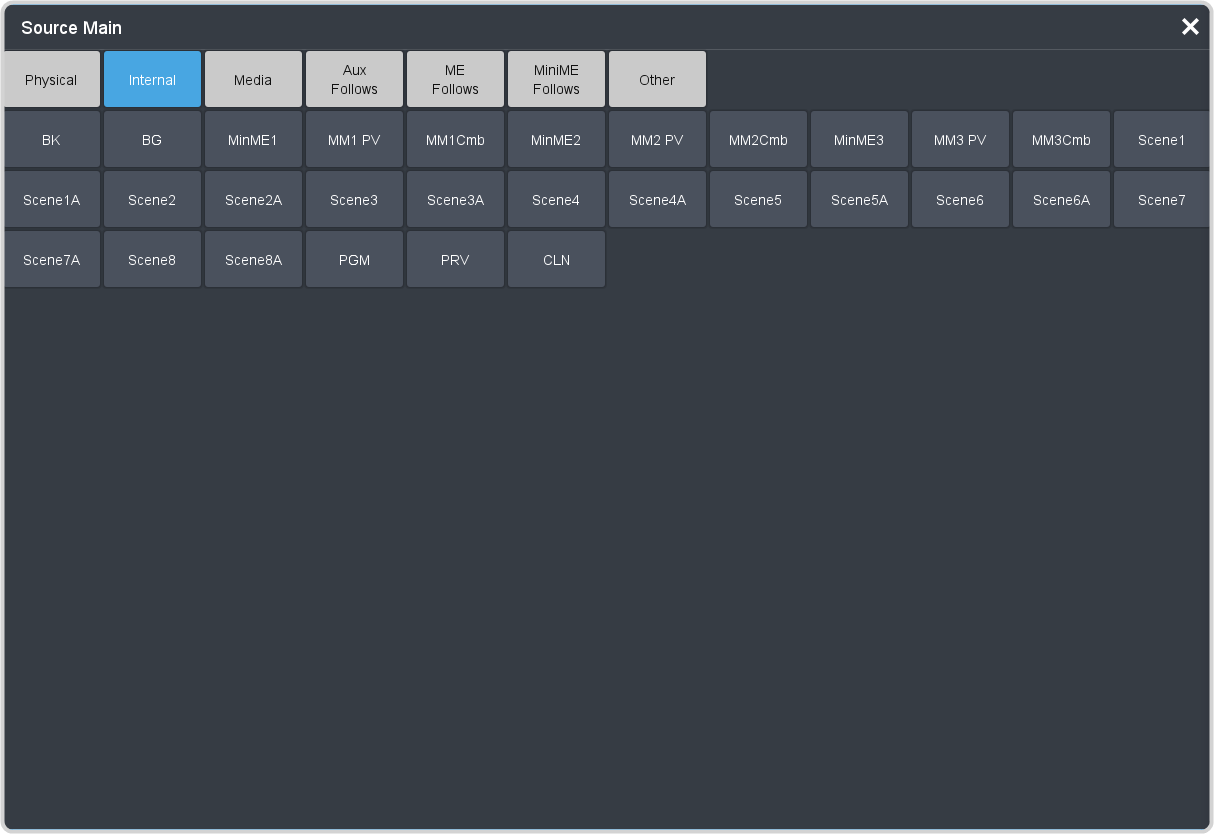
Note:If a button is assigned to a source that is not valid for the area the bus is assigned to, the button will not be lit up on the bus.