
To Attach a Function to a Button
Attach a user function to a panel button.
-
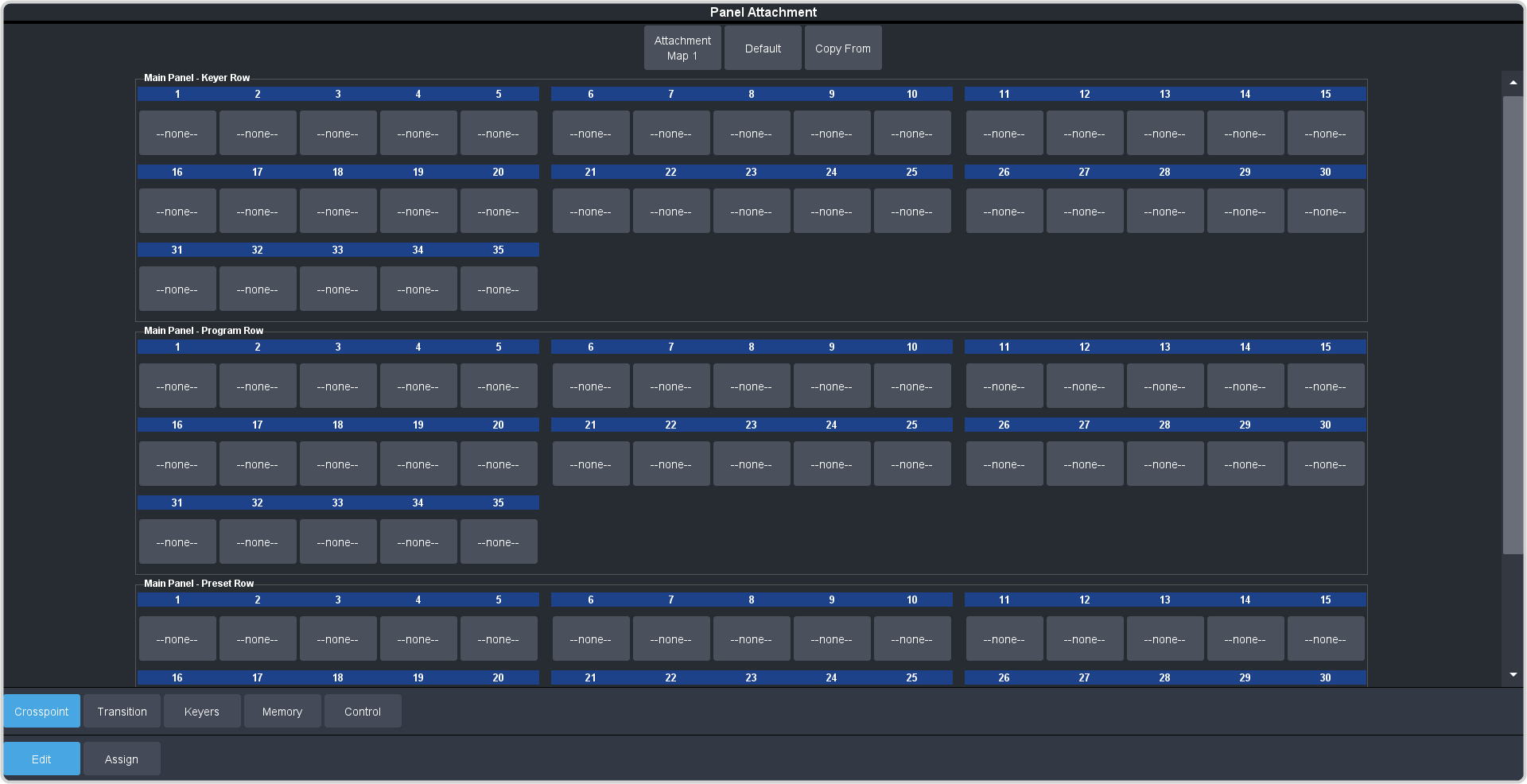
Click Navigation Menu > Personality > Panel Attachment > Edit.
Tip:You can see what buttons have a function attached to them by pressing and holding a TOUCH HOME button. For source buttons, the attached function is shown on the upper portion of the mnemonic.
-
Click the Attachment Map button and select the map that you want to edit.
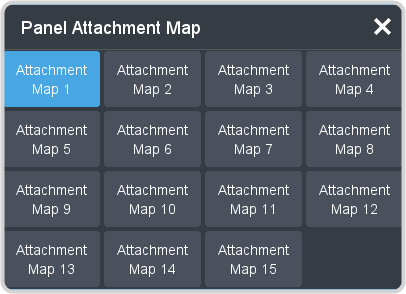
Tip:Click Default to reset the currently selected map.Tip:Click Copy From to copy an attachment map from another panel to the currently selected map. Select the panel you want to copy from, select the map, and then click Copy. -
Click the button that you want to attach a function to and select the function and mode you want to attach.
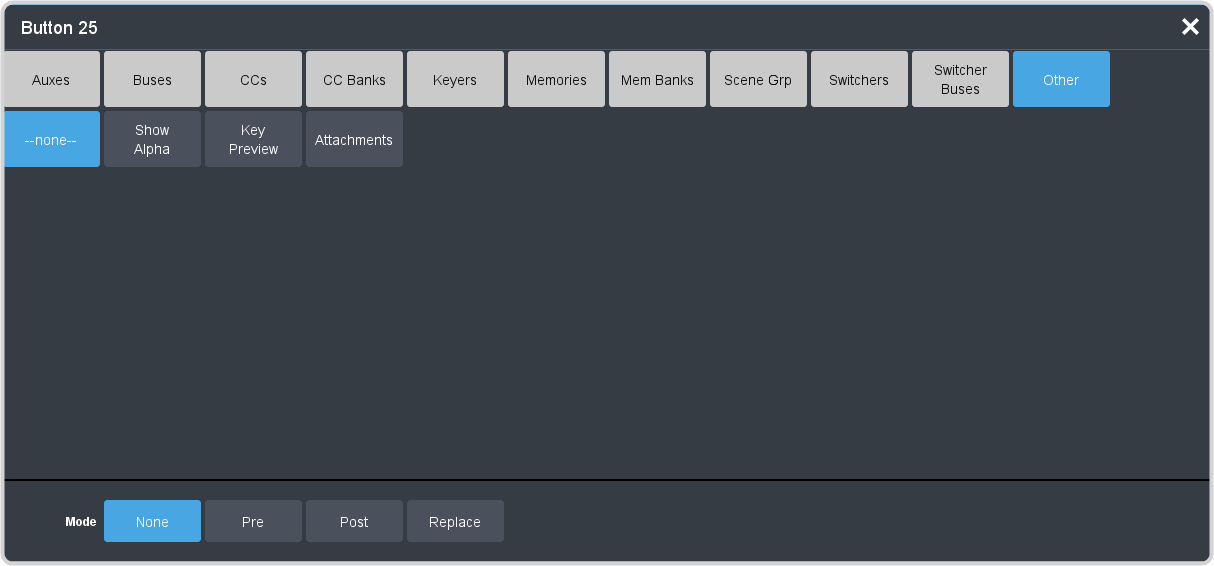
- None — the button functions normally and no additional function is assigned to the button.
- Pre — the new function triggers before the normal function of the button.
- Post — the new function triggers after the normal function of the button.
- Replace — the new function replaces the normal function of the button.
Tip:The Other > Attachments function is used to turn all button attachments On or Off. This should only be assigned as a user button. If you assign this function as a button attachment, you will not be able to turn panel attachments On.