
Frame Delays
A delay of up to 16 frames can be added to inputs 1-6. This allows you to delay the timing of an input to compensate for the delay in another source. For example, in a virtual set environment it may take a few frames for the system to track the position of the camera and render the background. In this case you want to delay the foreground cameras to compensate for this delay.
Keep the following in mind:
Keep the following in mind when working with frame delays:
- The frame sync functionality is disabled when a frame delay is applied to an input.
- Input 6 Frame Delay shares cache resources with Media-Store channels 2 and 4. If you enable the Frame Delay for input 6 the amount of cache available for Media-Store channels 2 and 4 is reduced.
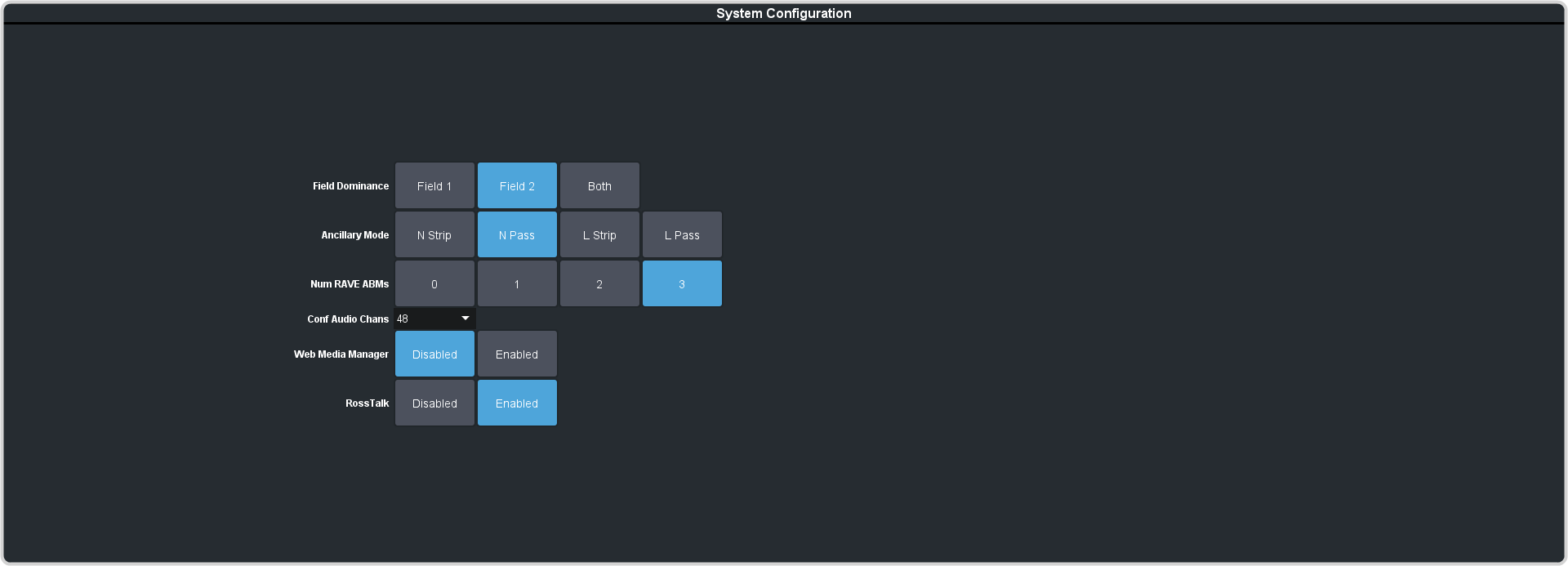
To Enable Input 6 Frame Delay
The frame delay for input 6 consumes some of the cache used for Media-Store channels 2 and 4. You can disable the frame delay to increase the cache for the Media-Store channels.
-
Click Navigation Menu > Configuration > System > Global.
To Apply a Frame Delay to an Input
Delay a video signal coming into the switcher.
Note:
A delay can only be applied to the first 6 input BNC.
Note:
The Input 6 Frame Delay must be Enabled before you can apply a frame delay to input 6.
-
Click Delay.
