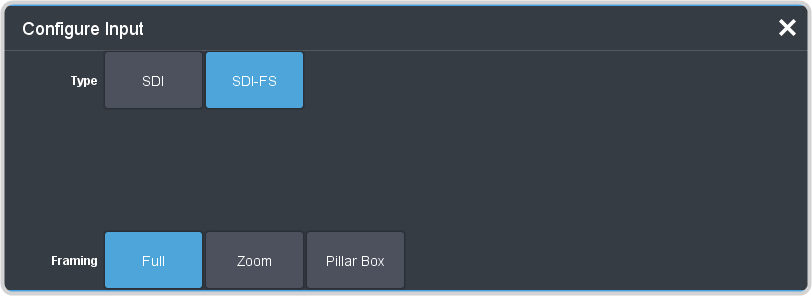
Input mode locks a specific FSFC channel to a specific input. Refer to Supported FSFC Video Formats for a list of
compatible video format conversions.
-
Click Navigation Menu > Configuration > Inputs > External.
-
Click the Configure button for the input you want to assign an FSFC to.
-
Click a Type button to turn on the FSFC.
- SDI — no FSFC is applied to the input.
- SDI-FS — an FSFC is applied to the input.
-
If required, select the aspect ratio conversion mode you want to use.
The options that are available depend on the video format that the switcher is converting from and to.
- Full — The video signal is scaled disproportionately to fill the display of the new aspect ratio. Aspect distortion occurs as the image is stretched/compressed to fit in
the new aspect ratio.
- Zoom — The central portion of the video signal is zoomed to fill the display of the new video format. No aspect distortion is introduced but the edges of the video signal
may be cropped.
- Letter Box — Black bars are added to the top and bottom of a 16:9 image to display correctly in a 4:3 video format.
- Pillar Box — Black bars are added to the right and left of a 4:3 image to display correctly in a 16:9 video format.