Inception enables you to create Broadcast stories from the following panels:
•Running Order — While in the running order panel you can add a new Broadcast story to the open order.
•Story Browser — when you do not want to immediately add a new Broadcast story to a running order, you can create your new Broadcast story from your Story Browser panel. You can add your Broadcast story to a running order at any time.
•Story Editor — while editing a story in the Story Editor panel, you can use the content of the current story to create a new Broadcast story. When you create a Broadcast story from an existing Inception story, Inception produces a story family that includes the original and new story. All new stories created in such a manner inherit the Slug and the content of the original.
•Assignment — while working on an assignment in the Assignment Editor panel, you can create new Broadcast story for the assignment. When you create a story from an assignment, Inception automatically makes the Slug for new stories the same as the assignment Slug. Changing the Slug of a new story does not change the assignment Slug.
1.Open the Story Editor panel to create a new Broadcast story. For information about opening the Story Editor from a specific panel to create a new story, refer to the following procedures:
•Running Order — To create a story from the Running Order Panel.
•Story Browser — To create a story from the Story Browser panel.
•Story Editor — To create a story from the Story Editor Panel.
•Assignment — To create a story from the Assignment Editor Panel.
The Story Editor panel opens for you to create a Broadcast story.
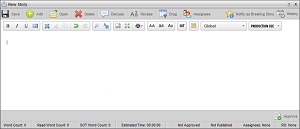
2.In the Story Editor, enter the story text.
The following fields in the status bar report the information about the number of words in a story:
•Word Count — the number of story text and of sound on tape (SOT) words in the story. This count does not include production cues.
•Read Word Count — the number of story text words in the story. This count does not include SOT words or production cues.
•SOT Word Count — the number of SOT words in the story. This count does not include story text words or production cues.
•Estimated Time — the estimated time for the anchor to read the story. When an override time is set for a story, Inception displays the override time following the estimated time. Inception uses bolded text and brackets to distinguish the override time from the estimated time.
3.Use the tools in the Text Formatting toolbar to set the appearance of story text. The Text Formatting toolbar contains the following tools:
|
Icon |
Description |
|
|
Bold — click or tap this icon to make the selected text bold. |
|
|
Italic — click or tap this icon to italicize the selected text Italic. |
|
|
Underline — click or tap this icon to underline the selected text. |
|
|
Remove Format — click or tap this icon to remove Bold, Italic, Underline, Strike-through, and Text Color formatting from the selected text. |
|
|
Select All — click or tap this icon to select all the content in a story. |
|
|
Cut — click or tap this icon to remove the selected text from the story and place it on the clipboard. |
|
|
Copy — click or tap this icon to place a copy of the selected text on the clipboard. |
|
|
Paste — click or tap this icon to paste the contents of the clipboard into the story at the cursor location. |
|
|
Paste as Plain Text — click or tap this icon to paste the contents of the clipboard into a story without any text formatting. |
|
|
Paste from Word — click or tap this icon to paste formatted text selected from a Word file into a story and retain text formatting. |
|
|
Undo — click or tap this icon to reverse your last edit. |
|
|
Redo — click or tap this icon to recover the last edit that you canceled with the Undo tool. |
|
|
Find — click or tap this icon to find text in a story. |
|
|
Replace — click or tap this icon to replace text in a story. |
|
|
Show Blocks — click or tap this icon to show or hide HTML block identifiers borders in a story. |
|
|
Maximize — click or tap this icon to hide or show the Top and Bottom toolbars. |
|
|
Print — click or tap this button to select how to print story content. •Formatted — print a story with the production cues displayed to the left of the story content. •Formatted + Instructions — print a story with the production cues displayed to the left of the story content and include instructions. •Unformatted — print a story as displayed in the Story Editor panel. |
|
|
Convert to Upper Case — click or tap this icon to change the selected text to all upper-case letters. |
|
|
Convert to Lower Case — click or tap this icon to change the selected text to all lower-case letters. |
|
|
Convert to Body Case — click or tap this icon to change the selected text to mixed case letters. Review the resulting text carefully, because the case adjustment tool cannot account for all situations. |
|
|
SOT — click or tap this button to insert sound on tape (SOT) information in a story. By default, SOT information is displayed as green text in a story. The word count for a story does not include SOT information. |
|
|
Instruction — click or tap this button to insert an instruction in a story. By default, instructions are displayed as blue text in a story. The word count for a story does not include instructions. |
|
|
Production Cue Group — use this list to select the production cue group that contains the production cues to insert into a story using hotkeys. Hotkeys will only insert the Global production cues and production cues contained in the selected production cue group. |
|
|
Production Cue — use the list to select the production cue to insert into a story. By default, production cues are displayed as red text in a story. The word count for a story does not include production cues. |
4.After you finish creating the story, click or tap the  Save icon.
Inception saves the story. You can drag the new the new story into a running order. You can use a Broadcast stories as an operator cue or as a container to publish multiple social media stories at one time.
For More Information on...
•spell checking story text, refer to the chapter Spell Checking.
•blacklisted content, refer to the section Find Blacklisted Content in Your Stories.
•editing Broadcast stories, refer to the section Edit Broadcast Stories.
•approving and publishing stories, refer to the chapter Approving and Publishing Stories.
•adding stories to a running order, refer to the chapter Editing the Running Order.
•changing the order of stories in the running order, refer to the section Reposition Stories in the Running Order.
•deleting a story from the running order, refer to the section Remove a Story from a Running Order.