The Fly key is when the DVE engine is applied to another key type.
The DVE resources for this key may not be available. Depending on how your switcher is configured, you may be asked to steal the resources from another element, or be prevented
from using the resources.
You should set up your key as you want it before applying the Fly Key.
-
Click Navigation Menu > Live Assist > MEs and select the ME and key that you want to set up.
-
Click DVE and click On.
-
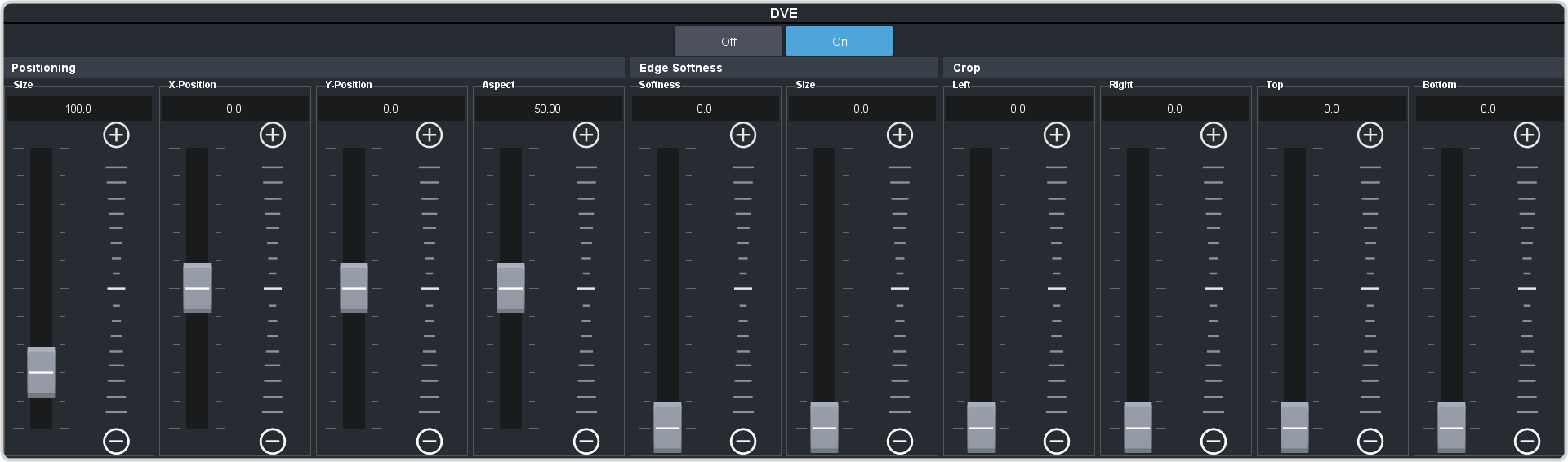
Click Position.
-
Use the X-Position, Y-Position, and Size sliders in the Positioning area to position and size
the key.
-
Use the Aspect slider to adjust the aspect ratio of the key.
-
Use the Size and Softness sliders in the Edge Softness area to apply softness to the edges of to the key.
-
Use the Left and Right sliders to crop the left and right sides of the key.
-
Use the Top and Bottom sliders to crop the upper and lower sides of the key.
-
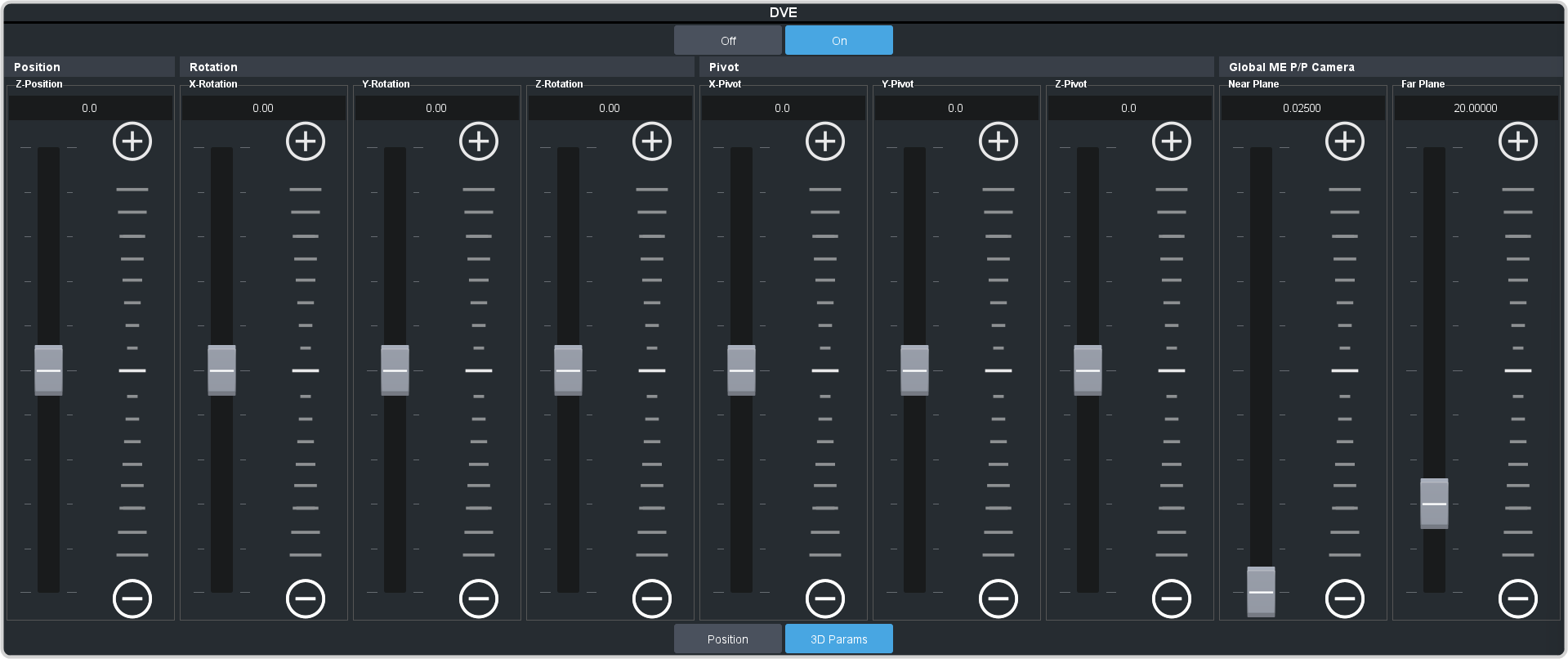
Click 3D Params to rotate the key or position it in z-space.
-
Use the Z-Position to move the key backward or forwards in 3D space.
-
Use the X-Pivot, Y-Pivot, and Z-Pivot sliders to move the rotation pivot point in 3D space. This is the point in
space that the key rotates around.
-
Use the X-Rotation, Y-Rotation, and Z-Rotation sliders to rotate the key around the pivot point in 3D space.
Tip: If the near or far edge of the key appears to get clipped, use the ME X Camera Near Plane or ME
X Camera Far Plane to adjust the rendering limit plane in z-space. This applies to all keys on that ME.