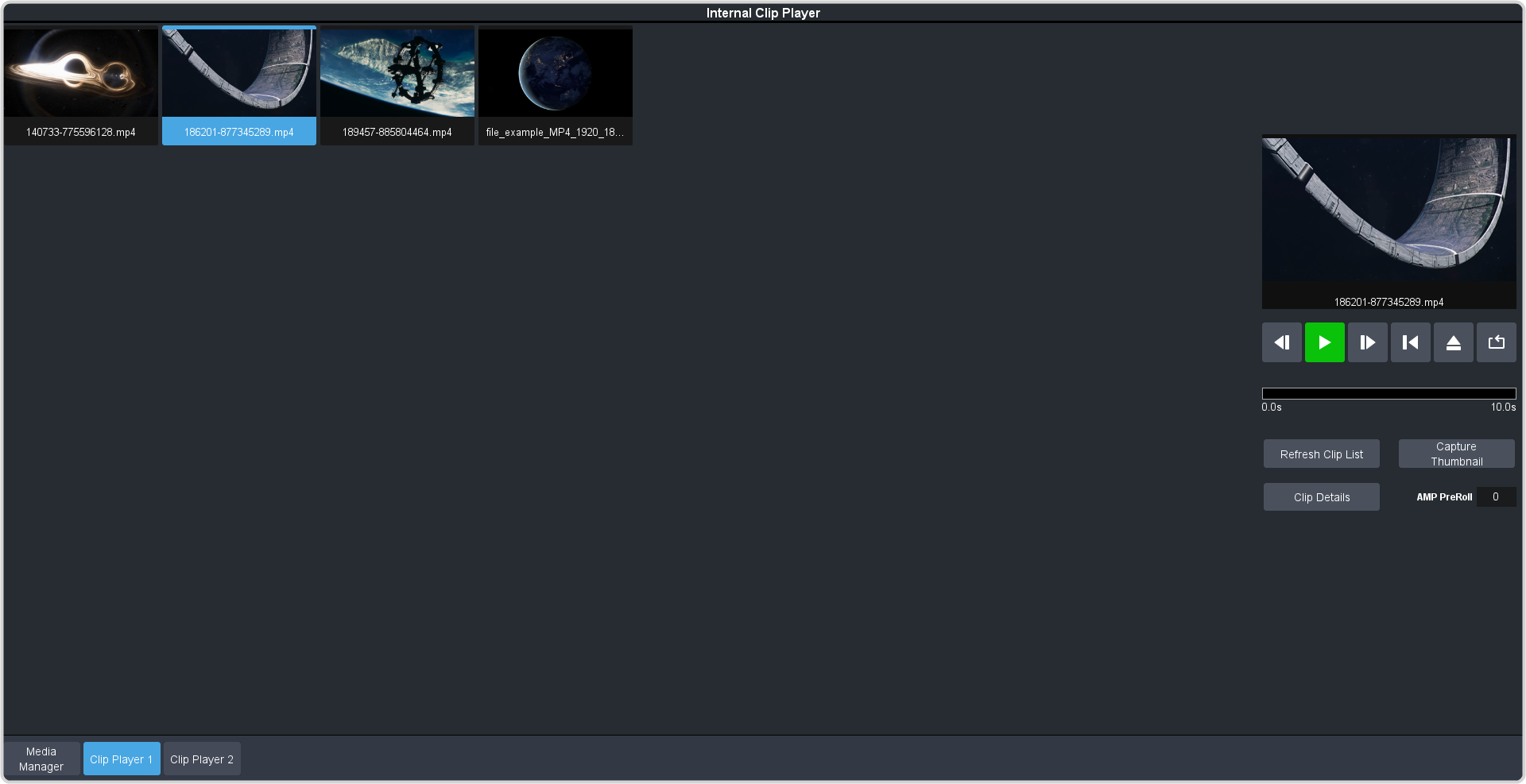
Clips must be located on the internal hard drive in the /clips/video folder in the USB link on the Start menu.
Sub-folders are not supported at this time.
Note: The clip player is only available in HD switcher modes.
-
Click Navigation Menu > Live Assist > Media > Clip Player for the clip player channel you want to load a clip into.
-
Click on the clip you want to load.
Note: The clip is loaded into the channel as soon as you click on it. If a clip is already playing it is ejected and the new clip is loaded.
Tip: If the clip you want to load does not appear in the list, click Refresh Clip List. The switcher re-scans the folder and updates the clip
list.
The clip is loaded and queued into the clip player.
-
Click Clip Details to view general, video, and audio information on the currently loaded clip.