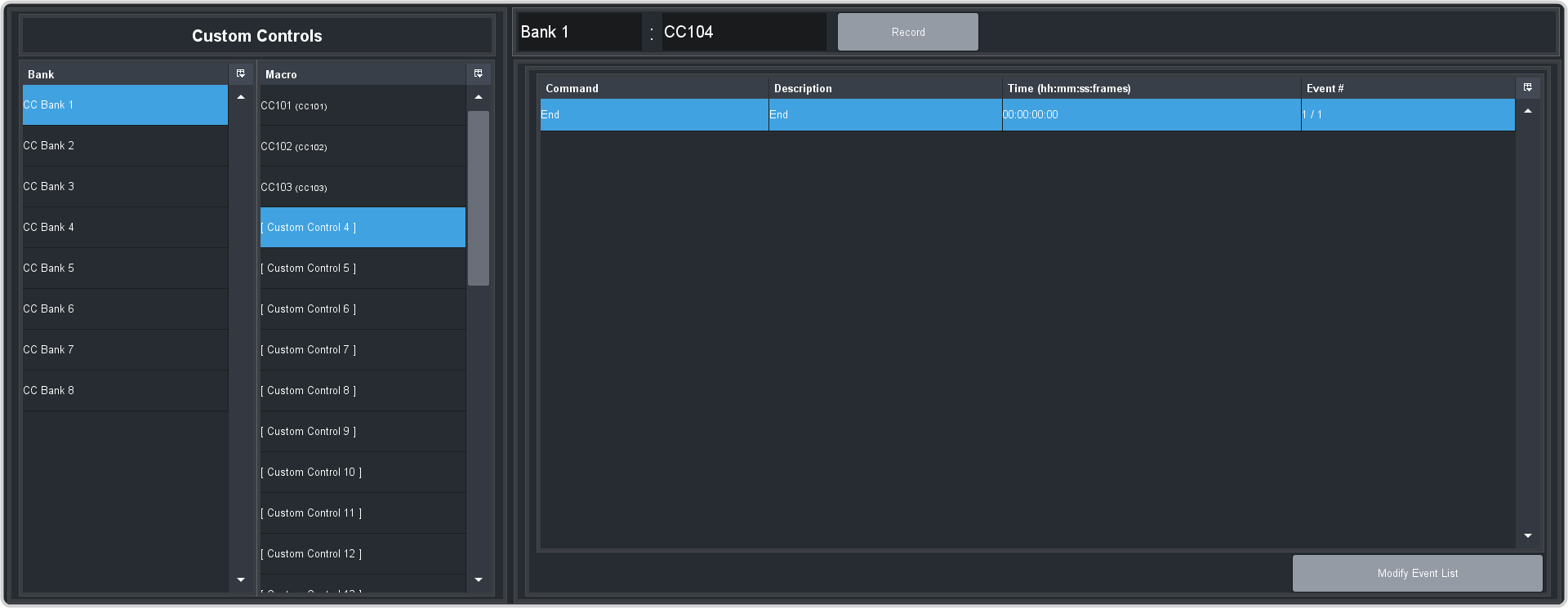
A basic custom control records a series of events that are played out in the same order they are recorded.
-
Click Navigation Menu > Custom Control > Editor.
-
Click a Bank button to select the bank that the custom control you want to record will be stored on.
-
Click a Macro button to select the custom control that you want to record to. If the custom control already has a macro recorded, the name of the custom control
is shown in the list.
Tip: You can rename both the custom control and the bank by entering a new name in the field next to the record button.
-
Click Record.
-
Insert the events you want to record.
Each custom control can have a maximum of 998 events, plus the End event.
Note: When the system runs a custom control, it attempts to execute each event in the custom control as quickly as possible. If an event takes time to complete, the event
may not be complete before the system attempts to execute the next event. For example, if your custom control has a memory recall followed by a level change, a pause should be added
between the memory recall and the gain applied to ensure that the memory is fully recalled before the change is performed. The same applies if you want to add events after gain is
applied.
-
Click Stop Recording to finish recording.
Tip: Click Cancel if you do not want to store your events to the custom control.