 Asset icon.
Users outside of Streamline can save or place media files in designated watch folders to fulfill placeholders for assets in Streamline. You can configure Streamline to automatically create a watch folder for each placeholder that Streamline users create to fulfill an asset. Streamline names the watch folder created for the placeholder with the placeholder name.
To configure Streamline to automatically create watch folders for placeholders
1.On the Configuration window toolbar, click the Asset icon.
The Asset panel opens.
2.Click the Placeholder Configuration tab.
The Placeholder Configuration tab opens.
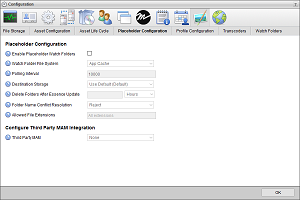
3.In the Configure Placeholder Watch Folders section, select the Enable Placeholder Watch Folders check box to automatically create a watch folder for each placeholder that Streamline users create to fulfill an asset.
4.Use the Watch Folder File System list to select the Streamline file system to contain the watch folder that Streamline automatically creates for a placeholder in a work order. Streamline uses the work order name to create a watch folder in the selected file system.
5.Enter in the Polling Interval box the amount of time in milliseconds to wait between successive checks of the watch folder for new media files to upload.
6.Use the Destination Storage list to select the file storage to ingest media files into your Streamline System from the watch folder.
A file storage sets the physical location to store the ingested media files along with setting the lifecycle, naming, folder path, validation, and triggers for the media file. Streamline contains a default file storage that you can use to ingest media files and store them in the default file system on your Streamline Server. Your Streamline System may also have custom file storages to ingested media files into the various file systems on your Streamline Server.
7.Enter in the Delete Folders After Essence Update box the amount of time to wait before automatically deleting the watch folder after it ingests a media file to fulfill a placeholder.
8.Use the list the right of the Delete Folders After Essence Update box to select the time unit for the time amount entered in the Delete Folders After Essence Update.
9.Use the Folder Name Conflict Resolution list to select how to name a placeholder watch folder when an existing folder has the same name as the placeholder. Streamline uses the name of placeholder to create the watch folder for the placeholder. The available options are as follows:
•Reject — do not create a watch folder for the placeholder. To create a watch folder for the placeholder, you must rename the placeholder with a name that does not match existing folders in the selected File System.
•Append to Name — automatically add an underscore (_) followed by an incremental number to the end of the placeholder name and the name of the watch folder created for the placeholder.
•Prepend to Name — automatically add an underscore (_) followed by an incremental number to the start of the placeholder name and the name of the watch folder created for the placeholder.
•Fulfill Multiple Placeholders — use the existing folder as the watch folder for the placeholder. Saving or placing a media file in a watch folder shared by multiple placeholders fulfills all the placeholders with the same media file.
10.In the Allowed File Extensions box, enter the file extension that a media file must have for Streamline to ingest the file from a placeholder watch folder. Clear this box to ingest media files that have any file extension.
Do not include the initial period with the file extensions that you enter.
When entering more than one file extension, use a comma (,) to separate the file extensions. For example, enter the following to ingest .gif, .jpg, and .png media files:
gif, jpg, png
Inception will not ingest media files that have file extensions that differ from the allowed file extensions.
11.Select the Enable Work Order Name in Folder Path check box to create a folder in the watch folder file system with the work order name that contains a folder with the placeholder name. The work order and placeholder folders are automatically created when you add a placeholder to a work order.
Clear this check box to create a single folder with the placeholder name.
12.Click Save.
Streamline automatically creates a watch folder in the selected File System for each created placeholder.