 icon. Clicking the
  icon opens the Asset Approvals panel which lists all the assets pending your approval. From this panel you can approve or reject one or multiple assets at a time.
Approving or Rejecting Multiple Assets Through the Asset Approvals Panel
When at least one asset is pending your approval, the main toolbar in the Streamline displays the icon. Clicking the icon opens the Asset Approvals panel which lists all the assets pending your approval. From this panel you can approve or reject one or multiple assets at a time.
To approve assets using the Asset Approvals panel
1.In the main toolbar, click the  Assets Pending Approval icon.
The Asset Approvals panel opens.
2.Select the asset or assets to approve.
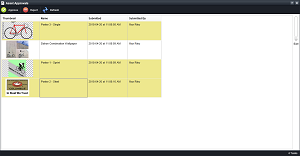
3.Click the  Approve icon in the toolbar.
Streamline approves the selected assets and clears them from the Asset Approval panel. In the Asset panel, Streamline displays a check mark in the Approved column of the assets.
To reject assets using the Asset Approvals panel
1.In the main toolbar, click the  Assets Pending Approval icon.
The Asset Approvals panel opens.
2.Select the asset or assets to reject.
3.Click the  Reject icon in the toolbar.
Streamline rejects approval of the selected assets and clears them from the Asset Approval panel. The Asset panel clears the check mark from the Submitted column of the assets.