 ROOMS icon.
Rooms are the central part to running a production using Quorum. The Rooms panel displays a photo or map of the meeting venue, overlaid with camera and mark icons. You can open multiple rooms in the Rooms panels, but you can only run a production from one room at a time. To run a production from a room, you must connect the room to the Caprica Server in your Quorum system. The Caprica Server enables you to use Quorum to control the switcher, graphics engine, and camera devices associated with a room to run a production.
1.In the side navigation, hover the mouse pointer over the ROOMS icon.
The ROOMS list opens.
2.Use the ROOMS list to select the room to open.
The selected room opens in a Rooms panel.
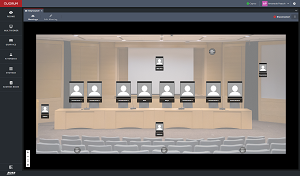
After opening the Rooms panel, you can position it to best suit your workflow.
3.In the upper-right corner of the Rooms panel, click the  Three Dots icon.
The Room menu opens.
4.Use the Room menu to select Connect to Room.
The status indicator in the left of the  Three Dots icon changes to Connected, indicating that the room is connected to the Caprica Server and ready to run a production.
For More Information on...
•positioning panels in the Quorum user interface, refer to the section User Interface Layout.