Panel Positions
When accessed from a mobile device, the Inception user interface layout consists of the main toolbar plus four panel positions. Each panel position can contain zero or more types of Inception panels. If some positions are unoccupied, Inception optimizes the layout by expanding the open panels to fill all available space.
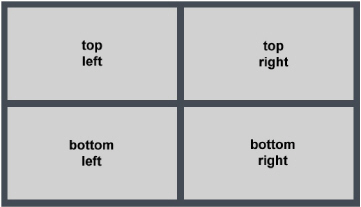
The following illustration describes the default layout.
Figure 1.19 Arrangement of the Four Panel Positions
Panels open in either the top right or bottom right position as follows:
• Grid-based panels appear in the top right position. These include running orders, playlists, the Story Browser panel, the Task Schedule panel, and the Approval Manager panel.
• The Story Editor panel opens in the bottom right position.
• Feed-based panels appear in the bottom right position.
Since Inception only opens panels in the top right and bottom right positions, the interface looks to have only two panels (top and bottom), unless you move a panel to a position on the left.
Move a Panel from One Layout Position to Another
To move a panel from one layout position to another
1. At the top of the panel you want to move, tap and drag the panel’s name tab.
The layout guide opens.
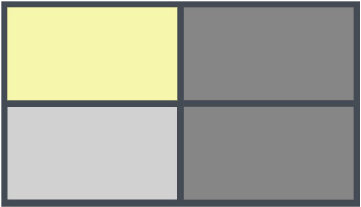
2. Drag the pointer over the layout guide to specify the position to which you want to move the panel.
As you drag the pointer over the layout guide, the current drop position for the panel turns yellow. Light gray indicates unoccupied positions. Dark gray indicates occupied positions that can accept additional panels.
3. When the position to which you want to move the panel turns yellow, lift your finger.