 Running Orders icon.
If you have an NCS license for your Inception Server, you can print the script content of the running order currently open in the Running Order panel from a desktop computer.
You require an NCS license for your Inception Server to print running orders. You cannot print running orders from a mobile device. Please contact Ross Video to purchase an NCS license for your Inception Server.
1.From the main toolbar, click or tap the Running Orders icon.
The Running Order Manager panel opens.
2.In the Running Orders table, double-click or double-tap the running order to print.
The selected running order opens in the Running Order panel.
3.If you want to include running order cell shading in your printout, you must configure your web browser to print background colors and images.
4.If you only want to print selected rows or blocks from a running order, select the rows or blocks to print.
5.In the Running Order panel, click or tap the  Print icon. If the Print icon is not visible, you do not have an NCS license for your Inception Server. You cannot print running orders without an NCS license for your Inception Server.
The Print Running Order dialog box opens.
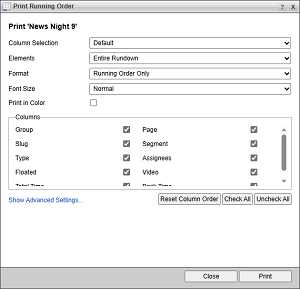
6.Use the Column Selection list to select the set of running order columns to include in the running order printout. The available column sets are as follows:
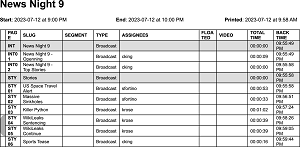
•Default — Group, Page, Slug, Segment, Type, Assignees, Floated, Video, Total Time, and Back Time columns.
•All — all available running order columns.
•Perspectives — the columns included in the selected perspective. Inception also uses the column order and column size proportions from the selected perspective to print the running order.
A running order printout of the Default columns would look like the following example:
7.Use the Elements list to select the running order rows to include in the running order printout. The available running order rows are follows:
•Entire Rundown — all the rows in the running order.
•Selected Rows — only the selected rows in the running order.
•Selected Block — only the rows contained by the block selected in the running order.
8.Use the Format list to select the running order information to include in the running order printout. The available running order printout formats are as follows:
•Running Order Only — only include running order columns in the running order printout.
•Running Order with Scripts — include story text with the running order columns the running order printout.
•Scripts Only — only include story text in the running order printout.
Scripts include story text, production cues, and instructions.
9.Use the Font Size list to set the font size of the text in the running order printout and in the running order printout preview window. The available font sizes are as follows:
•Small — 50% of the default font size set for your browser.
•Normal — 66% of the default font size set for your browser.
•Large — 100% of the default font size set for your browser.
•X-Large — 140% of the default font size set for your browser.
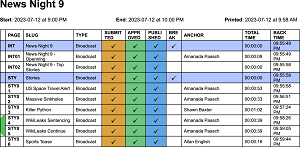
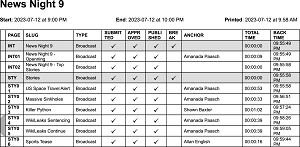
10.Select the Print in Color check box to print the running order in color. Clear the Print in Color check box to print the running order in grayscale.
A running order printed in color would look like the following example:
 o
o
The same running order printed in grayscale would look like the following example:
11.Select the Script Double Spacing check box if you want to double space the script content of the running order in the running order printout and in the running order printout preview window.
This option is only available when you select the Running Order with Scripts or Scripts Only format from the Format list.
12.In the Columns section, select the check box to the left of each Running Order panel column that you want to include in the running order printout. Clear the check box to the left of each column that you want to exclude from the running order printout.
13.This section is not available when the Running Order with Scripts or Scripts Only format is selected from the Format list.
14.Use the Columns section to select the running order columns to include in the running order printout. The columns listed in this section come from the column set selected in the Column Selection list.
•To include a column in the running order printout, select the check box to the left of the column name. Clear the check box to the left of a column name to exclude the column from the running order printout.
•To reposition a column in the running order printout, click and drag the column to a new position in the Columns section. Inception prints the columns in the Columns section from left to right.
The Columns section is not available when you select the Scripts Only format from the Format list.
15.Click Reset Column Order to reset the print order of the columns in the Columns section.
16.Click Check All to select all the columns in the Columns section.
17.Click Uncheck All to clear all the column check boxes in the Columns section.
18.Click or tap the Show advanced settings link to show advanced settings to control the information contained in the running order printout. The available advanced settings are as follows:
•Page Breaks Between Stories — select this check box to create a new page in the running order printout for each story in the running order. This option is only available when the Running Order with Scripts or Scripts Only format is selected from the Format list.
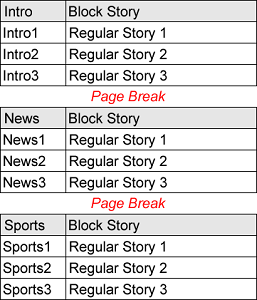
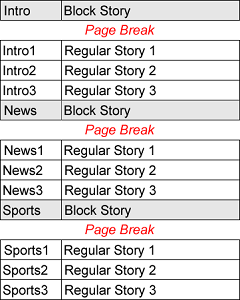
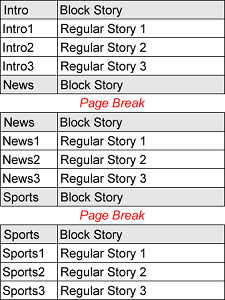
•Page Breaks Between Blocks — select this check box to set the page break locations between blocks to create a new page in the running order printout. A block is a grouping of one or more break stories followed by one or more regular stories. This option is only available when the Entire Rundown element is selected from the Elements list and the Running Order Only format is selected from the Format list.
The available locations are as follows:
›Include Lead Break — place a page break before each break story in a running order. Each printout page starts with the block break story and contains the regular stores in the current block.
›Include End Break — place a page break after each break story in a running order. Each printout page starts with the regular stories in the prevision block and ends with the break story for the next block.
›Include Both — place a page break before each break story in a running order and preview the next break story. Each printout page starts with the block break story, contains the regular stories in the current block, and ends with the break story of the next block as a preview.
•Include Floated Stories — select this check box to include the floated stories in the running order printout. Clear this check box to exclude floated stories from the running order printout.
•Include Child Stories — select this check box to include the child stories associated with parent stories in the running order printout. Clear this check box to exclude child stories from the running order printout.
•Include Break Stories — select this check box to include the stories marked as a break in the running order printout. Clear this check box to exclude stories marked as a break from the running order printout. This option is only available when the Running Order with Scripts or Scripts Only format is selected from the Format list.
•Include Empty Stories — select this check box to include the stories without a slug in the running order printout. Clear this check box to exclude stories without a slug from the running order printout. This option is only available when the Running Order with Scripts or Scripts Only format is selected from the Format list.
•Include Instructions — select this check box to include story instructions in the running order printout. Clear this check box to exclude story instructions from the running order printout. This option is only available when the Running Order with Scripts or Scripts Only format is selected from the Format list.
•Format Stories — select this check box to print stories with the production cues displayed to the left of the story content. Clear this check box print stories as displayed in the Story Editor panel.
19.Click or tap Print.
Inception saves your selected printing setting and opens a preview of the running order printout along with the Operating System Print dialog box.
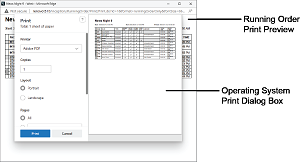
20.Use the Operating System Print dialog box to send the running order printout to a printer.
21.After Inception sends the running order printout to a printer, close the preview of the running order printout.
22.In the Print Running Order dialog box, click or tap Close to close the dialog box and return to the running order.