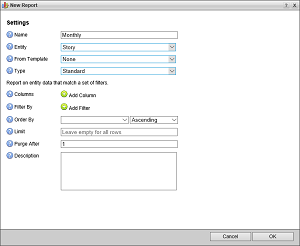
Standard Report
Standard reports display information about each found story as a single row in a table. You can define filters as part of a standard report to focus report results.
1.In the New Report dialog box, use the Report Type menu to select Standard.
The New Running Order dialog box displays the Standard report options.
2.In the Columns section, click or tap  Add Column to add a column to the report.
A column selection list opens in the Columns section.

Reports must contain one or more columns.
3.Use the Column list to select a column that contains information to display in the report.
4.To add additional columns to a report, repeat steps step 2 and step 3.
The Columns section displays the selected columns in the order that they will display in the report.
5.Use the following icons to manage the columns selected for a report:
• — click or tap this icon to delete the associated column from the report.
• — click and drag this icon to move the associated column to a new position in the report.
6.In the Filter By section, click or tap  Add Filter to add a filer the report. Report results will only include the stories that match all the defined filters in the order they are displayed in the Filter By section.
A filter definition opens in the Filter By section.

7.Use the Field list to select the field that contains the information to filter.
8.Use Type to select the type of value that you want to filter for the selected Field. Depending on the selected Field, the available value types are as follows:
•None — do not use the selected field to filter the report.
•Blank — the selected field contains no information, is blank.
•Any Of — any of the values selected from the Value field.
•Today — approved, end air time is, start air time is, created, modified, published, or submitted today.
•This Week — approved, end air time is, start air time is, created, modified, published, or submitted during the current week.
•This Month — approved, end air time is, start air time is, created, modified, published, or submitted during the current month.
•This Year — approved, end air time is, start air time is, created, modified, published, or submitted during the current year.
•Exact Date — approved, end air time is, start air time is, created, modified, published, or submitted on the date selected from the Value field.
•Range — approved, end air time is, start air time is, created, modified, published, or submitted within the date range set by the dates selected in the Value Start and End lists.
•Before — approved, end air time is, start air time is, created, modified, published, or submitted before the date selected in the Value field.
•After — approved, end air time is, start air time is, created, modified, published, or submitted after the date selected in the Value field.
•Relative Days — approved, end air time is, start air time is, created, modified, published, or submitted within the number of days entered in the Value field from the current date.
•Relative Hours — approved, end air time is, start air time is, created, modified, published, or submitted within the number of hours entered in the Value field from the current time.
•Me — approved by, created by, modified by, published by, submitted by, or assigned to the current Inception user.
•Any Of — approved by, created by, modified by, published by, submitted by, or assigned to any Inception user selected in the Value field. Approval or publish status as selected in the Value field.
•All Of — assigned to all of the Inception users selected in the Value field.
•Yes — item is blacklisted, a break, a child, coded, floated, on air, or hidden from devices.
•No — item is not blacklisted, a break, a child, coded, floated, on air, or hidden from devices.
•Match — exactly matches the text entered in the Value field.
•Match Any — exactly matches one of the comma separated text chunks entered in the Value field.
•Contains — contains the text entered in the Value field.
•Contains Any — contains one of the comma separated text chunks entered in the Value field.
•Name Starts With — running order name starts with the text entered in the Value field.
•Name Contains — running order name contains the text entered in the Value field.
•Name Contains Any — running order name contains any of the comma separated text chunks entered in the Value field.
•Created Today — running order was created today.
•Created This Week — running order was created this week.
•Created This Month — running order was created this month.
•Created This Year — running order was created this year.
•End Date Today — running order ends today.
•End Date This Week — running order ends this week.
•End Date This Month — running order ends this month.
•End Date This Year — running order ends this year.
The Value field updates to match the selected Type.
9.Use the Value field to set a value for the selected Type.
Some Types do not require that you enter or select a Value.
10.Whey you want a report to contain results that do not match a defined filter, select the Not check box associated with the filter.
11.To add additional filters to a report, repeat steps step 6 and step 10.
Report results will only include the stories that match all the defined filters in the order they are displayed in the Filter By section.
12.Use the Order By list to select the field that contains the information with which to order report results.
13.Use the list to the right of the Order By list to select the order in which to sort report results based on the information contained in the field selected from the Order By list.
14.Enter in the Limit box the maximum number of records to include in a report.
15.Enter in the Purge After box the number of days that Inception saves report results.
Inception deletes report results that are older than the set Purge After time.
16.Enter in the Description box a description of the report.
17.Click or tap OK.
Inception adds the new report to the Report Manger panel.