 Configuration icon.
Connect to an LDAP Directory Server
To connect to an LDAP directory server
1.Log in to your Inception Server as an Inception administrator.
For information about Inception Server log in, refer to the procedure To access the Inception Server Configuration window.
2.On the main toolbar, click the Configuration icon.
The Configuration window opens.
3.On the Configuration window toolbar, click the  Users icon.
The Users panel opens.
4.Click the LDAP tab.
The LDAP tab opens.
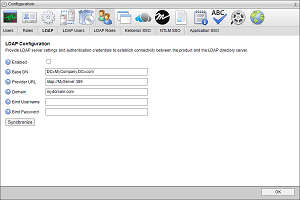
5.Select the Enabled box to enable LDAP user authentication.
If you clear this box, users are only able to log in to your Inception Server with user accounts created by Inception.
6.In the Base DN box, enter the name of the root LDAP node for user data.
Example: DC=MyCompany,DC=com
7.In the Provider URL box, enter the URL of the LDAP provider, with optional port.
Example: ldap://MyServer:389
8.In the Domain box, enter the domain name to append to users upon login.
Example: rossvideo.com
9.In the Bind Username box, enter the distinguished name (DN) used to log in to the directory server.
10.In the Bind Password box, enter the password used to log in to the directory server.
11.Click Synchronize to synchronize your Inception Server with the LDAP directory server used by your system.
For More Information on...
•LDAP Authentication, refer to the chapter Configuring LDAP Authentication
•how to import LDAP user account data, refer to the section Map to LDAP User Data
•how to Import LDAP user role data, refer to the section Map to LDAP Group (Role) Data