 Configuration icon.
Inception apps are contained in .app files that you can install on your Inception Server. The availability of installed Inception apps depends on the user permissions set for a user.
1.Log in to your Inception Server as an Inception administrator.
For information about Inception Server log in, refer to the procedure To access the Inception Server Configuration window.
2.On the main toolbar, click the Configuration icon.
The Configuration window opens.
3.On the Configuration window toolbar, click the  Apps icon.
The Apps panel opens.
4.Click the App Manager tab.
The App Manager tab opens.
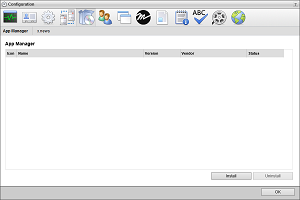
5.Click Install.
The Install App page opens.
6.Click Browse to the right of the App File box.
The Open dialog box opens displaying the local file system of your computer.
7.Locate and select the App file (.app) that contains the Inception app to install on your Inception Server.
8.Click Open.
Inception installs the selected app. The Install App page closes and Inception adds the app to the App Manager list.