 System icon.
Configure Database Connectivity
Database connectivity settings enable you to set the database used by Inception and the user account that Inception uses to connect with the database.
To configure database connectivity
1.On the Configuration window toolbar, click the System icon.
The System panel opens.
2.Click the Database tab.
The Database tab opens.
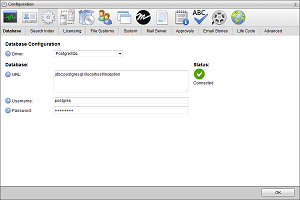
3.Use the Driver list to select the database driver used to connect to the Inception Database.
4.In the URL box, enter the JDBC URL that connects your Inception Server with the Inception Database. For example, for a database named inception on PostgreSQL, use the following URL:
jdbc:postgresql://localhost/inception
5.In the Username box, enter the username that Inception uses to access the database.
6.In the Password box, enter the password associated with the username.
For security purposes, dots replace the entered password.
7.In the bottom toolbar, click OK.
The Configuration window closes.