 System icon.
Advance settings enable you to control HTTP chunking and select the location of the media encoding and conversion applications on your Inception Server.
To configure advanced settings
1.On the Configuration window toolbar, click the System icon.
The System panel opens.
2.Click the Advanced tab.
The Advanced tab opens.
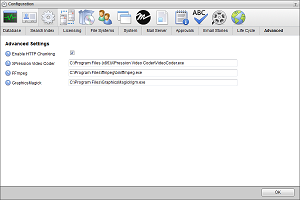
3.Select the Enable HTTP Chunking check box to use chunked transfer encoding to upload files to the Inception Server. Inception enables this option by default.
Some firewalls and proxies do not support chunked transfer encoding. Only clear this option if you are experiencing problems when uploading large media files to the Inception Server.
4.In the XPression Video Coder box, enter the executable path for the XPression Video Coder program used to transcode Facebook and Instagram videos in playlists for playout through a Ross Video XPression real-time motion graphics system.
5.In the FFmpeg box, enter the executable path for the FFmpeg library used convert video framerates of videos added to playlists.
FFmpeg is licensed under the GNU Lesser General Public License (LGPL) version 2.1 or later and is not installed with Inception Server software. To use FFmpeg to transcode videos, download the Windows 64 bit version of FFmpeg 4.1.1 from www.ffmpeg.org and install it on your Inception Server.
6.In the GraphicsMagick box, enter the executable path for the GraphicsMagick library used convert video frame rates of videos added to playlists.
The GraphicsMagick library is licensed under the “MIT” style license and is not installed with Inception Server software. To use GraphicsMagick to convert video frame rates, download the Windows 64 bit version of GraphicsMagick 1.3.31 Q8 from www.graphicsmagick.org and install it on your Inception Server.
7.After completing your configuration tasks, click OK in the lower toolbar to close the Configuration panel.