 Users icon.
You can synchronize roles between an LDAP directory server and the Roles table of the Inception Database.
To map to LDAP group (role) data
1.On the Configuration window toolbar, click the Users icon.
The Users panel opens.
2.Click the LDAP Role Configuration tab.
The LDAP Role Configuration tab opens.
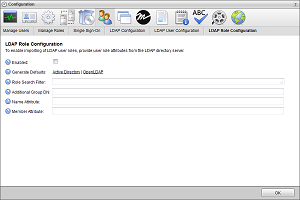
3.To populate the LDAP Roles Configuration tab with editable default values, click one of the following Generate Defaults links:
•Active Directory — your organization uses Active Directory.
•OpenLDAP — your organization uses an OpenLDAP directory server.
4.In the Role Search Filter box, enter a valid LDAP query to filter group (role) data to limit the list of roles available in Inception.
During LDAP role synchronization, Inception only imports LDAP roles that meet the criteria of the LDAP Role Search filter into the Inception Database. During LDAP role synchronization, Inception deactivates LDAP roles imported by previous Role Search filter queries.
5.In the Additional Group DN box, enter the distinguished name (DN) of the group (role) to optimize efficiency of the search defined in the Role Search Filter box.
6.In the Name Attribute box, enter the attribute for the role name on the LDAP directory server.
Example: cn
7.In the Member Attribute box, enter the user attribute that indicates group (role) membership on the LDAP directory server.
Example: memberOf
8.After completing your configuration tasks, click OK in the lower toolbar to close the Configuration panel.
For More Information on...
•LDAP Authentication, refer to the chapter Configuring LDAP Authentication
•how to connect to an LDAP directory server, refer to the section Connect to an LDAP Directory Server
•how to import LDAP user account data, refer to the section Map to LDAP User Data