 Accounts and Feeds icon.
Flickr Search-Based Feed Configuration
Flickr is one of the best online photo management and sharing applications in the world. Through Flickr, you can make your photos and videos available to the people who matter to you. Follow the procedures in this section to create or edit a Search-Based feed to ingest content from Flickr that matches a search term.
To create a Flickr Search-Based feed
1.On the Configuration window toolbar, click the Accounts and Feeds icon.
The Accounts and Feeds panel opens.
2.Click the Feeds tab.
The Feeds tab opens.
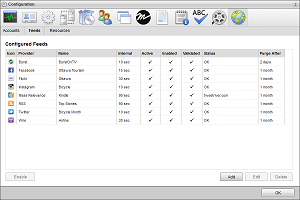
3.Click Add.
The Create New Feed settings open.
4.Use the Feed list to select Flickr.
5.Click Next.
The Create Flickr Feed settings open.
6.In the Name box, enter a name for the search-base Flickr feed.
7.Select the Enabled check box to active the feed and make it available to all users.
8.In the Search Query box, enter the term or terms with which to gather content from Flickr.
9.In the Purge After box, enter the amount of time after which to delete old content from the feed.
The purge after time must be greater than or equal to 15 minutes and less than or equal to 60 days.
10.Use the list to the right of the Purge After box to select the time unit (Days, Hours, or Minutes) for the time entered in the Purge After box.
11.To only include Flickr content that matches a selected Flickr Creative Commons license in your search, complete the following steps:
a.Select the License Filtering check box.
For more information about the Flickr Creative Commons license, click the More Information link.
b.Use the Licenses list to select the Flickr Create Commons license that Flickr content must match for your search.
12.Use the Safe Search list to select the safety level for your search. The available safety levels are as follows:
•Safe — content that is suitable for a global, public audience.
•Moderate — content that might not be suitable for a global, public audience but is not need restricted.
•Restricted — content that you would not show your mother, and should not be seen by children.
13.To limit your search to a geographic region, complete the following steps:
a.Select the GeoTargeted check box.
b.In the Location box, enter the name of the location to center your search.
c.Click Lookup.
Inception loads the latitude value and longitude value of the entered location into the Latitude and Longitude boxes.
When Inception cannot find a latitude value and a longitude value for a location, you can enter the correct values in the Latitude and Longitude boxes. Enter the latitude value as decimal degrees (-90.00000000 to 90.00000000). Positive values are North of the equator. Enter the longitude value as decimal degrees (-180.00000000 to 180.00000000). Positive values are East of the Prime Meridian (Greenwich Meridian).
d.In the Radius box, enter the radius of the area around the selected location to search for tweets.
e.Use the Units list to select the measurement unit (miles or kilometers) for the entered search radius.
14.Click Next.
Inception adds the new searched-base Flickr feed to the list of configured feeds. To view Flickr content ingested by the feed, open the feed in the Flickr Feed Viewer.
To edit a Flickr Search-Based feed
1.On the Configuration window toolbar, click the  Accounts and Feeds icon.
The Accounts and Feeds panel opens.
2.Click the Feeds tab.
The Feeds tab opens showing the list of available feeds.
3.In the Configured Feeds list, select the Flickr feed to edit.
4.Click Edit.
The Edit Flickr Feed settings open.
5.Edit feed settings as required.
If you change the search query, any items returned by the previous query remain in the feed. Feeds display gathered content in chronological order; therefore, the top of the feed displays the results returned by the edited search query.
6.After completing the required feed setting edits, click Save.
For More Information on...
•how to disable feeds, refer to the section Enable or Disable a Feed
•how to delete feeds, refer to the section Delete a Feed