 Add list in the Story Editor panel.
Connections enable Inception users to add custom entities to a story while working in the Story Editor panel. The custom entities that a user can connect to a story are accessed from the Add list in the Story Editor panel.
To connect custom entities with the Story Editor panel
1.On the Configuration window toolbar, click the  Metadata icon.
The Metadata panel opens.
2.Click the Connections tab.
The Connections tab opens.
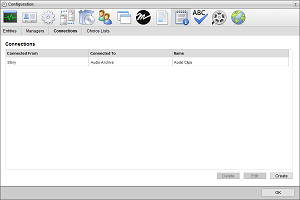
3.Click Create.
The Create Connection page opens.
4.In the Name box, enter a name for the connection.
5.Use the Connected From list to select the entity to connect to a custom entity.
Currently you can only select Story to connect the Story Editor panel to a custom entity.
6.Use Connected To list to select the custom entity to connect to the entity selected in the Connected From list. This list is only available after selecting an entity from the Connected From list.
Inception displays the Connection Create Form, Connection Edit Form, and Opens In lists.
7.Use the Create Form list to select the form that Inception users use to create connected custom entity records. This list only displays the forms created for the custom entity selected in the Connected To list.
8.Use the Edit Form list to select the form that Inception users use to edit connected custom entity records. This list only displays the forms created for the custom entity selected in the Connected To list.
9.When you selected an Edit Form, use the Open In list to set the location to open the edit form. The available options are as follows:
•Dialog — open the selected form in a pop-up dialog box.
•View — open the selected form in an Editor panel.
10.Click Next.
The Mappings page opens.
11.Use the list in the Story Attribute column to select the story attribute to map to the custom entity attribute selected in the associated Custom Attribute list to the right.
When you create a connected custom entity from the Story Editor, Inception automatically fills the new custom entity record with information from the mapped story attributes.
12.Use the list in the Custom Entity Attribute column to select the custom entity attribute to map to the story attribute selected in the associated Story Attribute list to the left.
13.Click Add to add another mapping between a Story Attribute and a Custom Entity Attribute.
To delete a mapping, click the associated  Delete icon to the left of a mapping.
14.Repeat step 11 to step 13 for each mapping that you want to define for a creating connected custom entities.
15.Click Save.
Inception adds the new connection to the Connections page and to the  Add list in the Story Editor panel.