 Accounts and Feeds icon.
YouTube enables billions of people to discover, watch and share originally created videos. Follow the procedures in this section to create or edit an account to publish content to YouTube.
Your YouTube account must contain one or more channels before you can publish Inception YouTube stories to the account.
1.On the Configuration window toolbar, click the Accounts and Feeds icon.
The Accounts and Feeds panel opens.
2.Click the Accounts tab.
The Accounts tab opens.
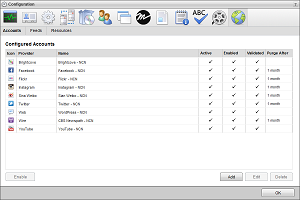
3.Click Add.
The Create New Account settings open.
4.Use the Account list, to select YouTube.
5.Click Next.
The Create YouTube Account settings open.
6.In the Name box, enter a unique name for the YouTube account.
YouTube account names must be unique on an Inception Server.
7.Click Next.
The YouTube application settings open.
8.Click Authorize Your YouTube Account.
The Sign in with Google web page opens.
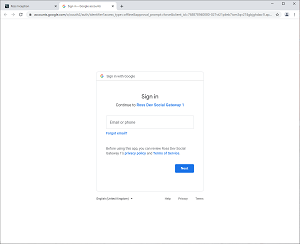
9.In the Email or phone box, enter the email address or phone number of the Google account you use for YouTube. If you have previously signed in with the Google account you use for YouTube, click the account name in the Account list.
The Enter your password web page opens. If you are currently signed in to your YouTube, proceed to step 12.
10.In the Enter your password box, enter the password for the Google account you use for YouTube.
11.Click Next.
The See, edit, and permanently delete your YouTube videos, ratings, comments and captions permission alert opens.
The Manage your YouTube videos permission alert opens.
13.Click Allow.
The Confirm your choices web page opens.
14.Click Allow.
The Copy this code web page opens.
15.Copy the Authorization Code.
16.In Inception, paste the copied code into the Authorization Code box.
17.Click Save.
Inception adds the new YouTube account to the list of accounts.
By default, only users with roles that include permission to manage ALL YouTube accounts can publish content using the new account. You can assign account management permissions to other user roles.
1.On the Configuration window toolbar, click the  Accounts and Feeds icon.
The Accounts and Feeds panel opens.
2.Click the Accounts tab.
The Accounts tab opens showing the list of available accounts.
3.In the Configured Accounts list, select the YouTube account to edit.
4.Click Edit.
The Edit YouTube Account settings open.
5.In the Name box, edit the name of the YouTube account.
6.To edit authentication credentials exchanged between YouTube and Inception, you must click Deauthorize to deauthorize the YouTube account.
You must re-authorize your YouTube account before you can use the account to publish Inception content.
7.Click Next and Back to access the available account settings.
8.After completing the required account setting edits, click Save on the last page of account settings.
For More Information on...
•account management permissions, refer to the section New Account Role Permissions.
•enabling or disabling accounts, refer to the section Enable or Disable an Account
•deleting accounts, refer to the section Delete an Account