 Configuration icon.
Instagram Account Configuration
Instagram is an online photo-sharing, video-sharing, and social networking service. Instagram enables you to apply digital filters to the pictures that you take or the videos that your record, and then share your content on the following social networking services: Facebook, Twitter, Tumblr, Flickr, and foursquare.
Before you can add your Instagram account to Inception, ensure that your account is an Instagram Business account that is connected to a page in your Facebook account.
To create an Instagram account
1.Upgrade the Instagram account that you want to use with Inception to a Business Account.
2.Link your Instagram account with a page of your Facebook account.
3.In a supported web browser, use the IP Address or Fully Qualified Domain Name of your Inception Server to open the Inception web page. For example:
•IP Address: http://10.0.20.11
•Fully Qualified Domain Name: http://InceptionSever.Company.com
The Login panel opens.
4.Log in to your Inception Server as an Inception administrator.
5.On the main toolbar, click the Configuration icon.
The Configuration window opens.
6.On the Configuration window toolbar, click the  Accounts and Feeds icon.
The Accounts and Feeds panel opens.
7.Click the Accounts tab.
The Accounts tab opens.
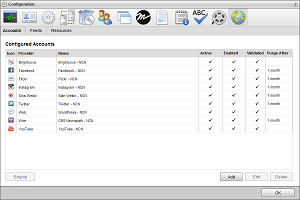
8.Click Add.
The Create New Account settings open.
9.Use the Account list, to select Instagram.
10.Click Next.
The Create Instagram Account settings open.
11.In the Name box, enter a unique name for the Instagram account.
Instagram account names must be unique on an Inception Server.
12.In the Purge After box, enter the amount of time after which to delete old content from the associated Instagram managed feed.
The purge after time must be greater than or equal to 15 minutes and less than or equal to 180 days.
13.Use the list to the right of the Purge After box to select the time unit (Days, Hours, or Minutes) for the time entered in the Purge After box.
14.Click Next.
The Authorize page opens.
15.Click Authorize Your Instagram Account.
The Log into Facebook window opens.
16.Log into your Facebook account with the Facebook account to which you linked your Instagram account.
The Log into Facebook window closes. The Access Code box on the Authorize page displays asterisk (*) characters to disguise the access code retrieved from your Facebook account.
17.On the Authorize page, click Next.
The Instagram Account page opens.
18.Use the Account list to select the Instagram account to use.
19.Click Save.
The Instagram Account page closes. Inception saves your new Instagram account and adds the account to the list of accounts. Inception also creates an identically-named managed feed for your Instagram account.
By default, only users with roles that include permission to manage ALL Instagram accounts can publish content using the new account. You can assign account management permissions to other user roles.
1.On the Configuration window toolbar, click the  Accounts and Feeds icon.
The Accounts and Feeds panel opens.
2.Click the Accounts tab.
The Accounts tab opens showing the list of available accounts.
3.In the Configured Accounts list, select the Instagram account to edit.
4.Click Edit.
The Edit Instagram Account settings open.
5.Edit account settings as required.
6.To edit authentication credentials exchanged between Instagram and Inception, you must click Deauthorize to deauthorize the Instagram account.
You must re-authorize your Instagram account before you can use the account to publish Inception content.
7.Click Next and Back to access the available account settings.
8.After completing the required account setting edits, click Save on the last page of account settings.
For More Information on...
•account management permissions, refer to the section New Account Role Permissions.
•enabling or disabling accounts, refer to the section Enable or Disable an Account
•deleting accounts, refer to the section Delete an Account