 Accounts and Feeds icon.
Wire Search-Based Feed Configuration
Wire feeds the ingestion of broadcast news information from various wire services. Follow the procedures in this section to create or edit a feed to ingest content from a wire services that matches a search query.
To create a Wire Search-Based feed
1.On the Configuration window toolbar, click the Accounts and Feeds icon.
The Accounts and Feeds panel opens.
2.Click the Feeds tab.
The Feeds tab opens.
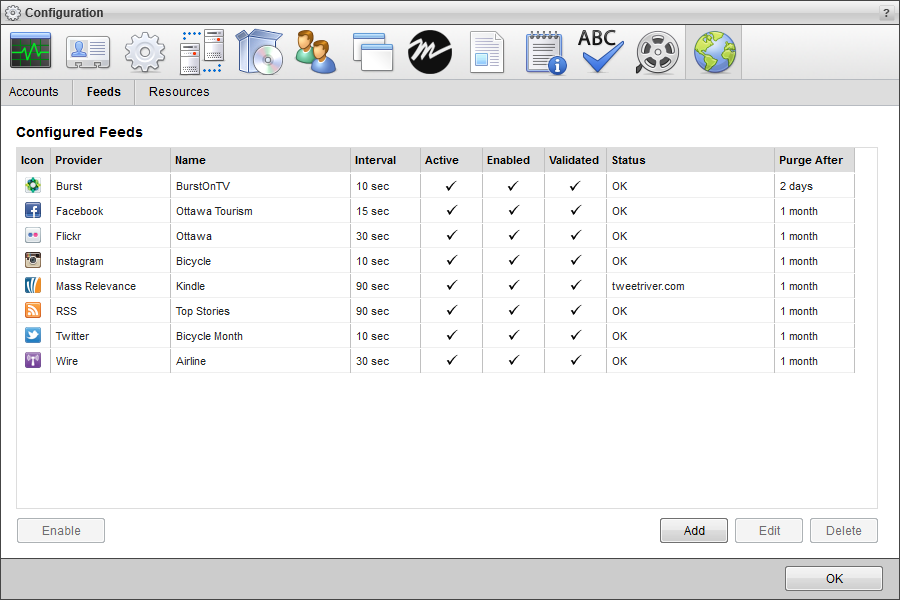
3.Click Add.
The Create New Feed settings open.
4.Use the Feed list to select Wire.
5.Click Next.
The Create Wire Feed settings opens.
6.In the Name box, enter a name for the Wire Search-Based feed.
7.Use the Wire list to select the Wire account to use as the content source for the feed.
8.Select the Enabled check box to active the feed and make it available to all users.
9.In the Query box, enter the term or terms that content from the selected Wire account must contain for Inception to add the content to the Wire Search-Based feed.
10.In the Purge After box, enter the amount of time after which to delete old content from the feed.
The purge after time must be greater than or equal to 15 minutes and less than or equal to 60 days.
11.Use the list to the right of the Purge After box to select the time unit (Days, Hours, or Minutes) for the time entered in the Purge After box.
12.In the Categories box, enter the category or categories that content from the selected Wire account must be part of for Inception to add the content to the feed. When you enter multiple categories, use a space or comma to separate each category.
The Category column in the Wire Feed Viewer displays the various categories of Wire content.
13.In the Providers box, enter the content provider or providers that content from the selected Wire account must come from for Inception to add the content to the feed. When you enter multiple content providers, use a space or comma to separate each category.
The Provider column in the Wire Feed Viewer displays the various providers of Wire content.
14.Use the Minimum Urgency list to select the minimum urgency level that content from the selected Wire account must meet for Inception to add the content to the feed.
The most urgent content has an urgency level of 1, while the least urgent content has an urgency level of 9. The Urgency column in the Wire Feed Viewer displays the urgency level of Wire content.
15.Click in the From box to use the Calendar tool to select the earliest issue date for Inception to add content from the selected Wire account to the feed.
The Issue Date column in the Wire Feed Viewer displays the issue date of Wire content.
16.Click in the To box to use the Calendar tool to select the latest issue date for Inception to add content from the selected Wire account to the feed.
The Issue Date column in the Wire Feed Viewer displays the issue date of Wire content.
17.Select the Send Notifications check box to display a user notification in the message area each time Inception adds content to the Wire Search-Based feed.
18.Click Next.
Inception adds the new Wire Search-Based feed to the list of configured feeds. To view Wire content ingested by the feed, open the feed in the Wire Feed Viewer.
To edit a Wire Search-Based feed
1.On the Configuration window toolbar, click the  Accounts and Feeds icon.
The Accounts and Feeds panel opens.
2.Click the Feeds tab.
The Feeds tab opens showing the list of available feeds.
3.In the Configured Feeds list, select the Wire feed to edit.
4.Click Edit.
The Edit Wire Feed settings open.
5.Edit feed settings as required.
You cannot change the URL for an RSS feed.
6.After completing the required feed setting edits, click Save.
For More Information on...
•how to disable feeds, refer to the section Enable or Disable a Feed
•how to delete feeds, refer to the section Delete a Feed